





Set up your program with the setup wizard
Simple Points and RewardsUpdated October 27, 2026
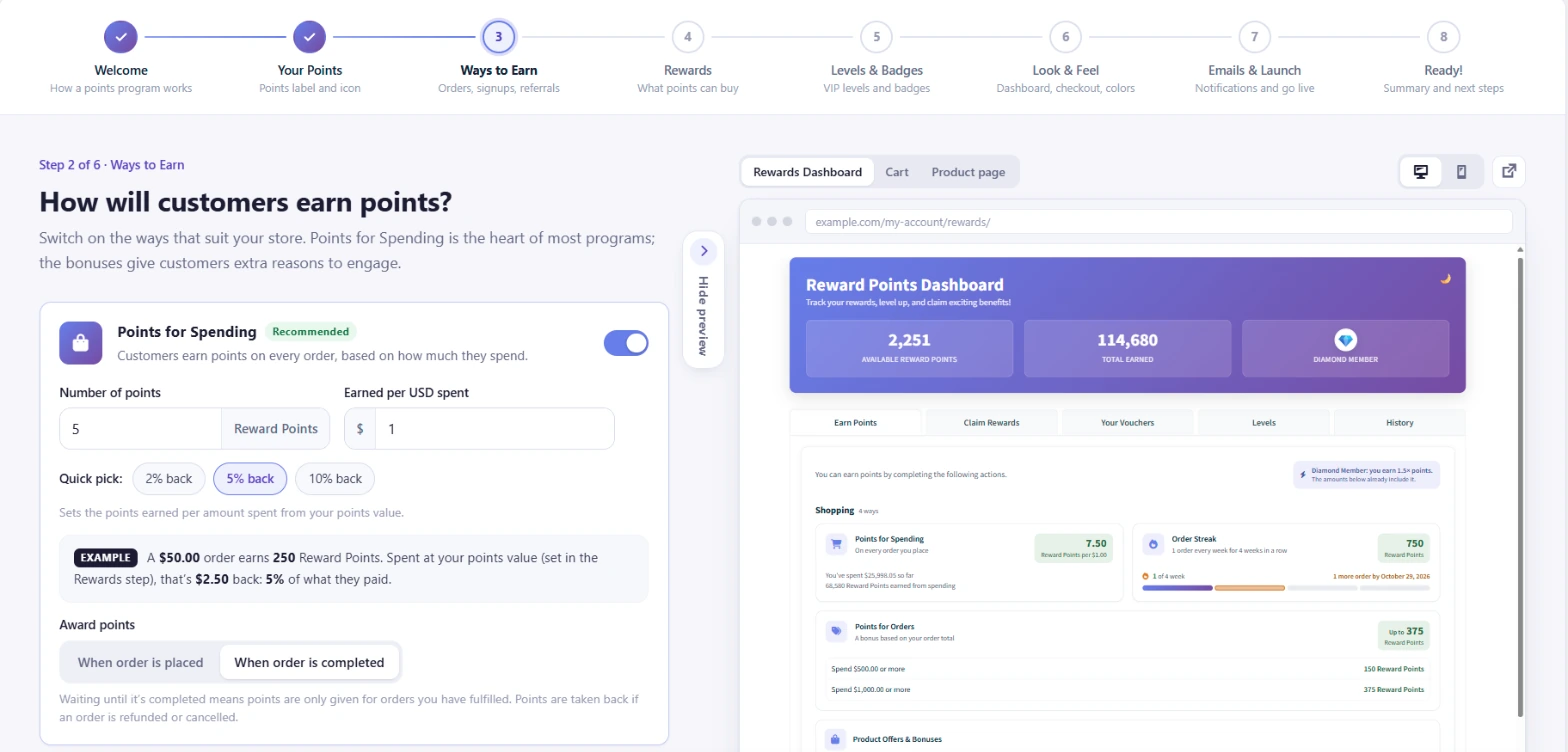
The setup wizard walks you through the main settings of your rewards program step by step, with a live preview of your store. It opens by itself the first time you install the plugin. To open it again later, click Setup wizard in the sidebar of Points & Rewards › Settings, or Open the setup wizard on the Dashboard page.
When it opens by itself
The wizard opens after activation only on a new install, where no settings have been saved yet. It does not open after an update, after you reactivate the plugin, or when you switch between the free and Pro versions. If you are asked to opt in or enter a licence key first, the wizard waits until that step is done.
The eight steps
- Welcome: an outline of how a points program works. If another supported points plugin is active, a box links to the migration tool.
- Your Points: the Points Label, an optional Singular Points Label, a Points Icon and the Rewards Label.
- Ways to Earn: Points for Spending, Points for Orders, Signup Bonus and Referral System. Pro adds the bonus ways to earn, such as Order Streak and the Prize Wheel.
- Rewards: reward vouchers and the Points Discount on Checkout rate.
- Levels & Badges: switch levels on and set each level’s required points and multiplier.
- Look & Feel: theme colours, the My Account Rewards tab, an optional rewards page, the checkout rewards box and the product page points message.
- Emails & Launch: the points earned and voucher claimed emails, and whether to go live now or keep the program hidden while you test.
- Ready!: a summary of your choices with Edit links and recommended next steps.
How saving works
Each step is saved when you click Continue, using the same checks as the Settings page. If you leave part way through, the steps you finished are kept. Back returns to the previous step, and you can click any step you have already reached in the list at the top.
To leave, click Skip setup, I’ll configure it myself on the first step or Exit setup on the others. Both take you to the Settings page.
On a store that has never saved settings, the wizard adds three example rewards and an example level before the first step, so the preview has something to show. You can edit or remove them like any other reward or level.
The live preview
Click Live preview to show your store beside the step. You can switch between Rewards Dashboard, Cart and Product page, and between Desktop and Mobile. The preview uses your real store pages with the choices you have made so far. Nothing is saved, no points change and your own cart is not touched until you continue.
Test the program on the last step
On the Ready! step, Give yourself test points adds points to your own account (1,000 by default) so you can try claiming a reward. No email is sent for these points. If you chose to keep the program hidden, a Go live now button switches it on for customers.
Opening the wizard again after finishing shows your current settings on every step, so you can review them and change anything.