





Import points from a CSV file
Simple Points and RewardsUpdated October 27, 2026
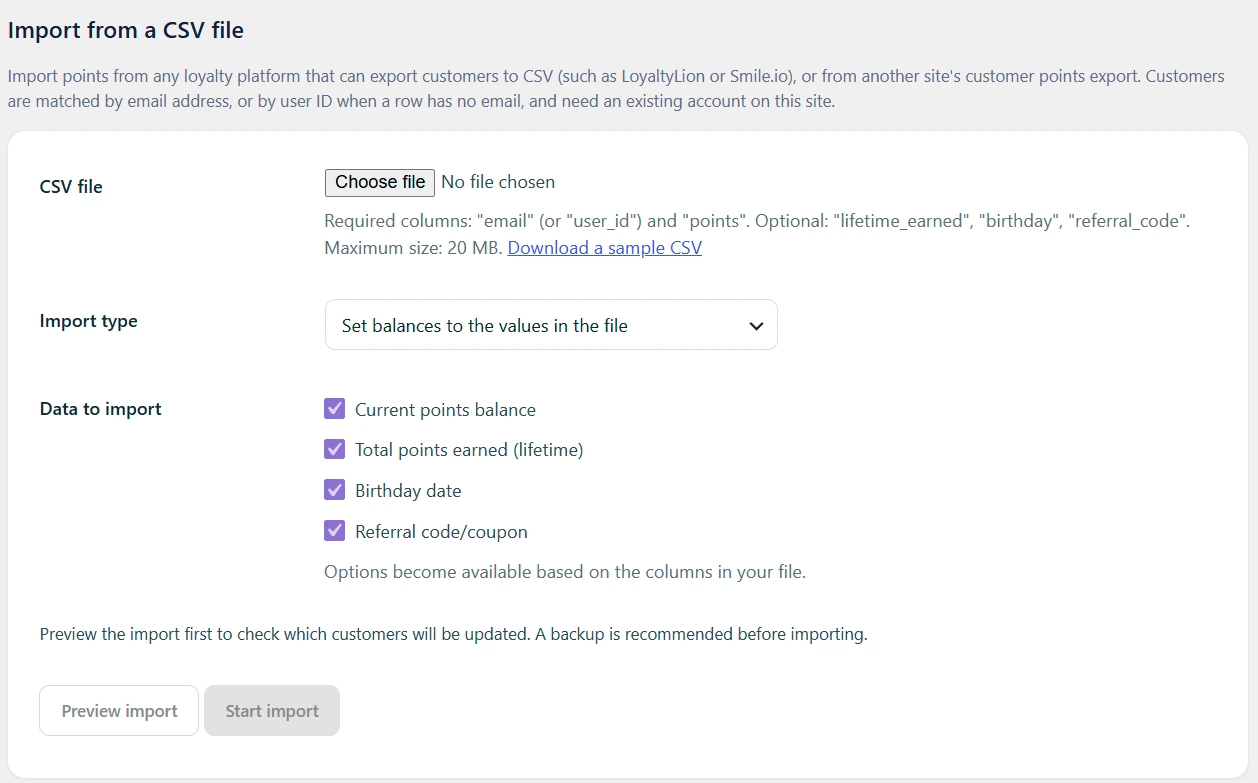
You can import customers’ points from any CSV file, such as an export from LoyaltyLion, Smile.io or another site running this plugin. Go to Points & Rewards › Tools and click Import CSV on the Import Points from CSV card. Customers are matched by email address, or by user ID when a row has no email, and must already have an account on your site.
Prepare the file
The file needs an email (or user_id) column and a points column. You can also include lifetime_earned, birthday and referral_code. Click Download a sample CSV for an example:
email,points,lifetime_earned,birthday,referral_code
[email protected],450,1200,1990-04-18,JANE10
[email protected],80,,,
Column headings are not case sensitive, and common alternatives are accepted, such as user_email or customer_email for email, and balance or points_balance for points. A file from Export Customer Points imports as it is.
- Points must be whole numbers. “1,200” and “1 200” are read as 1200, and decimals are rounded.
- Birthdays can be written as 1990-04-18 or in most other date formats.
- An empty lifetime, birthday or referral code cell leaves that value as it is.
- Save the file as UTF-8. Commas, semicolons, tabs and pipes are all detected. Files saved as UTF-16 (“Unicode Text”) are refused.
- The maximum file size is 20 MB, or your server’s upload limit if that is lower.
Choose how to import
- Import type: Set balances to the values in the file, or Add the values in the file to current balances. The lifetime total follows the same choice.
- Data to import: tick the fields to import. Only the fields with a column in your file can be ticked.
A referral code creates or updates the customer’s referral coupon. It is skipped if another customer already uses that code.
Preview, then import
- Click Preview import. You see how many rows were found, how many customers will be updated, how many rows will be skipped and the total change in points, with the first 10 customers listed.
- Download the skipped rows to see why they were skipped, such as “No customer account found” or “Customer already appears on an earlier row”.
- Click Start import and confirm. The import cannot be undone automatically, so back up your database first.
Imported points appear in the activity log as “Points Migration”. Customers are not sent a points earned email.
Import with WP-CLI
For large files you can run the same import from the command line:
wp spar import-points points.csv --dry-run
wp spar import-points points.csv --mode=add --fields=balance--mode:override(the default) sets balances,addadds to them.--fields: a comma-separated list ofbalance,total_earned,birthdayandreferral_code. By default every field with a column in the file is imported.--dry-run: shows what would change without updating anyone.--batch-size: rows per batch, 100 by default.
The command lists any skipped rows and exits with code 1 if there were any, including on a dry run.