





Product Offers & Bonuses (Pro)
Simple Points and RewardsUpdated September 19, 2026
Reward customers with bonus points for buying the products you want to promote.
Unlike Points for Purchases, which awards points on order spend, Product Offers & Bonuses lets you create targeted rules that award a fixed number of points when a customer buys a specific product, a bundle of products, or anything from a chosen category – perfect for running limited-time promotions, moving stock, or encouraging repeat purchases of a favourite item.
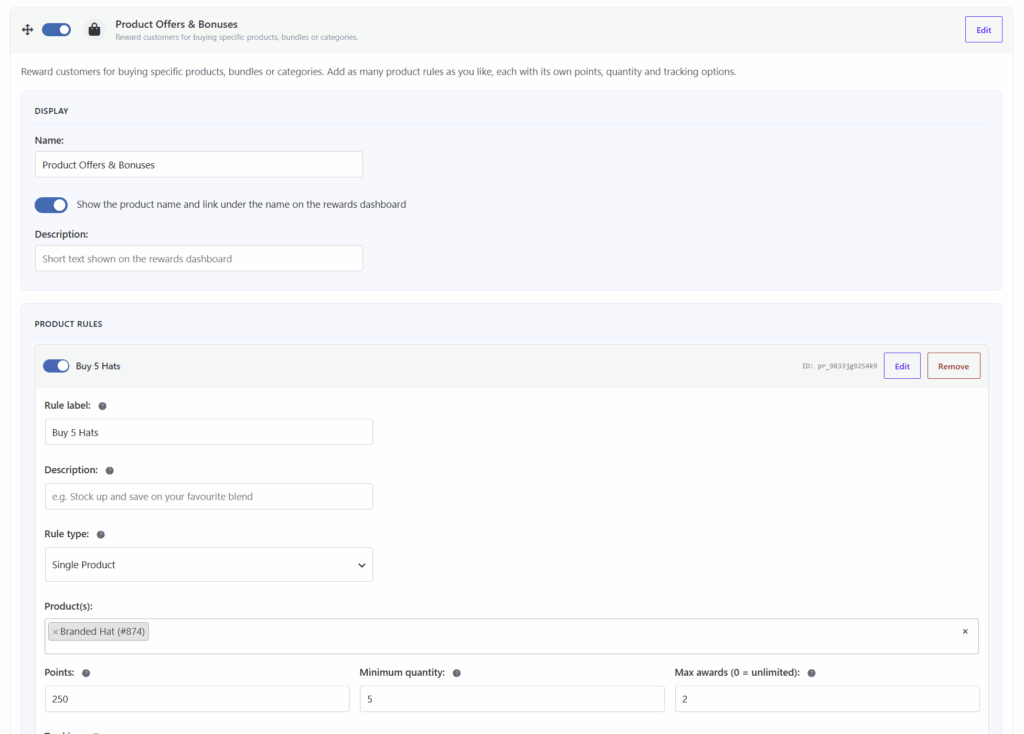
You configure it under Points & Rewards › Settings › Ways to Earn › Product Offers & Bonuses. Toggle it on, set a display name, then add as many product rules as you like – each with its own points, quantity requirement, frequency and tracking options.
Display settings
These settings control how the whole feature appears to customers on their Rewards dashboard.
- Enabled – Turns the entire Product Offers & Bonuses way to earn on or off.
- Name – The heading shown to customers on the Rewards dashboard (defaults to “Product Offers & Bonuses”).
- Show the product name and link under the name on the rewards dashboard – When enabled, each offer also shows the name of the product(s) or category it applies to, linked to the product/category page.
- Description – Optional short text shown beneath the heading on the Rewards dashboard.
Product rules
This is where the offers live. Click Add Product Rule to create as many as you need – each rule is a self-contained offer with its own settings.
- Rule label – A friendly name shown to customers (e.g. “Buy 5 coffees”). If left blank, the rule type name is used.
- Description – Optional. A short line shown just below the label on the dashboard.
- Rule type – What the rule matches against:
- Single Product – Buying any one of the listed products qualifies.
- Product Bundle – All of the listed products must be bought together to qualify.
- Product Category – Any product in the selected categories qualifies.
- Product(s) / Bundle products / Categories – Search for and select the products or categories the rule applies to (the field changes depending on the rule type).
- Points – How many points to award each time the rule is met.
- Minimum quantity – How many qualifying items the customer must buy to earn the points once. For example, set it to
5to reward every 5 items purchased. (For bundles, this is the number of complete bundle sets.) - Max awards (0 = unlimited) – A lifetime cap on the total number of times this rule can ever award points to one customer.
0means no limit. This is a total count, not a time limit – use Frequency to control how often awards can happen. - Tracking – How the minimum quantity is counted:
- Single order – The minimum quantity must be met within one order.
- Tracked over time – Quantities add up across all orders until the minimum is reached, then reset for the next batch.
- Frequency – A time-based limit on how often the rule can award: Every time it qualifies, One time only, Once per day, Once per week, or Once per month.
- Start date / Start time / End date / End time – Optional. Restrict the offer to an active window. Leave the start blank to begin immediately and the end blank for no expiry. Times use your site’s timezone (start defaults to 00:00, end to 23:59).
- Show a countdown timer for when the offer ends – When enabled and an end date is set, a live countdown is shown on the dashboard and product-page offer box.
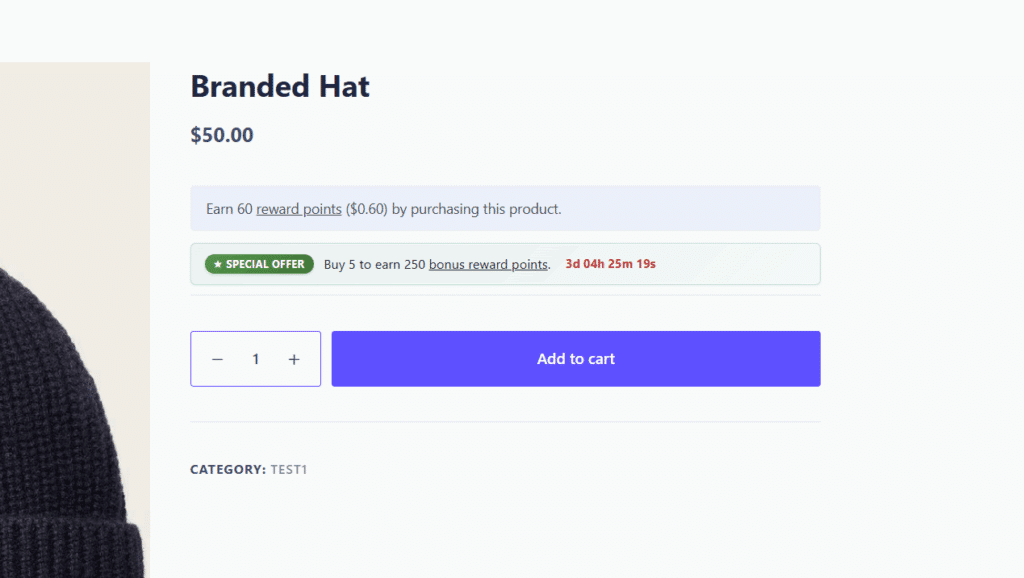
- Show a “Special Offer” box on matching product pages – Displays a compact “Special Offer” box for this rule on the pages of the products it applies to, in the same place as your normal points display.
How it works
Points are awarded automatically when an order reaches a paid status (Processing or Completed). Only logged-in customers earn (the order must be tied to a customer account), and each rule is only ever counted once per order, so status changes and re-transitions never double-count.
The two Tracking modes behave differently:
- Single order – The minimum quantity must all be in one order. With the Every time it qualifies frequency, a single order can award the rule multiple times (once for each full minimum-quantity batch in that order). With any other frequency, it awards at most once per order.
- Tracked over time – Purchased quantities accumulate across every order. Each time the running total reaches another full minimum-quantity batch, points are awarded (subject to frequency and max-award limits). A progress bar shows the customer how close they are to the next reward.
A few extra details worth knowing:
- Bundle matching counts complete sets – a bundle qualifies once for every complete set of all its products present in the order (limited by the least-stocked member).
- Level multipliers apply. If a customer’s level (or a per-earn-type multiplier) boosts earning, the bonus points are multiplied too.
- Frequency vs Max awards work together: Frequency limits how often (e.g. once per week), while Max awards caps the total number of times ever. Set Frequency to One time only for a true one-off offer.
- Points Delay is respected. If you delay earned points, and the order is later refunded or cancelled, any still-pending bonus points from that order are invalidated automatically.
Where customers see it
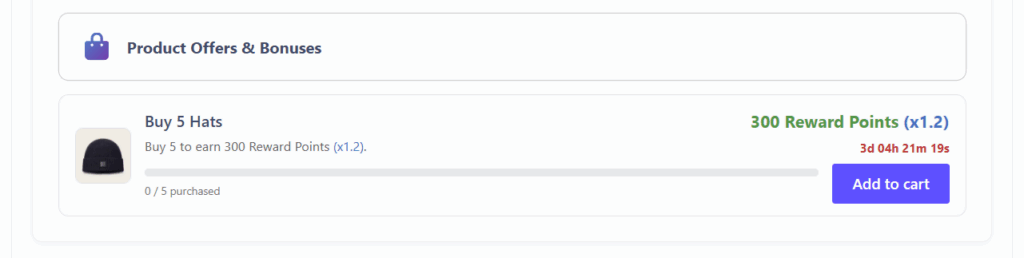
- Rewards dashboard – Each active offer appears as a card showing the product image (rotating between images for bundles and categories), the label and description, a plain-English requirement (“Buy 5 to earn 100 points”), the points on offer, a live progress bar for over-time offers, an “earned” tick and count once earned, an Add to cart (or Shop category) button, and a countdown timer if enabled.
- Product pages – If Show a “Special Offer” box is enabled for a rule, a “Special Offer” box appears on the matching product pages, next to your normal points display, with the requirement text, countdown and (for over-time offers) the customer’s current progress.
- Floating rewards widget – Active offers the customer can still earn appear in the widget’s Earn tab with a Shop link.
Offers automatically hide once a customer can no longer earn them (a One time only offer they’ve already earned, or a Max-awards cap they’ve reached) and outside their active start/end window.
Example use cases
- Buy X, get bonus points – “Buy 3 candles, earn 200 points.” Set a Single or Category rule with a minimum quantity of 3.
- Loyalty over time – “Every 5 bags of coffee earns 100 points.” Use Tracked over time so purchases add up across orders.
- Bundle promotion – Reward customers for buying a matching set of products together with a Bundle rule.
- Limited-time offer – Add start/end dates and enable the countdown timer to run a promotion for a fixed period.
- Category push – Award bonus points on anything from a category (e.g. a new range) to drive attention to it.