

Add your own content and tabs to the rewards dashboard
Simple Points and RewardsUpdated October 27, 2026
You can add your own text, images, links and shortcodes to the rewards dashboard, and up to two tabs of your own, such as “How It Works” or “FAQs”. Go to Points & Rewards › Settings › Rewards Dashboard › Dashboard Customisation and open the Custom Content sub-tab.
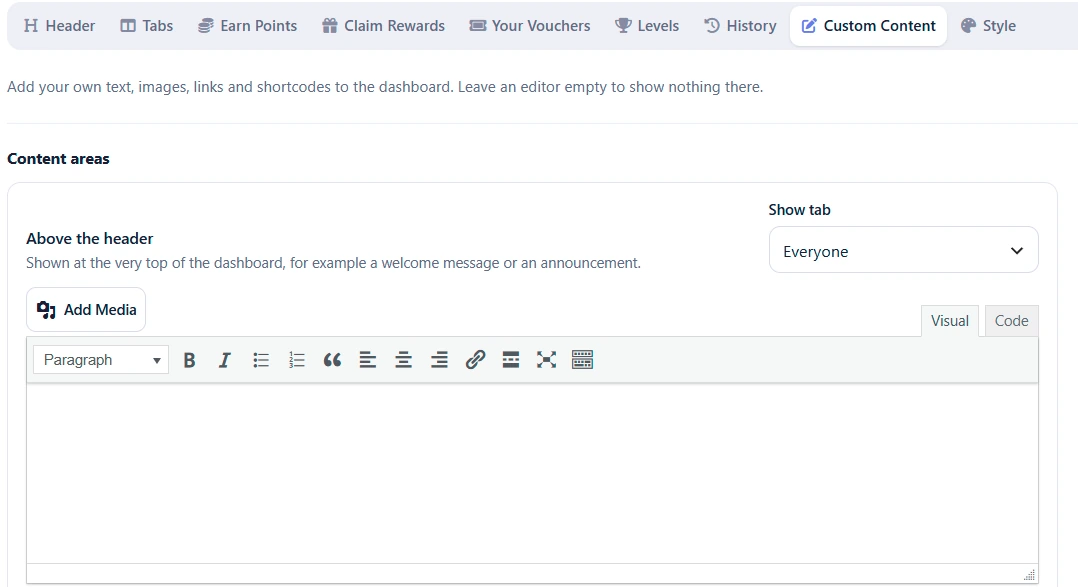
Content areas
There are three places for your own content. Each has an editor with an Add Media button.
- Above the header: the very top of the dashboard, for example a welcome message or an announcement.
- Between the header and the tabs: under the points summary, for example a current promotion or a banner image.
- Below the tabs: the bottom of the dashboard, for example contact details or a note about your program.
Leave an editor empty to show nothing there. The [spar_points_rewards] shortcode is removed from this content, since it would place the dashboard inside itself.
Choose who sees it
Each area and custom tab has a Show to choice:
- Everyone (the default)
- Logged-in customers only
- Logged-out visitors only
For example, show a “How it works” message to logged-out visitors only, and a thank you note to logged-in customers.
Add a custom tab
- Under Custom tabs, enter a name in Custom tab 1 name, such as “How It Works”.
- Choose who the tab is shown to.
- Write the tab’s content in its editor.
- Click Show this tab, or switch it on under the Tabs sub-tab.
- On the Tabs sub-tab, drag the tab to where you want it.
A custom tab stays hidden while it has no content, even if it is switched on. The second custom tab works the same way, with the default name “FAQs”.