





Run a scheduled points campaign (Pro)
Simple Points and RewardsUpdated October 27, 2026
A scheduled campaign changes how many points customers earn for a set time, such as a “Double Points Weekend” or a Black Friday offer. It is a conditional rule that uses the Date: Schedule (Campaign) condition. Set it up under Points & Rewards › Settings › Conditional Rules. While the campaign runs, you can show a banner on your store with a countdown to when it ends.
Create the campaign
- Go to Points & Rewards › Settings › Conditional Rules and click Add New Rule.
- Give it a Label, such as “Double Points Weekend”.
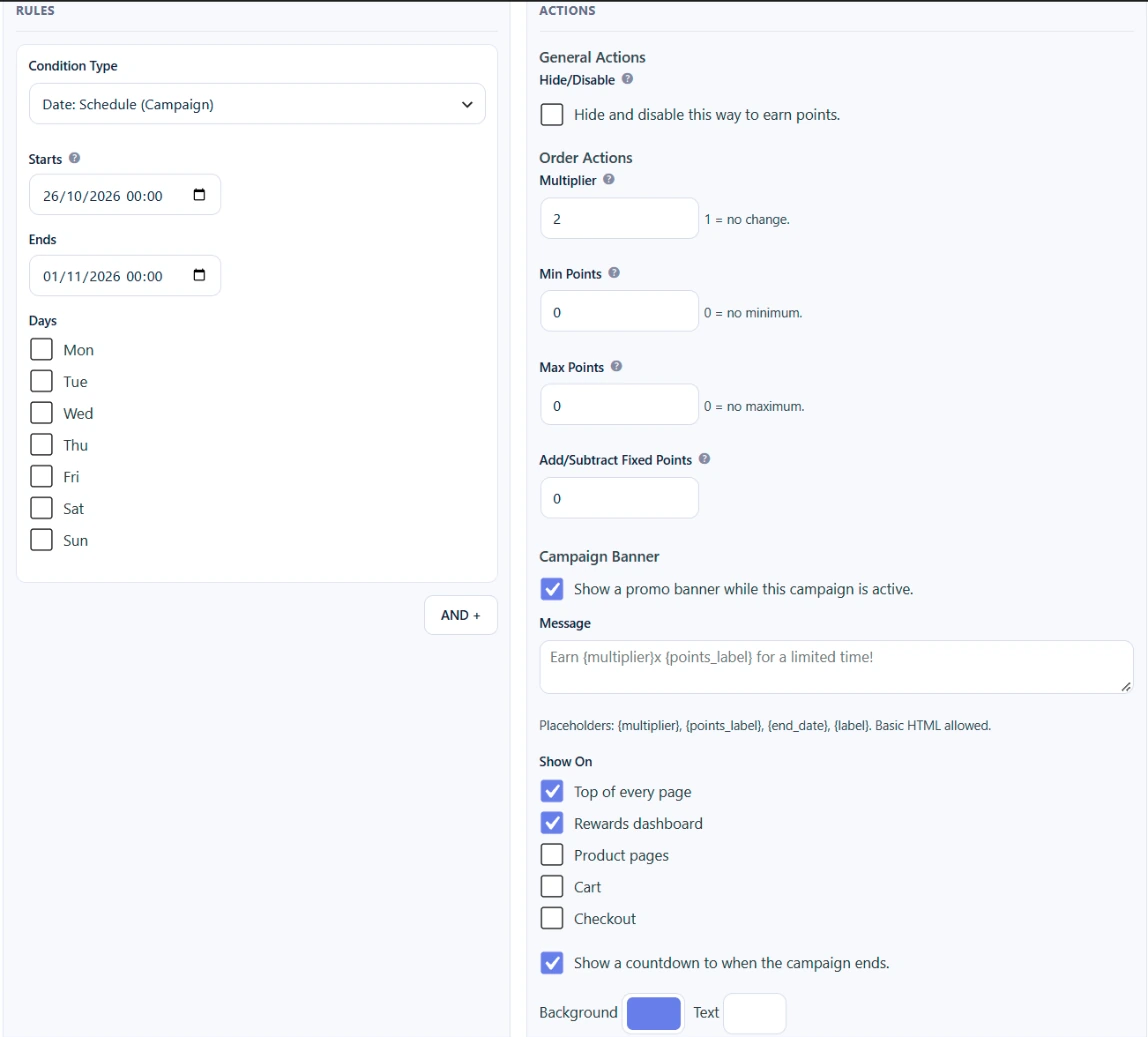
- Set Condition Type to Date: Schedule (Campaign).
- Set when it Starts and Ends. Leave either one blank for no limit.
- Optionally tick Days to limit it to certain weekdays, such as Saturday and Sunday. Leave them all unticked for every day.
- Under Actions, set what the campaign does, for example a Multiplier of 2 for double points.
- Under Apply To, tick the ways to earn it covers.
Settings save automatically. Times use your site’s timezone, set under Settings › General in WordPress.
How the schedule is applied
- The campaign applies from the start time until the end time. The end time itself is not included.
- If days are ticked, it only applies on those days within the start and end.
- A schedule with no start, no end and no days ticked never applies.
- For orders, the date the order was placed is used. An order placed during the campaign still gets the campaign points if they are awarded later, for example when it is completed.
- You can add more conditions with AND +, such as a user role, to limit the campaign to some customers.
- A rule with only schedule and customer conditions can apply to any way to earn. Adding a cart or product condition limits it to Points for Spending and Points for Orders.
Show a campaign banner
The Campaign Banner options appear on rules that have a schedule condition. Tick Show a promo banner while this campaign is active and set:
- Message: leave it blank for “Earn {multiplier}x {points_label} for a limited time!”. You can use {multiplier}, {points_label}, {end_date} and {label}, and basic HTML.
- Show On: Top of every page, Rewards dashboard, Product pages, Cart and Checkout. The first two are ticked by default.
- Show a countdown to when the campaign ends: on by default.
- Background and Text colours.

The countdown only appears when the campaign has an end. Only the banner at the top of the page has a close button. The top banner needs your theme to support the wp_body_open hook, which most current themes do.
If the rule also has customer conditions, such as a user role or points balance, only customers who match see the banner. Banners are hidden while the rewards program is switched off.