Installation & Setup
Simple Points and RewardsUpdated October 26, 2026
Installing the Free Plugin
- In your WordPress admin, go to Plugins › Add New.
- Search for Simple Points and Rewards.
- Click Install Now, then Activate.
Installing the Pro Plugin
- Purchase the premium plan from the plugin website.
- Download the premium plugin ZIP file from your account dashboard.
- In WordPress admin, go to Plugins › Add New › Upload Plugin.
- Upload the ZIP file and click Install Now, then Activate.
- Go to Points & Rewards › Account and enter your license key to activate premium features.
First Steps After Activation
On a new install, the setup wizard opens after activation. It takes about five minutes and covers the main settings, with a live preview of your store. You can skip it and set things up yourself:
- Go to Points & Rewards › Settings.
- Set your Points Label (for example “Points”, “Stars” or “Coins”) on the Points Label tab.
- On the Ways to Earn tab, turn on at least Points for Spending and set your earning rate.
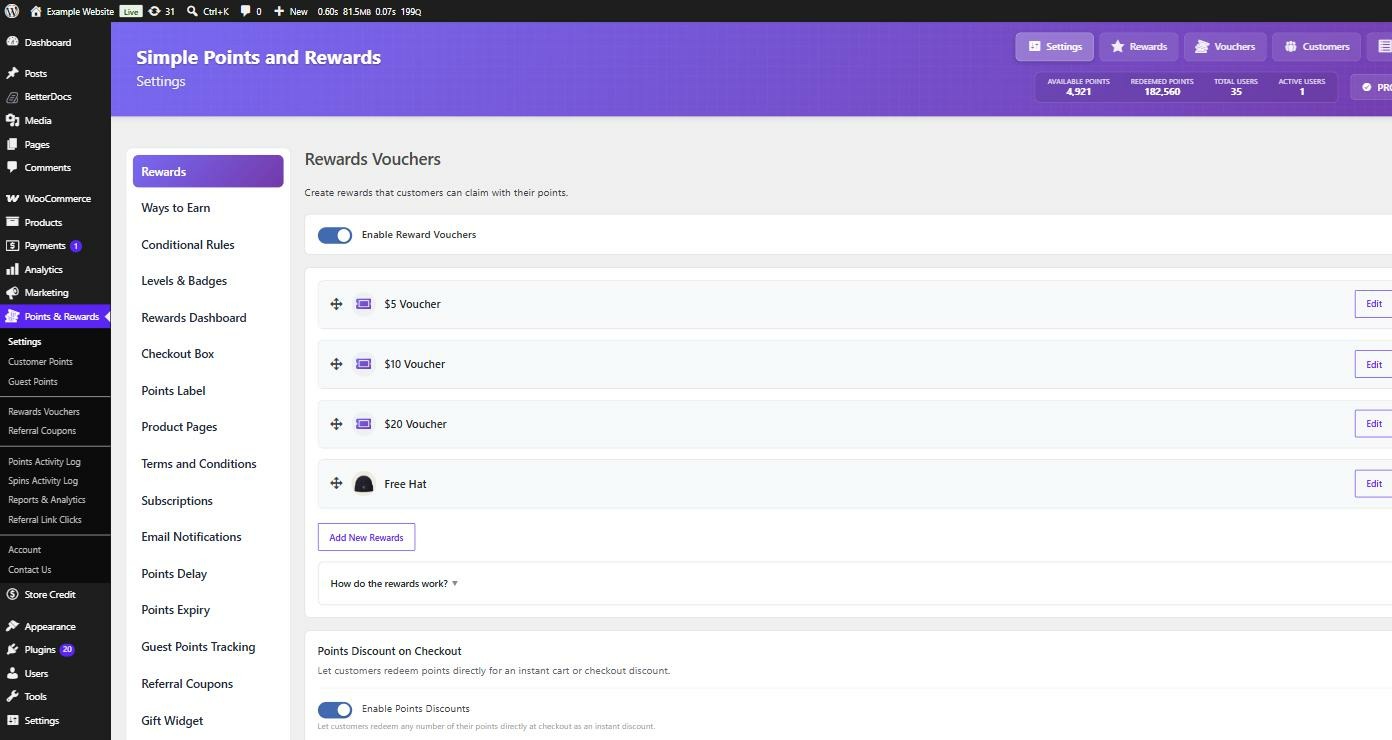
- Create at least one reward on the Rewards tab.
- On the Rewards Dashboard tab, turn on Show Rewards tab on the My Account page so customers can see their balance and history.
- Turn on the notification emails on the Email Notifications tab.
- Check that Enable Rewards Program at the top of the Settings page is on.
If customers placed orders before you installed the plugin, you can give them points for those orders with Award points for past orders.
Plugin Menu Location
After activation, a Points & Rewards menu appears in the WordPress admin sidebar. It opens on the Dashboard page, and also has Settings, Customer Points, Rewards Vouchers, Points Activity Log, Reports & Analytics, Referral Link Clicks, Tools and API, Webhooks & AI. Pro adds more pages, such as Guest Points and Referral Coupons, when those features are on.