





My Account Rewards Dashboard
Simple Points and RewardsUpdated October 26, 2026
The Rewards Dashboard is the customer-facing page where people check their balance, claim rewards and see their history. It appears as a Rewards tab on the WooCommerce My Account page, and can also be placed on a page of your own. Everything about it is configured under Points & Rewards › Settings › Rewards Dashboard.
Show it on My Account
Turn on Show Rewards tab on the My Account page and a Rewards item is added to the My Account menu, at /my-account/rewards/. A link beside the setting opens it so you can check the result straight away.
Show it on a page of your own
You can instead (or additionally) run the dashboard from a normal WordPress page. Create a page containing the [spar_points_rewards] shortcode, then pick it under Select Rewards Dashboard Page.
Only pages that actually contain the shortcode appear in that dropdown, so if a page you have just made is missing, check the shortcode saved correctly and use Refresh. If you have not made one yet, Create Page with Shortcode builds it for you.
What the dashboard shows
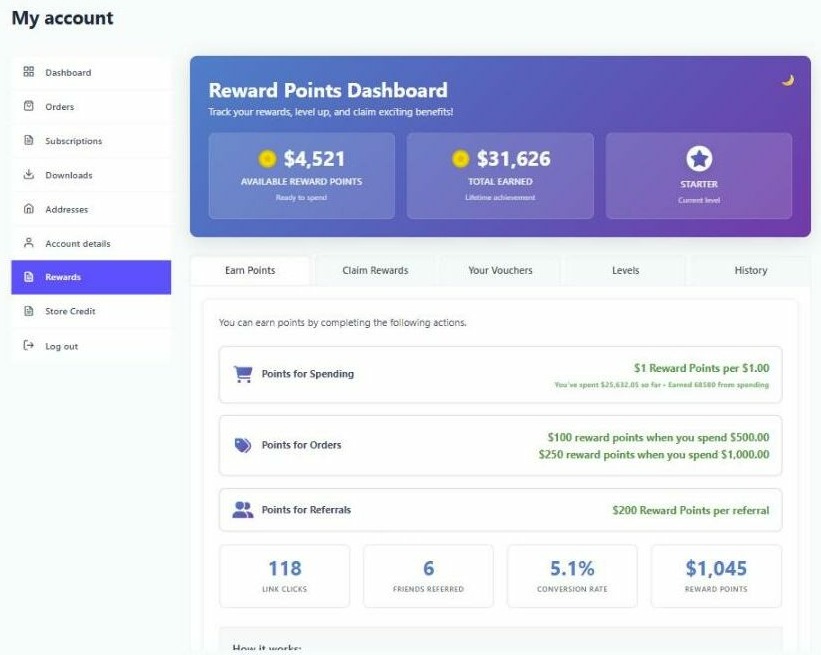
- Points summary – the current balance, with optional lifetime total, pending points, level badge and progress bar.
- Earn Points – the active earning methods and what each is worth.
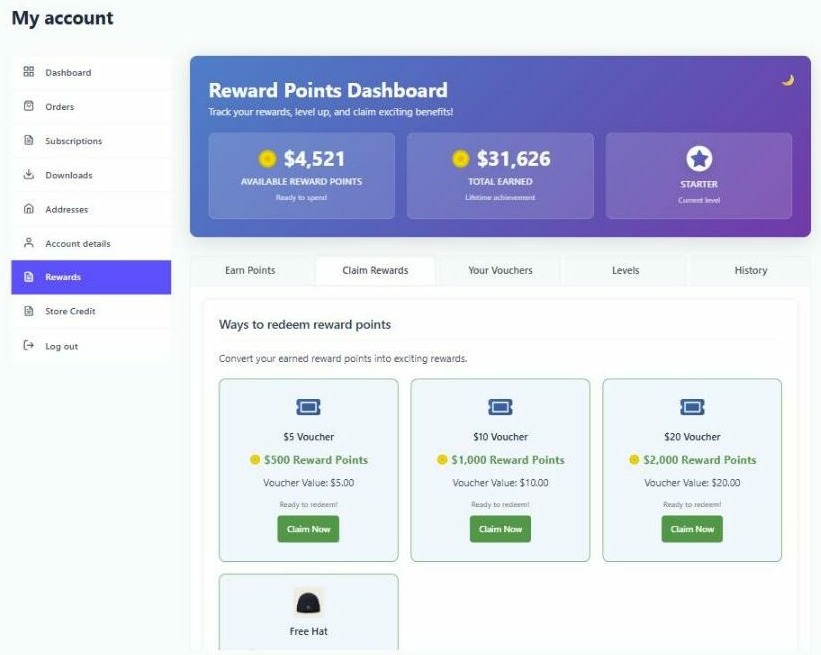
- Claim Rewards – the rewards on offer, greyed out until affordable.
- Your Vouchers – claimed voucher codes, with a button to apply one to the cart.
- History – a paginated record of every points transaction.
- Levels – tier progression, when levels are enabled.
Change the wording, tabs and colours
The headings, intro text, what each reward shows, the points discount section, the tabs, and the colours and dark mode are all set in the Dashboard Customisation section of this same settings tab, with a sub-tab for each part of the dashboard. See Customise the rewards dashboard and Change what each rewards dashboard tab shows.
You can also add your own content above, inside and below the dashboard, and up to two tabs of your own. See Add your own content and tabs to the rewards dashboard.
Banned customers
A customer marked as banned cannot see the rewards dashboard at all, and cannot earn or redeem.
Embedding pieces elsewhere
Use [spar_points_rewards] for the whole dashboard. A separate shortcode, [simple_points_rewards], outputs a single data value rather than the dashboard, and needs a display attribute to say which one – for example [simple_points_rewards display="points"] for the current balance. See the Shortcodes Reference for the full list.