





Show points on product and shop pages
Simple Points and RewardsUpdated October 26, 2026
You can show customers how many points a product will earn them, both on the single product page and in shop and category listings. These options live under Points & Rewards › Settings › Product Pages.
The settings only appear while Points for Spending is on under Ways to Earn. Points for Orders awards points for the order total, so it has no per-product points to show. If the tab shows only a notice, turn on Points for Spending first.
Show points on product pages
Turn on Show points on product pages to display the message on single product pages. Three settings then appear:
- Product points display location – where the message sits in the product summary, for example after the price.
- Product points message – your own wording. Leave it blank to use the default.
- Text Color and Background Color – the message is shown as a small tinted block, defaulting to dark grey text on a pale blue background.
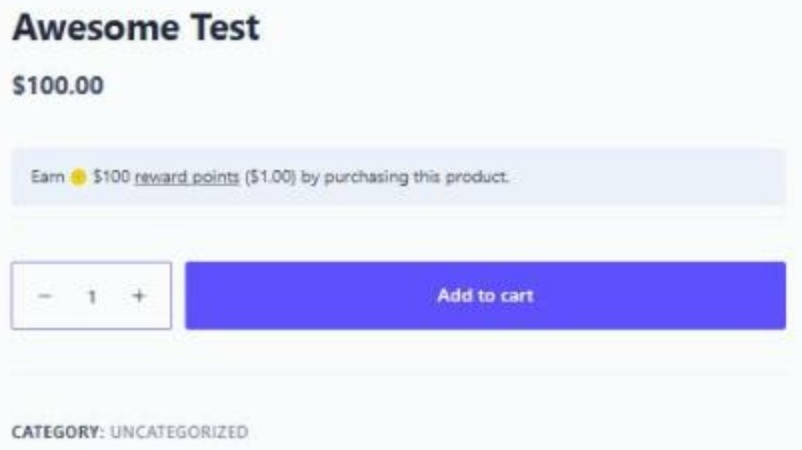
Show points on shop and category listings
Show points on category/shop product listings adds the same idea to product cards in the catalog, with its own Catalog points display location, Catalog points message and colour controls. Keeping the catalog message shorter than the product page one usually reads better, since it has to fit under a product title.
Hide points from logged-out visitors
Turn on Hide points from logged-out visitors to show the points messages on product pages and listings only to customers who are logged in. This also applies to the [spar_product_points] shortcode.
Products with options
On products with options (variable products) where the options earn different points, the product page shows “Earn up to {points} {points_label_lower} by purchasing this product” until an option is chosen, using the most points any option earns. Once an option is chosen, the normal message shows the exact points. Change the wording with Variable product message (before an option is chosen). Shop listings always use the catalog message.
Placeholders you can use in the message
{points}– the points amount.{points_label}– your points label, matched to the amount shown.{points_label_lower}– the same label in lower case, for use mid-sentence.{points_value}– what those points are worth in money.
{points_value} is only offered when Points Discount on Checkout is enabled, because it needs your redemption rate to convert points into a monetary amount. With that feature off, the placeholder is not listed and has nothing to show.
Page builders and block themes
Elementor, Divi, Bricks, Oxygen and block themes build the product page from their own widgets and blocks, so they never run the WooCommerce summary hooks the display location refers to. On those templates the message is placed next to the add to cart button instead, respecting whether your chosen location sits before or after it. Themes using the standard WooCommerce product template are unaffected and use the exact location you chose.
Placing the message yourself
If you want the message somewhere the automatic placement cannot reach, set Product points display location to Manual placement and position the [spar_product_points] shortcode wherever you like.
Manual placement switches the automatic output off, so the shortcode is the only thing that renders. If you leave any other location selected and add the shortcode as well, customers see the message twice.
Link the message to the rewards dashboard
Link points text to rewards page turns the message into a link to the customer’s rewards dashboard, which is a useful way to get shoppers who have just noticed the programme into it.