The Points & Rewards Dashboard
Simple Points and RewardsUpdated October 27, 2026
The Dashboard is the first page of the Points & Rewards menu. Go to Points & Rewards › Dashboard to see how your program is doing, what is left to set up, and links to the tasks you use most.
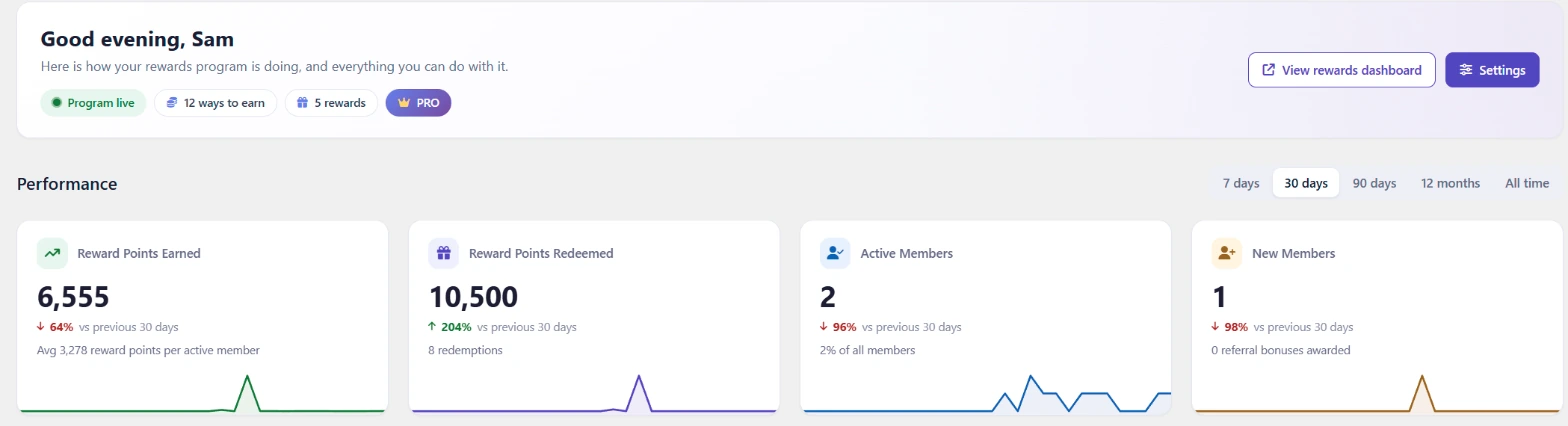
Program status
The box at the top shows whether the program is live or switched off, how many ways to earn and rewards are on, and buttons for View rewards dashboard and Settings.
Setup checklist
Finish setting up your program lists the main setup steps, with a button next to each one that is not done yet. It disappears once every required step is done. The steps are:
- Switch on the rewards program.
- Choose how customers earn points.
- Add rewards customers can claim, or switch on the points discount.
- Give customers a rewards dashboard, in My Account or on a page of its own.
- Get points to your customers, for example with the Award Points for Past Orders tool.
- Optional: add levels and badges, turn on customer emails, and add terms and conditions.
Open the setup wizard takes you through the same settings step by step.
Performance
Choose a period with 7 days, 30 days, 90 days, 12 months or All time. Four cards show the points earned, the points redeemed, active members and new members in that period, each compared with the previous period of the same length.
Points redeemed counts points spent on rewards and on Prize Wheel spins. Points taken back by refunds, expiry or admin changes are not counted as redeemed.
Below the cards are a chart of points earned and redeemed, program totals (members, points outstanding and what they are worth, unused vouchers and redeemed points), and in Pro the pending points and guest points.
Activity, customers and features
- Recent Activity: the latest 8 entries from the points activity log.
- Flow: where points came from, or where they went, in the period.
- Top Members: the 5 customers with the highest balance.
- Ways to Earn and Rewards: what is on, with a Manage link.
- Members by Level: how many customers are on each level.
- Features: the status of each feature, such as the checkout box, referral system and emails, with a link to its settings.
Quick Actions
Links to common tasks: give a customer points, add or remove points in bulk, award points for past orders, import points from CSV, export customer points, the shortcodes, the setup wizard and the Tools page.
How up to date the figures are
The figures are refreshed whenever points change, and otherwise every 10 minutes. The time of the last update is shown at the bottom of the page.