





Sell gift cards as catalog products
Simple Store CreditUpdated September 21, 2026
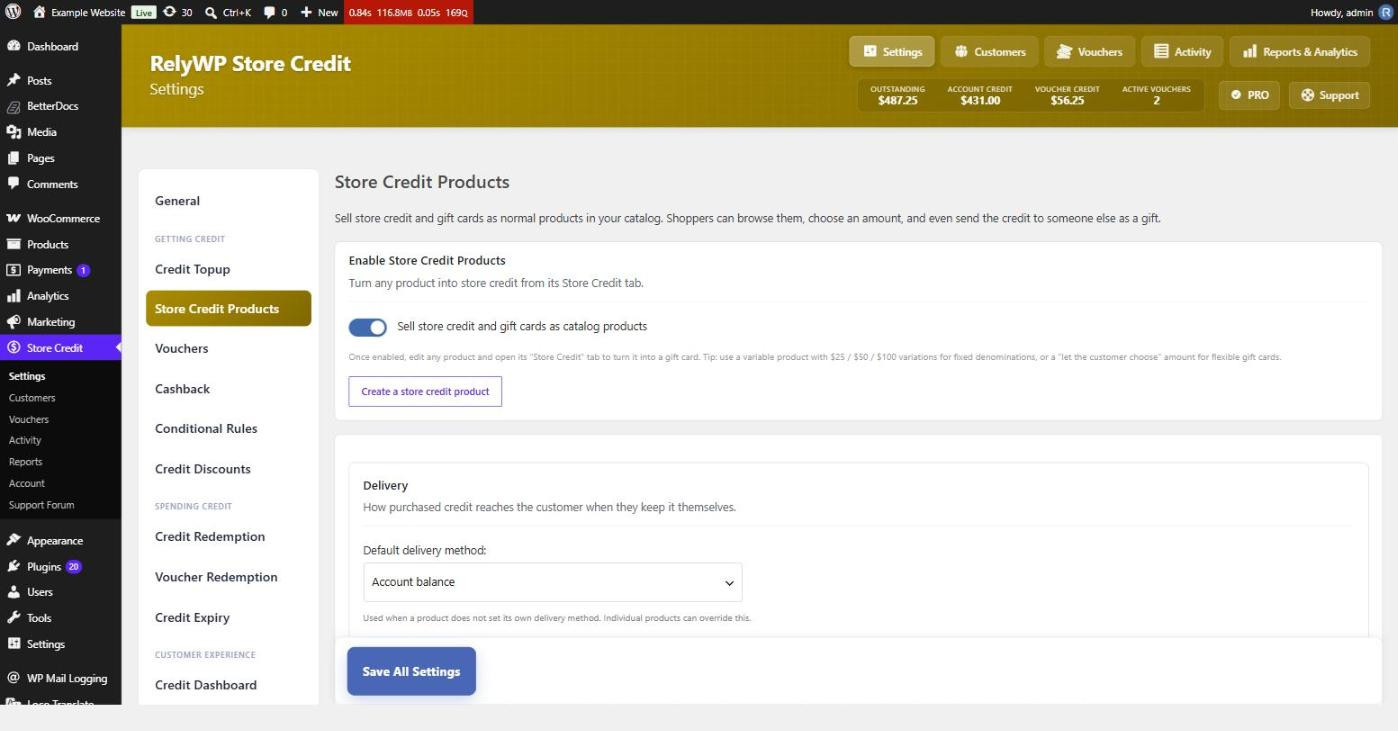
Store credit products are WooCommerce products that grant credit when the order is paid. Unlike the hidden top-up product, they sit in your catalog with their own images, descriptions and categories, so customers can find them by browsing. Enable the feature with Sell store credit and gift cards as catalog products under Store Credit › Settings › Store Credit Products. At least one credit system – account balance or credit vouchers – has to be enabled, since that is how the purchase is delivered.
Create a gift card product
Add a product as normal and set Product type to Store credit / gift card. The editor then shows only the tabs a gift card actually needs, and the product is always virtual, so there is no shipping or stock to configure. Its settings live on the Store Credit tab of the product data panel.
If you would rather not build one by hand, the settings tab has a Create a store credit product button that generates a ready-to-edit draft from a name, an amount mode and a delivery method. Add a description and publish it when you are happy with it.
Choose how the credit amount is decided
Credit amount offers four modes, and the fields below it change to match:
- Let the customer choose the amount – the customer types the amount they want and pays exactly that. The price on the General tab is not used. Minimum amount and Maximum amount set optional limits.
- Fixed denominations (customer picks one) – the customer picks one of the amounts you list and pays exactly that. The price on the General tab is not used.
- Equal to the price paid – the customer receives credit equal to the price set on the General tab. This is the usual choice for a straight gift card.
- A fixed credit amount – charge the price set on the General tab and grant a fixed amount of credit, so you can sell 100 of credit for 90.
Fixed denominations
For a classic 25 / 50 / 100 gift card, choose the denominations mode and enter the amounts in Denominations, separated by commas. The product page shows them as a row of options for the customer to pick from, and the price follows the selection. You do not need a variable product or one variation per amount for this.
Delivery and expiry
Deliver as on the product decides whether purchased credit lands on the buyer’s account balance or arrives as a credit voucher. Leave it on Use global default to follow Default delivery method on the settings tab. When delivery is by voucher you can also set Voucher expiry in days on that tab, with 0 meaning the global credit expiry setting applies instead.
Use a dynamic gift-card image
Tick Dynamic product image to replace the product’s featured image with a generated gift-card image that shows the credit amount and updates live as the customer changes it. Each product carries its own design, built with the same controls and live preview as the voucher card, and a new product starts from your Voucher Gift Card Image design so your gift cards look consistent without setting them up twice.
Sending a gift card to someone else
With Allow sending store credit products as a gift to someone else enabled, the product page gains a “send as a gift” checkbox and fields for the recipient’s details, plus an optional personal message if Allow a personal gift message is on. Gifts are always delivered as a credit voucher emailed to the recipient – they may not have an account – so this option needs the credit voucher system enabled. You can relabel the checkbox and the heading above the recipient fields on the same tab.
Products created before the product type existed
Earlier versions marked an ordinary product as store credit using a Store Credit tab on the product itself. Those products keep working. Simple ones are converted to the new product type automatically, once, the first time you load the admin after updating. Variable ones cannot be converted, because a product has a single type, so they keep their original flag and show a legacy Store Credit tab in the editor instead. Build anything new with the product type.