





Set up the customer credit dashboard
Simple Store CreditUpdated September 14, 2026
The credit dashboard is a dedicated page in the WooCommerce My Account area where customers see their balance, their vouchers and their full credit history. Configure it under Store Credit › Settings › Credit Dashboard, starting with Show a store credit dashboard in My Account.
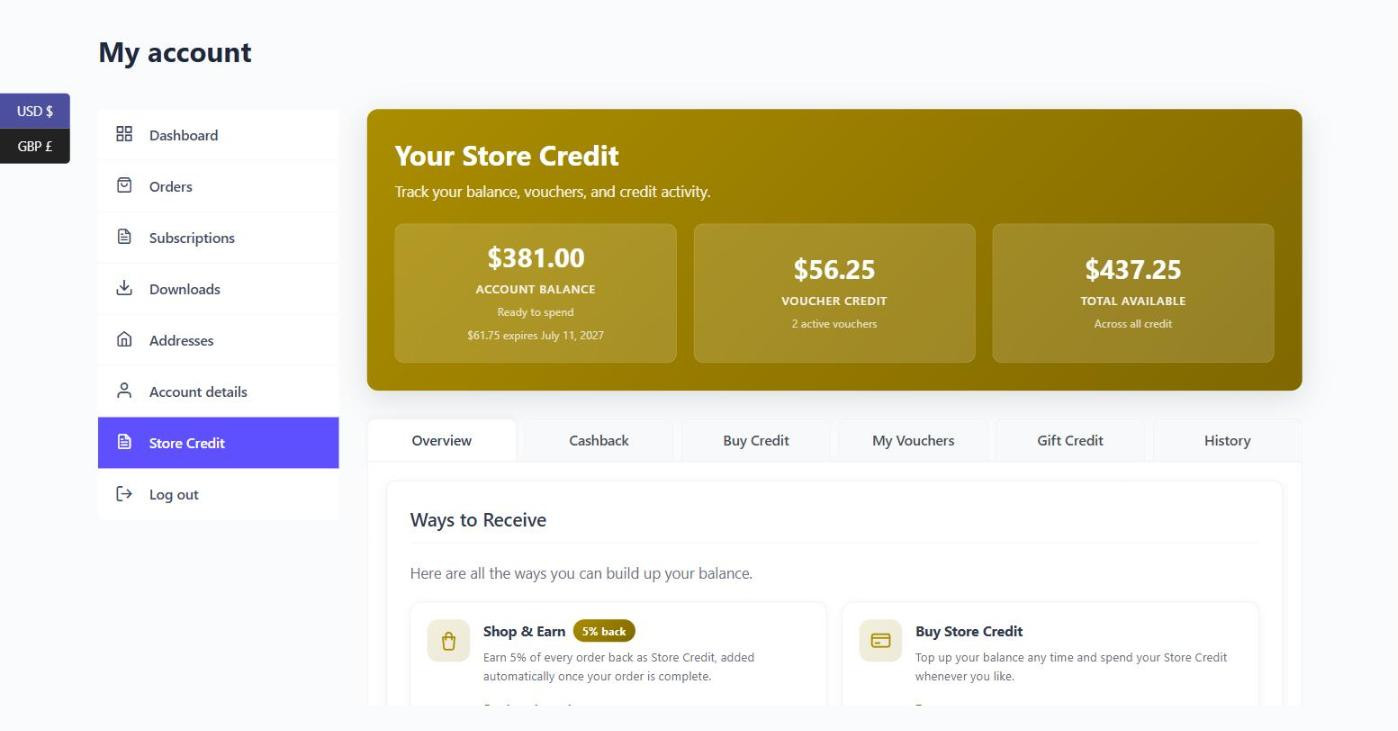
Menu item label sets the wording in the account navigation, and the View the store credit dashboard button opens the live page in a new tab so you can check your changes as you make them.
Colours
The Appearance section sets a primary colour, used for buttons, badges and the start of the gradient header, and a secondary colour for links and the end of the gradient.
Header and balance cards
The Dashboard Customisation panel mirrors the customer’s page with one sub-tab per section. On Header & Balance you can show or hide the heading and subheading and write your own (leave them blank to use the defaults), pick which tab opens first, and choose which of the three summary cards appear – Account Balance, Voucher Credit and Total Available.
Cards for a credit system you have not enabled never show, and Total Available only appears when both systems are running, since otherwise it simply repeats one of the others.
The tabs
- Overview – always first. Optionally shows custom content of your own at the top, plus “Ways to Receive” and “Ways to Redeem” sections that explain the programme in the customer’s own terms. Both section headings are editable.
- Cashback – appears when cashback is enabled. Has a hero banner with its own eyebrow, title, description and call to action, plus optional stats, benefits and how-it-works blocks.
- Buy Credit – appears when credit top-ups are enabled, and holds the top-up form.
- My Vouchers – appears when credit vouchers are enabled and the customer has vouchers, can claim a code, or can create one from their balance.
- Gift Credit – appears when gifting is enabled.
- History – the activity timeline. Rows sets how many entries a page shows.
Every tab can be relabelled, and most can be hidden entirely. If you pick a first tab that later becomes unavailable – by turning its feature off, say – the dashboard quietly falls back to Overview rather than showing an empty page.