





Add or remove credit manually
Simple Store CreditUpdated September 14, 2026
You can change any customer’s balance directly from Store Credit › Customers. Every row has an amount field, an optional reason, and Add and Remove buttons, so a goodwill gesture or a correction takes a few seconds.
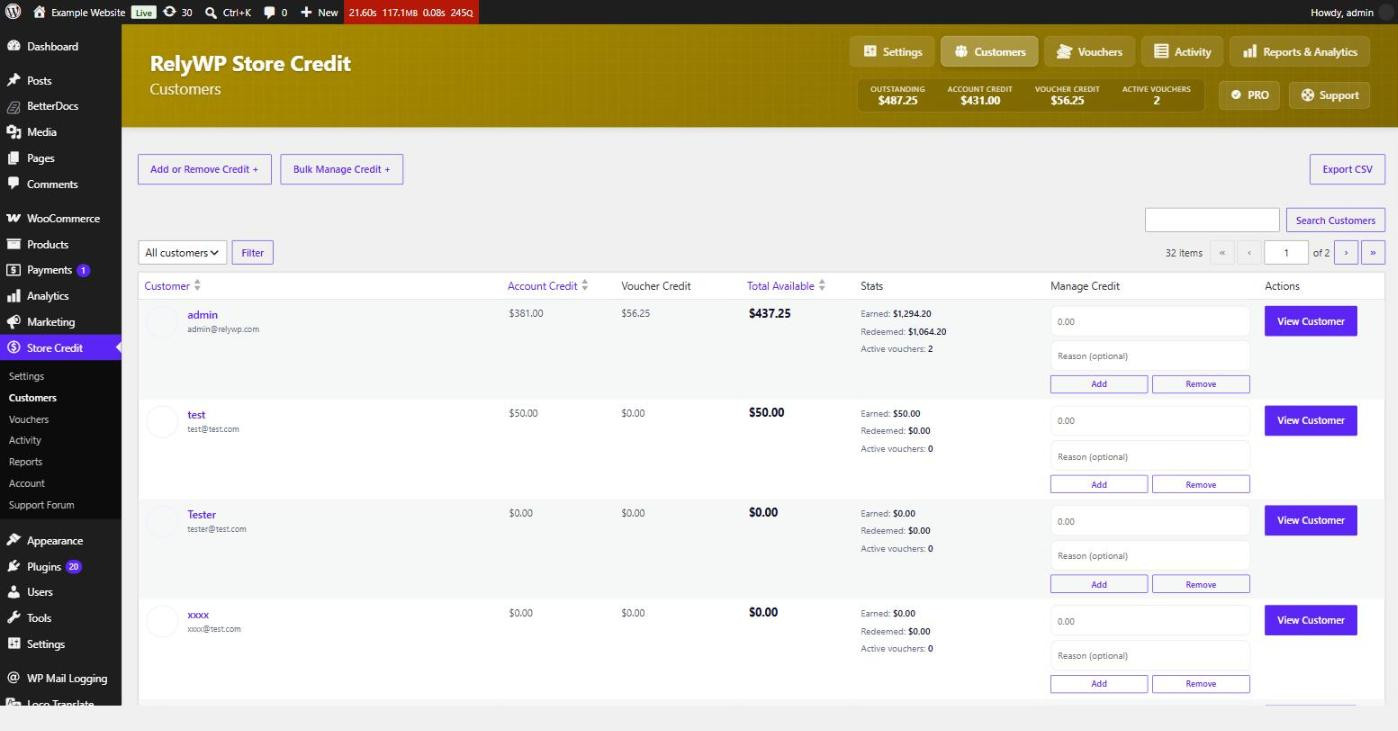
The reason you type is stored as the note on the credit history entry, so it is worth filling in – it is what you and the customer will both see later when working out where an amount came from.
The customer overview screen
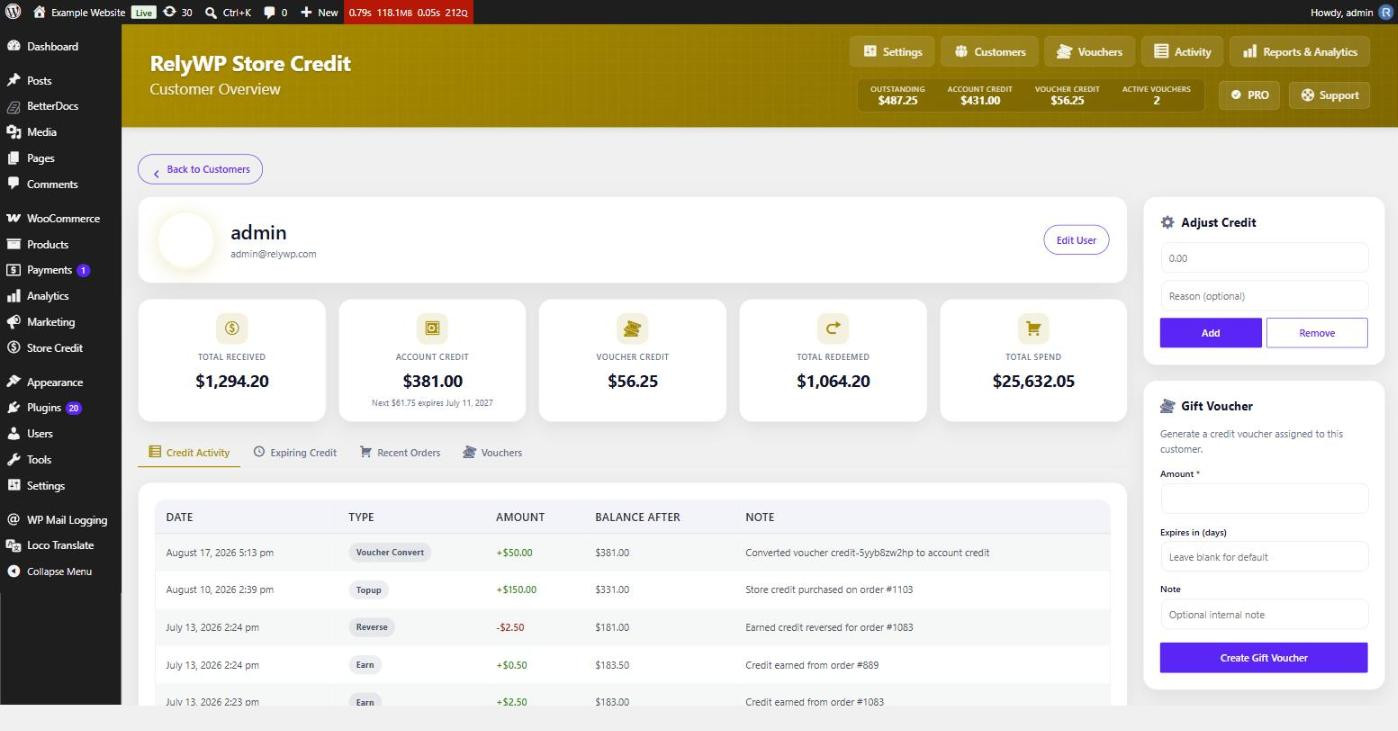
View Customer opens a fuller picture of one account: total received, account credit, voucher credit, total redeemed and total spend, along with tabs for their credit activity, expiring credit, recent orders and vouchers. The same Adjust Credit controls sit in the sidebar, next to a Gift Voucher box for issuing a voucher assigned to that customer.
From the user profile
Editing a user under Users shows a Store Credit section with an Account balance field. This one sets the balance to an exact figure rather than adding to or subtracting from it, which is useful when you are reconciling against another system. The change is still written to the activity log, and the customer’s voucher credit is shown underneath for reference.
What gets recorded
Manual changes are logged with the type Admin, which is how they appear in the Activity screen and in the Admin Adjustments figure on the reports page. A balance is never allowed to go below zero: removing more than a customer holds simply takes it to zero, and the amount logged is the real change rather than the figure you typed.