





Hide the exemption fields or checkbox at checkout
Tax Exemption for WooCommerceUpdated September 14, 2026
Two PRO settings on the Visibility tab at Tax Exemption › Settings take exemption out of the checkout flow. They do different things and are easy to confuse.
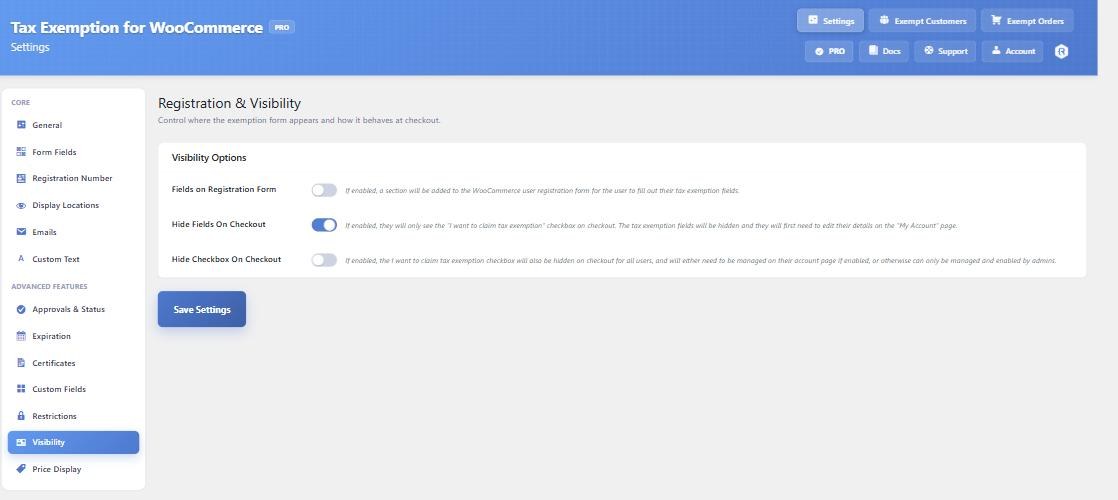
Hide Fields On Checkout
Customers still see the I want to claim tax exemption checkbox, but not the fields. To supply their details they go to the Tax Exemption tab in My Account first. Once their details are saved, ticking the box at checkout is all they need to do.
This keeps the checkout short and is the natural pairing with manual approval or certificate uploads, where you want the details reviewed before an order is placed rather than in the middle of one. Because the details live on an account, this requires customers to be logged in on the classic checkout.
Hide Checkbox On Checkout
This removes the checkbox as well, for everyone. Exemption is then managed entirely from the customer’s My Account page, or, if that is also switched off, only by you, from the admin. Use it when exemption is something you grant rather than something customers claim.
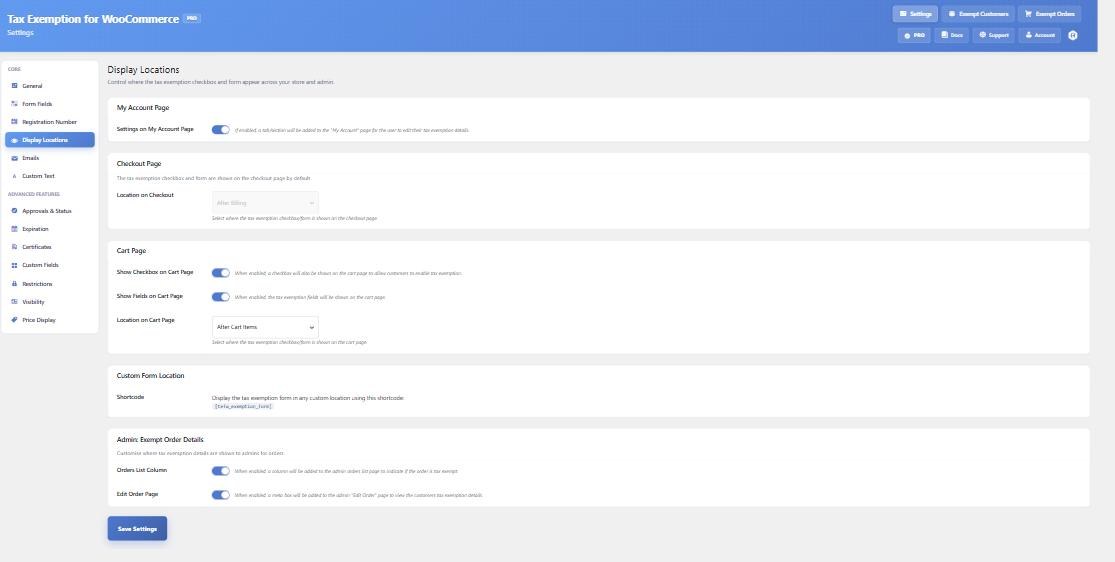
The cart-page settings interact with these two. The cart fields option requires Hide Fields On Checkout to be enabled, and the cart checkbox option requires Hide Checkbox On Checkout to be off. The settings screen greys out whichever combination is not available and tells you why.
Certificates and hidden fields
If a certificate is required but there is no upload field on the page the customer is submitting from – the cart checkbox, the block checkout, or a checkout with Show on Checkout disabled – the message they see points them at the Tax Exemption page in My Account rather than just repeating that a certificate is needed.