





Customise the text and labels customers see
Tax Exemption for WooCommerceUpdated September 14, 2026
Every piece of customer-facing wording the plugin adds can be changed on the Custom Text tab at Tax Exemption › Settings. Leave any box blank to keep the default wording. Field labels are the exception – those live on the Form Fields tab.
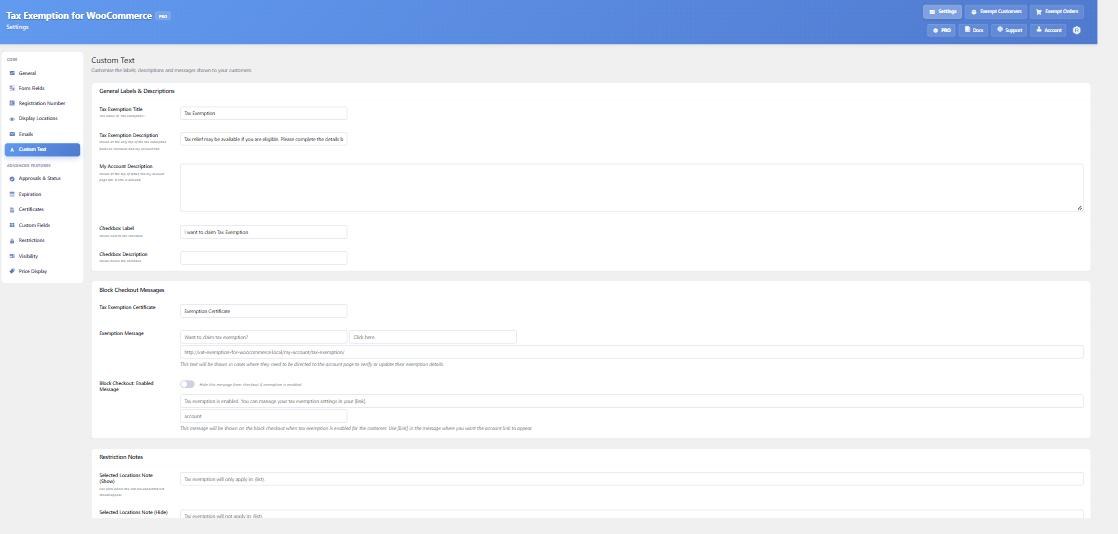
General labels and descriptions
- Tax Exemption Title – the name of the feature itself. Change it to “VAT Exemption” or “VAT Relief” and the new wording flows through the form, the My Account tab and the admin screens.
- Tax Exemption Description – shown at the very top of the fields, on both checkout and the My Account tab.
- My Account Description – shown at the top of the My Account tab only. This is a textarea and accepts HTML, so it suits longer eligibility guidance with a link to your policy page.
- Checkbox Label – the text beside the checkbox, by default “I want to claim tax exemption”.
- Checkbox Description – smaller text below the checkbox. HTML tags are allowed here.
Block checkout messages
Exemption Message is shown when a customer needs to be sent to their account page to set up or update their details rather than completing them in place. You can point its link at a custom URL instead of the default My Account tax exemption page.
Block Checkout: Enabled Message is what an already-exempt customer sees on the block checkout. Use [link] in the message where you want the account link to appear. There is also a tick box to hide this message entirely once exemption is enabled.
Restriction notes
These explain to a customer why exemption is not available to them. Each accepts a placeholder that is replaced with the relevant value:
- Exemption City/State Note (Single Address) – use
{state}. - Exemption City/State Note (Both Addresses) – use
{billing}and{shipping}. - Selected Locations Note (Show) and Selected Locations Note (Hide) – use
{list}for the comma-separated list of locations.
These notes only appear when the matching restriction is switched on. If you have no location restrictions configured, nothing is shown regardless of what you type here.
Translating instead
The plugin ships a .pot file in its languages folder and uses the tax-exemption-woo text domain, so a translation plugin can handle the wording site-wide. Custom Text is the quicker route when you only want to reword a few strings in one language.