





How to customise the email templates
Coupon AffiliatesUpdated September 28, 2026
This article is mirrored from couponaffiliates.com.
The emails sent out by Coupon Affiliates use the default WooCommerce email template.
So any settings/plugins you use to customize the WooCommerce emails will also customise the emails sent by Coupon Affiliates.
See here for a blog post on how to customise WooCommerce emails: https://woo.com/posts/how-to-customize-emails-in-woocommerce/
If you scroll below the list of email templates in WooCommerce Settings → Emails, you’ll see global customization options. Note that changing these options will update all of your email templates at once.
You can make changes to your:
- Header image: An image that you’d like to display at the top of all emails. You might want to use your logo or other brand graphics here.
- Footer text: Information found at the bottom of each email. Include a link to your website and contact information to make it easy for your customers to get in touch.
- Base color: The color used for headings, links, and the background of your email title.
- Background color: The color used for the background of the email.
- Body background color: The color of your email content background.
- Body text color: The color for all written email content.
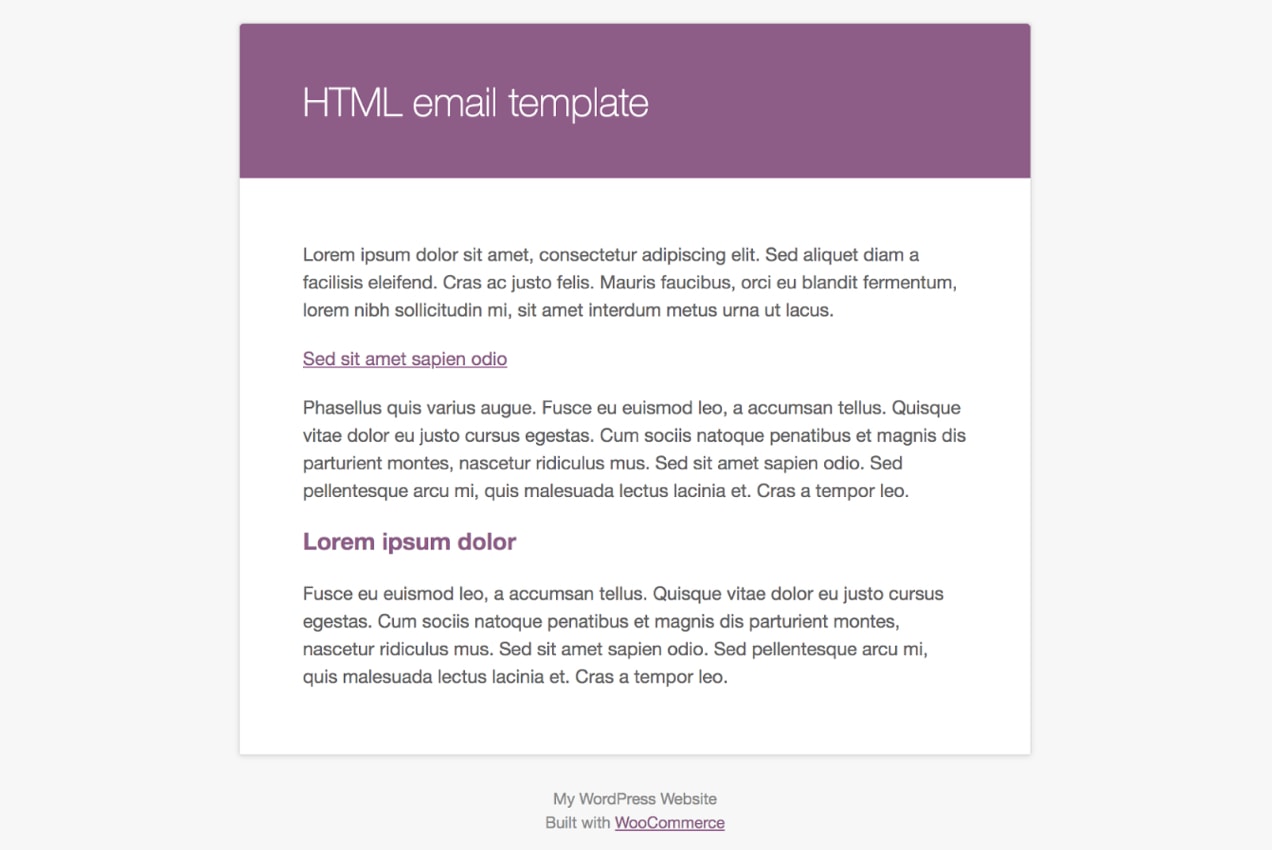
Click the link that says, “click here to preview your email template” to preview your emails.
Coupon Affiliates email content
To enable and edit the content of emails sent by Coupon Affiliates (subjects, body text, and merge tags), go to the Email Notifications tab in the plugin settings. See Email Notifications for the available emails, including New Coupon Assigned.