





Affiliate Portal
Coupon AffiliatesUpdated October 24, 2026
This article is mirrored from couponaffiliates.com.
The “affiliate portal” is an alternative to the regular affiliate dashboard page, available in the free and pro version.
The affiliate portal offers a standalone full-screen interface for your affiliates, with a modern and professional design that can be easily customised to match your own branding.
The portal is separate and independent from your website’s theme. It is simply a new page on your website, but with a custom template.
It looks great on all screen sizes, and does not require any advanced customisations or styling tweaks on your end.
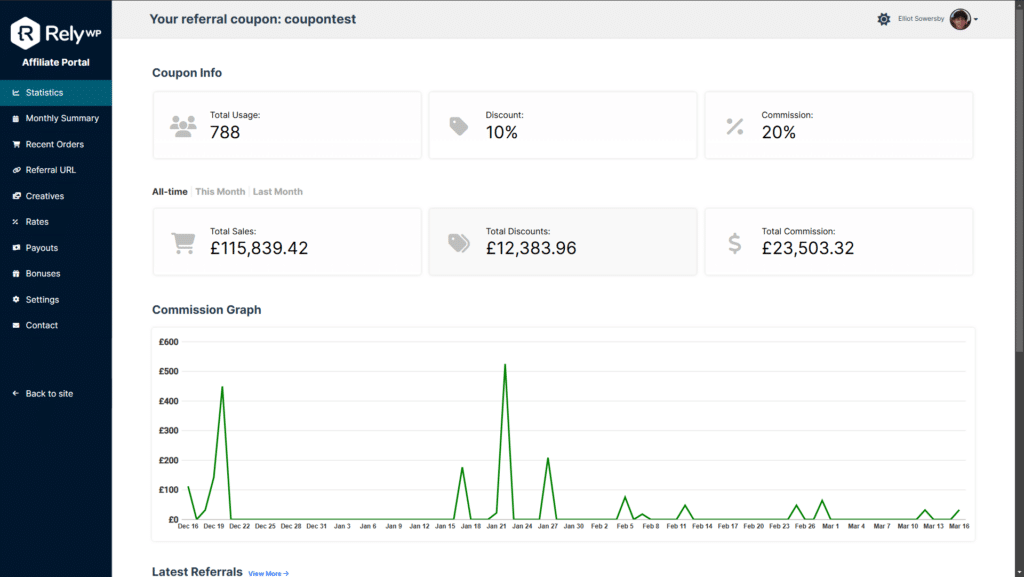
How to enable the affiliate portal
Go to Coupon Affiliates > Settings > General and turn on Enable Affiliate Portal. The portal’s own settings then appear below it.
Portal themes
The Portal Theme setting changes the look of the whole portal. As well as the original Classic design (the default), there are four more themes: Sleek, Modern, Canvas and Spotlight.
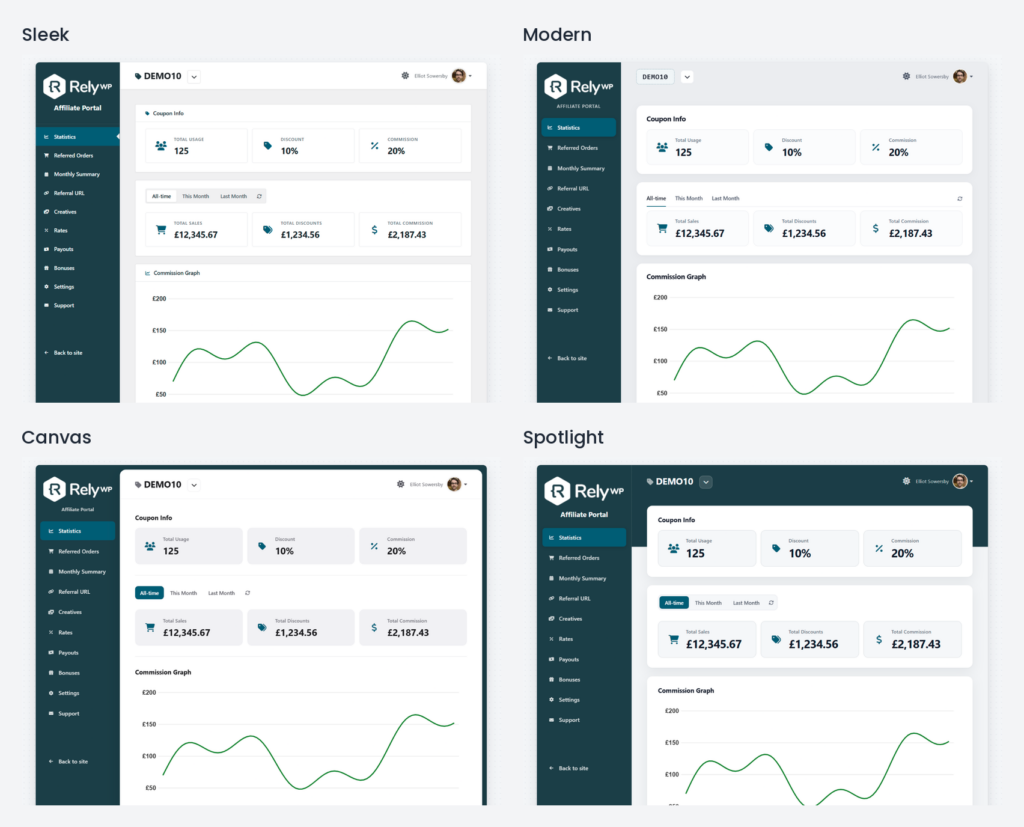
Each of the four new themes restyles the portal, including dark mode and the mobile layout, and adds:
- Status badges.
- A balance card on the Payouts tab.
- A share card on the Referral URL tab, with the referral link’s QR code shown beside the link.
The themes are included in the free version, and still use your own logo and colours. They apply to the affiliate portal only, not to the normal affiliate dashboard page or the MLA dashboard.
Customisations
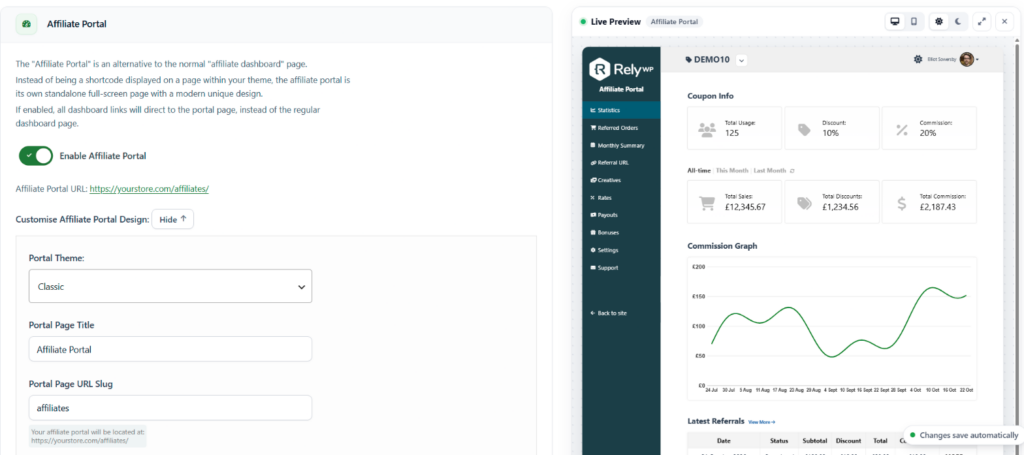
All the portal design settings are on the General settings tab. Click the Show button next to Customise Affiliate Portal Design to open them:
- Portal Theme: see above.
- Portal Page Title and Portal Page URL Slug (
affiliate-portalby default). - Affiliate Portal Logo, shown at the top left of the portal. The recommended width is 200px.
- Footer Text.
- Show Dark Mode Toggle: see below.
- Login & Registration: whether to show the login form and the registration form on the portal.
- Portal Colours: the background and text colours for the sidebar, sidebar link hover, buttons and buttons hover. Click Show More for the table header and footer, statistics icons, line graph and (if enabled) bonuses colours.
- Portal Font & Icons: the Primary Font used for all text in the portal, and whether to show icons on the portal menu links.
While the portal is enabled, its colours and font are only on the General tab. The “Design” tab shows a note with a link back to them. See Design & Layout Customisation for the other design settings.
Live preview
Click Dashboard Preview on the right of the General tab to open the Live Preview panel beside your settings. It shows the portal (or the affiliate dashboard, if the portal is off) with example data, and updates as you change the settings.
Use the buttons at the top of the panel to switch between desktop and mobile, and light and dark mode, or to expand the preview to a larger view.
Dark mode
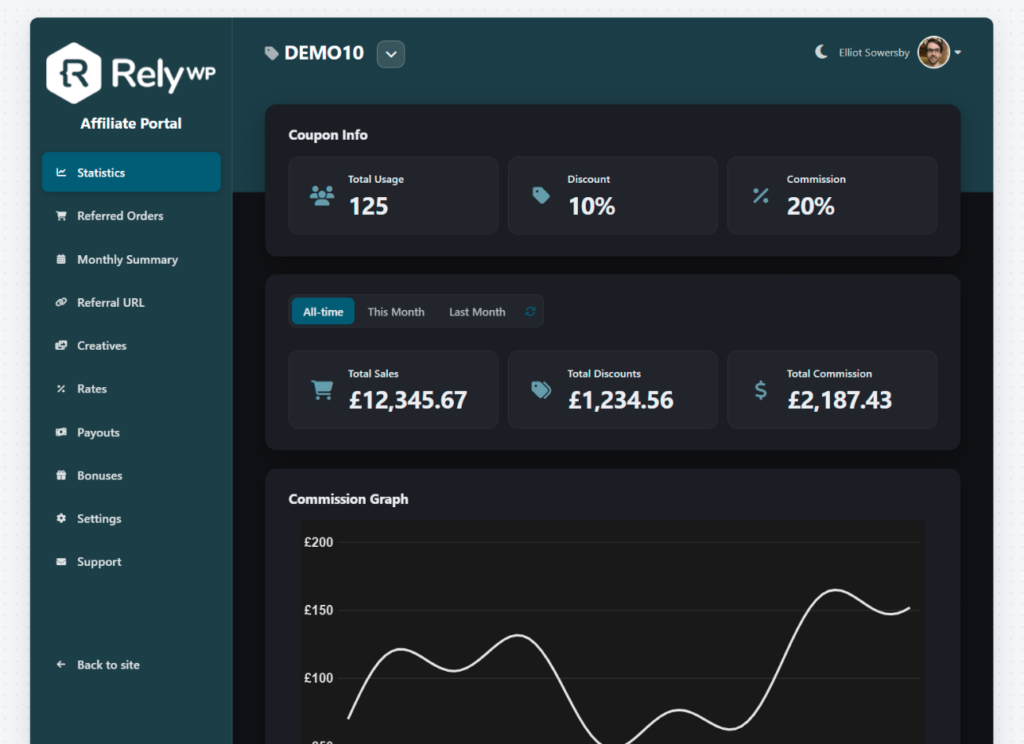
With Show Dark Mode Toggle turned on (it is by default), a switch at the top right of the portal lets affiliates choose between a dark or light version of their portal. Every theme has its own dark mode.
Copy coupon code and switch dashboards
Click the coupon title in the portal (or dashboard) header to copy the coupon code.
If an affiliate is assigned to more than one coupon, a dropdown in the header lets them switch between dashboards. They can also still use the coupon-list landing page. See Can I assign affiliate users to multiple coupons?
Portal URL and 404s
Rewrite rules for the Affiliate Portal (and MLA Portal) are installed automatically if they are missing, so a 404 on first visit after enabling the portal should usually fix itself. If the slug is empty or only punctuation, it falls back to affiliate-portal.
If the portal still shows a 404, see Dashboard link is showing a 404 error?