





Setup Guide – How to get started!
Coupon AffiliatesUpdated October 24, 2026
This article is mirrored from couponaffiliates.com.
Need help getting started with the plugin? Here is a quick setup guide:
More guides: Affiliate Registration / Commission Payouts / Multi-Level Affiliates
Interested in hands-on support where we take care of everything for you? Check out our plugin setup services.
Or view a detailed step-by-step written guide below.
(1) Installing the Plugin
First, you need to install the plugin. If you’ve not done this yet, see this guide.
(2) Complete the Setup Wizard
Once you’ve installed the plugin, the first thing you will see is the setup wizard. It starts by asking what kind of affiliate program you are setting up, so it only asks about what you need:
- An open affiliate program (Advanced): people can register as an affiliate through your sign-up form. The full wizard walks you through the dashboard, registration, commission and email settings. This is the recommended option, and takes about 5 minutes.
- Just a few people I know (Essentials): for a friend, partner or customer who wants to promote your store. A shorter setup that takes about 2 minutes, then helps you add your first affiliate. See Essentials setup below.
- I’ll set it up myself: skips the wizard and takes you straight to the full settings page.
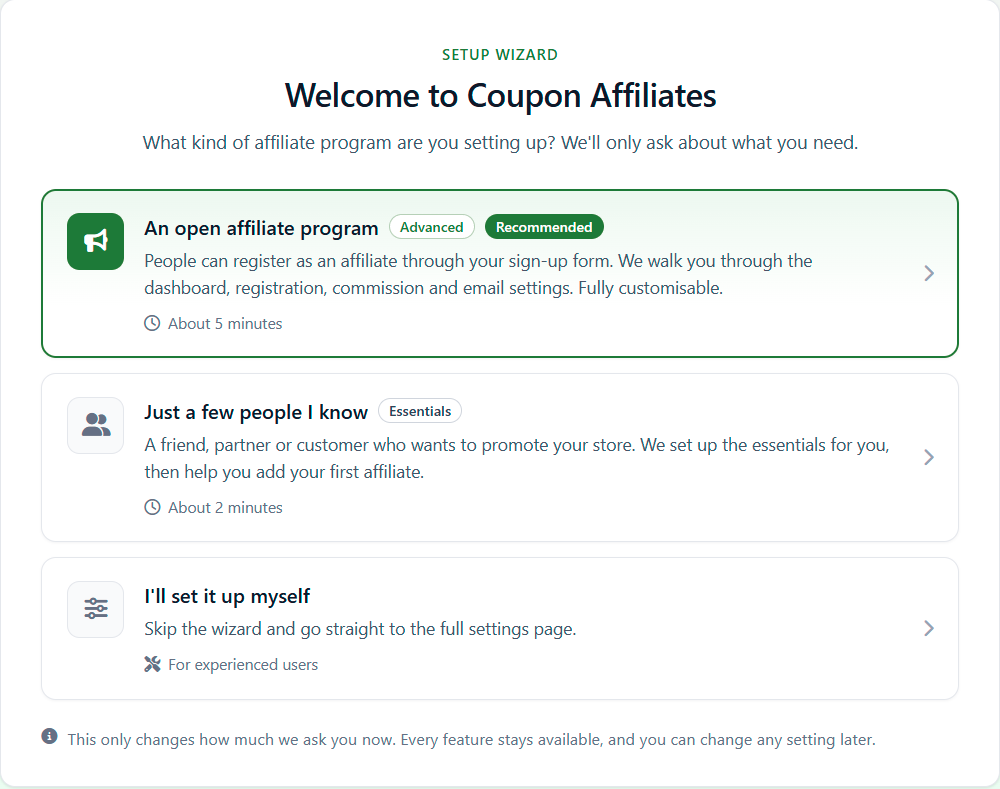
Your choice only changes how much the wizard asks you now. Every feature stays available, and you can change any setting later.
Advanced setup (the full wizard)
The full wizard has these steps: Dashboard, Registration, Commission, Emails and Finish. If you have taxes enabled in WooCommerce, there will also be a Taxes step.
Click “Save & Continue” to move on to the next step. If you would rather set everything up yourself, click “Skip Setup Wizard / Go To Settings Page” at the bottom of the page. You can come back to the wizard at any time with the “Setup Wizard” button at the top of the plugin settings page.
Step 1: Affiliate Dashboard Page
The first step is to create the affiliate dashboard page. This is the page where your affiliates will view their statistics, commission, referral links and more.
If you don’t have a dashboard page yet, simply click the “Generate Dashboard Page” button, and a new “Affiliate Dashboard” page will be created for you with the [couponaffiliates] shortcode already added.
Alternatively, you can add the [couponaffiliates] shortcode to a page yourself, then select that page in the “Affiliate Dashboard Page” dropdown, so the plugin knows which page to use.
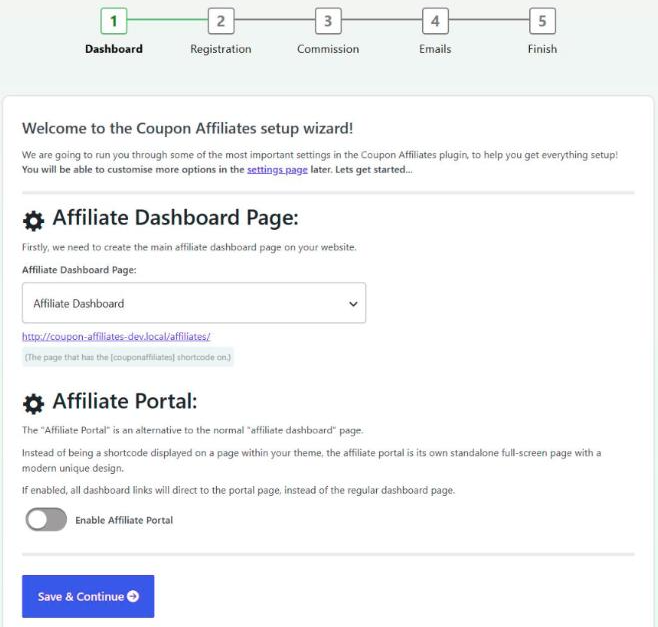
On this step you can also choose to enable the “Affiliate Portal”. This is an alternative to the normal dashboard page: a standalone full-screen page with its own modern design. It is turned off by default. Learn more about the affiliate portal.
Step 2: Affiliate Registration System
The next step helps you set up the affiliate registration system, where users can fill out a form to apply to become an affiliate. When you accept an application, the plugin automatically creates their account (if needed), creates their affiliate coupon, and assigns them to it.
Make sure “Enable Affiliate Registration Features” is turned on (it is by default). Then, if you don’t have a registration page yet, click the “Generate Registration Page” button to create it automatically, or add the [couponaffiliates-register] shortcode to a new page yourself and select it in the “Registration Form Page” dropdown.
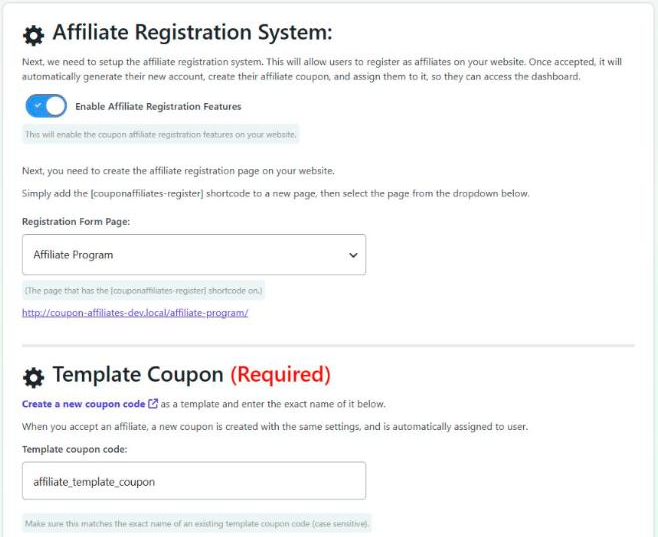
You will also need to set the “Template Coupon”, which is required. When a new affiliate is added, their coupon is created with the same settings as this template coupon. Learn more about the template coupon.
If you don’t have one yet, click the “Generate Coupon” button. Choose the coupon type and discount amount, click “Generate”, and a template coupon will be created and selected for you. You can go back and edit the coupon later to customise more options. Otherwise, enter the exact code of an existing coupon in the “Template coupon code” field.
The “Save & Continue” button stays disabled until a valid template coupon has been entered.
Step 3: Commission Amounts
Next, set your default commission rates. You can use any combination of:
- Percentage Commission (% Of Total Order)
- Fixed Commission (Amount Per Order)
- Fixed Commission (Amount Per Product)
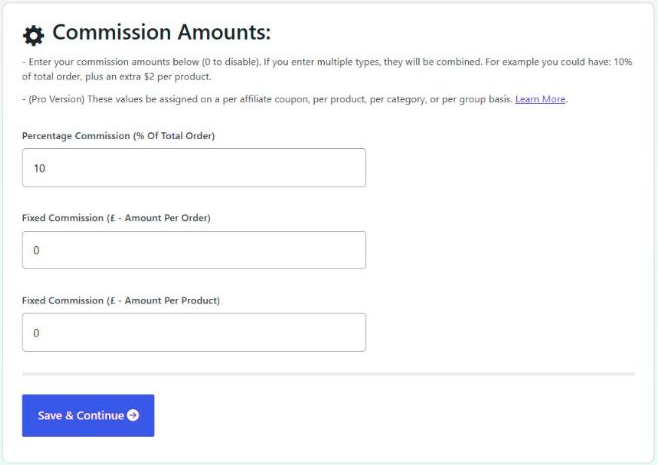
If you enter more than one, they are combined. For example, 10% of the order total plus an extra fixed amount per product. Enter 0 to disable a type. With the PRO version, you can also set different rates per affiliate coupon, product, category or group.
The first time you see this step, the percentage commission is filled in with 10%, a common starting point. Change it to whatever suits you.
Taxes (if enabled in WooCommerce)
If taxes are enabled in your WooCommerce settings, a “Taxes” step lets you choose how tax is handled in the commission calculations. You can customise more calculation settings in the plugin settings later.
Step 4: Emails
Enter the “From” email address and name used for the plugin’s emails, and the email address that should receive admin notifications. You can also enable and customise the “New Order Referral” email, which tells your affiliates when someone uses their coupon.
Finish
That’s it! The final page shows some of the next steps you can take, such as customising more settings, managing your affiliate coupons, and adding your first affiliate.
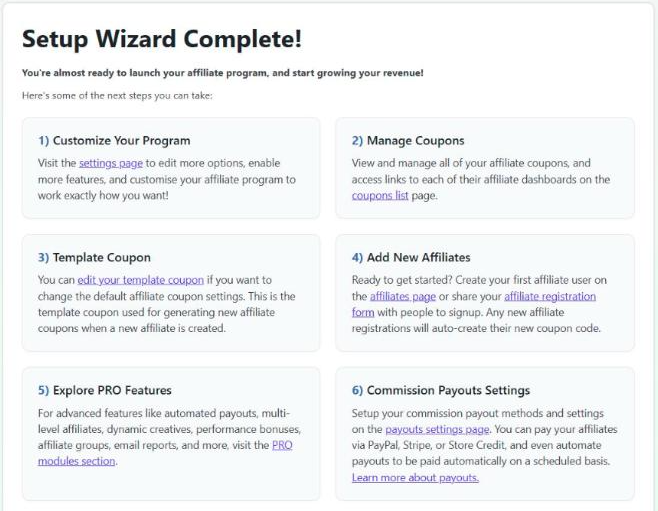
From here, click “Continue to Settings Page” to customise everything further, or “Create Your First Affiliate” to add an affiliate straight away (see step 5 below).
Essentials setup (just a few people you know)
If you picked “Just a few people I know”, the wizard has three short steps instead: Basics, First Affiliate and Done.
Basics asks three questions:
- How much commission each affiliate should earn, as a percentage of each order total. You can set a different rate for any affiliate later.
- What discount their customers should get when they use an affiliate’s coupon code. Enter 0 for no discount.
- Whether to “Let people apply to join through a public sign-up form”. This is off the first time. Leave it off if you’ll only add people you know yourself: the affiliate registration features stay switched off until you turn them on.
When you click “Save & Continue”, the plugin creates an “Affiliate Dashboard” page (or uses your existing one), creates a template coupon with your discount (or uses your existing one), and keeps the default settings for everything else.
First Affiliate asks for their name, email address and the coupon code they will share (for example JANE10). If they already have an account on your site, that account is used. Tick “Email them their coupon code and a link to their dashboard” to send them the “Affiliate Application Accepted” email. You can also click “Skip for now”.
Done shows their coupon code, referral link and a link to view their dashboard as they will see it. From here you can go to the Coupon Affiliates dashboard, add another affiliate, or explore all the settings.
After the Essentials setup, the settings page opens in the Essentials view, which only shows the main settings tabs. See step 3 below.
Do these pages have to be public?
No. The affiliate dashboard page and the registration page are ordinary WordPress pages. They don’t need to be in your menu or linked anywhere on your site, so you can share the links only with the people you choose. Affiliates log in to see their own dashboard.
If you don’t want a public sign-up form at all, leave “Let people apply to join through a public sign-up form” off in the Essentials setup, or turn off “Enable Affiliate Registration Features” in the Registration settings tab. Then add each affiliate yourself (see step 5). Even with the form switched on, new applications wait as pending until you accept them, unless you have turned on automatic acceptance (PRO).
(3) Customise the Settings
Once you’ve got the basic setup wizard done, you can go ahead and customise the settings further if required. Go to Coupon Affiliates > Settings and select the tabs on the left to customise everything to meet your requirements.
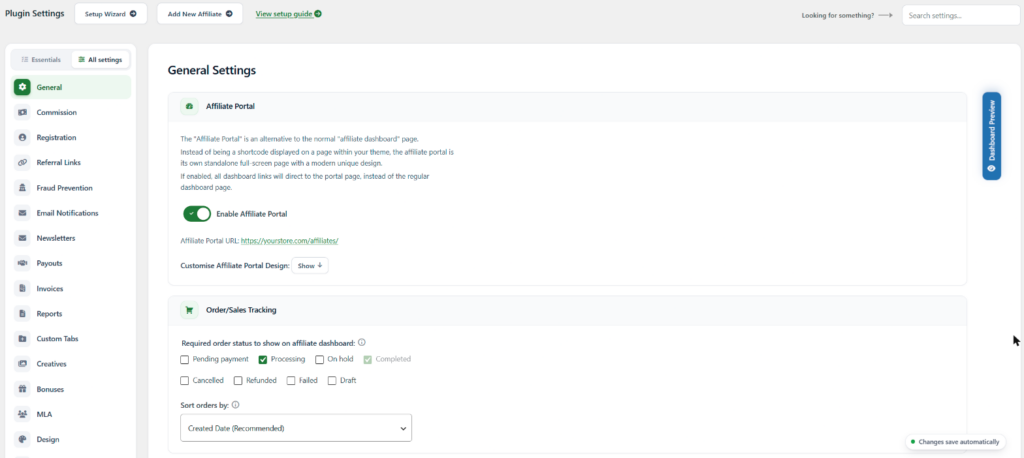
Can’t find a setting? Use the “Search settings…” box at the top right of the page.
At the top of the tab list there is an Essentials / All settings switch. Essentials shows only the main tabs (General, Commission, Registration, Email Notifications, Design, Help & Support and PRO Modules), with a “Show all settings” link at the bottom of the list. All settings shows every tab. Your choice is remembered for each admin. The settings page starts on Essentials if you used the Essentials setup, and on All settings otherwise.
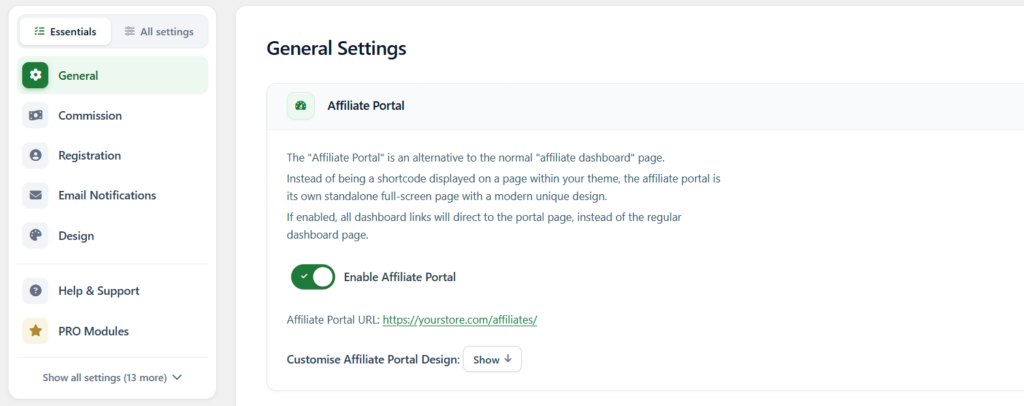
Here are some of the main tabs:
General: The general tab contains some of the “general” settings that don’t have any particular category, including the affiliate dashboard page and the affiliate portal.
Commission: You can set your flexible commission rates under the “Commission” tab.
Registration: Customise the affiliate registration form, the template coupon, and how new applications are handled.
Referral Links: Enable referral URLs, set the URL variable, and cookie duration.
Email Notifications: Enable and customise the different emails sent by the plugin.
Currencies: If you’ve enabled multi-currency support (in the “Commission” tab), a new “Currencies” tab will appear for you to set the conversion rates.
Design: Customise some of the design for the plugin, including colours and layout. If you use the affiliate portal, its theme, colours and font are on the General tab instead, with a live preview.
Debug: A few options to enable/disable certain features, mainly things that may be affecting performance or having conflicts with your theme / other plugins.
You will also find the “Fraud Prevention”, “Floating Widget”, “Privacy & Cookies” and “Help & Support” tabs, along with the “PRO Modules” tab. When you enable a PRO module (such as Payouts, Creatives or Multi-Level Affiliates), its own settings tab will appear in this menu.
(4) Coupon Codes Enabled in WooCommerce
The plugin needs the “Enable the use of coupon codes” option to be turned on in WooCommerce > Settings > General. You don’t need to do anything here: if it is turned off, the plugin turns it back on automatically when you visit the plugin settings page.
(5) Add Your Affiliates
Until your first affiliate is added, the Coupon Affiliates dashboard shows a “Getting started” checklist, with a button to add your first affiliate.
There are two main ways to add affiliates:
Add them yourself: Go to Coupon Affiliates > Add New Affiliate. Enter a username (this can be an existing user, or a new one, in which case you will also enter their email address and name), and the coupon code you want them to have. Then choose which email to send them, and click “Add New Affiliate”.
The plugin will then automatically create their coupon (using your template coupon settings), assign them to it, and send them the email you chose.
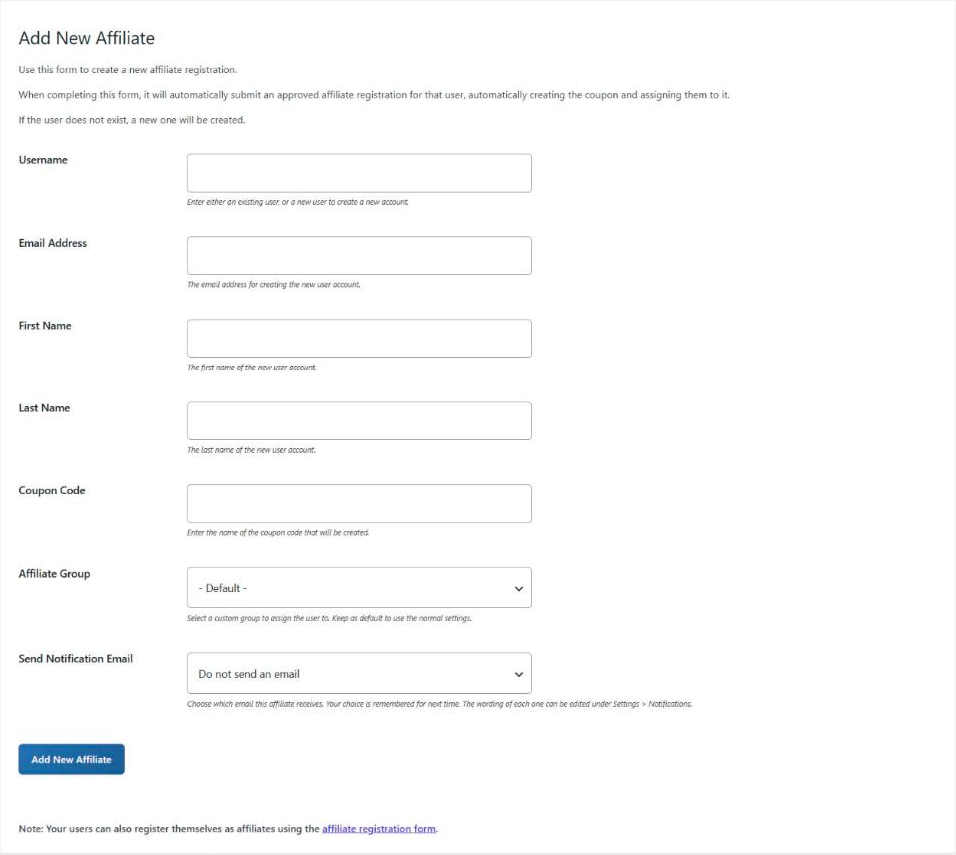
Learn more about adding affiliates manually.
Let them apply: Share your affiliate registration page so people can apply to join. You can review applications on the Coupon Affiliates > Registrations page, and when you accept one, the coupon is created and assigned for them in the same way. Learn more about affiliate registration.
Already have a coupon? You can also assign a user to an existing coupon. Simply edit the coupon, go to the “Coupon Affiliates & Commission” tab, and enter their username in the “Affiliate User” field.
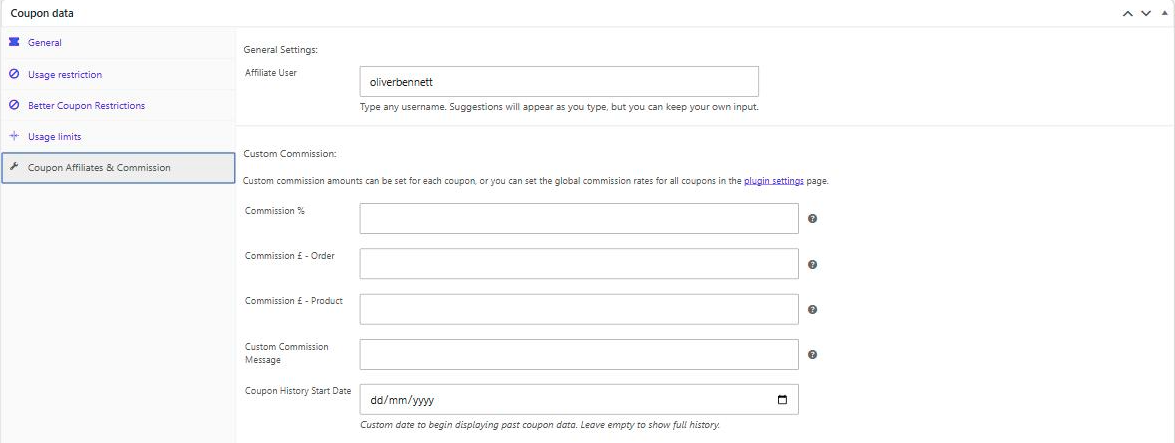
The custom commission fields shown here are available with the PRO version.
(6) View the Coupons List & Dashboard Links
Next up, go to Coupon Affiliates > Coupons. Here you can see all of your affiliate coupons, along with their usage, sales, commission, and the affiliate user assigned to each one.
The “Dashboard Link” column gives you a “View Dashboard” link for each coupon, so you can view the affiliate dashboard and statistics for any of your affiliates.
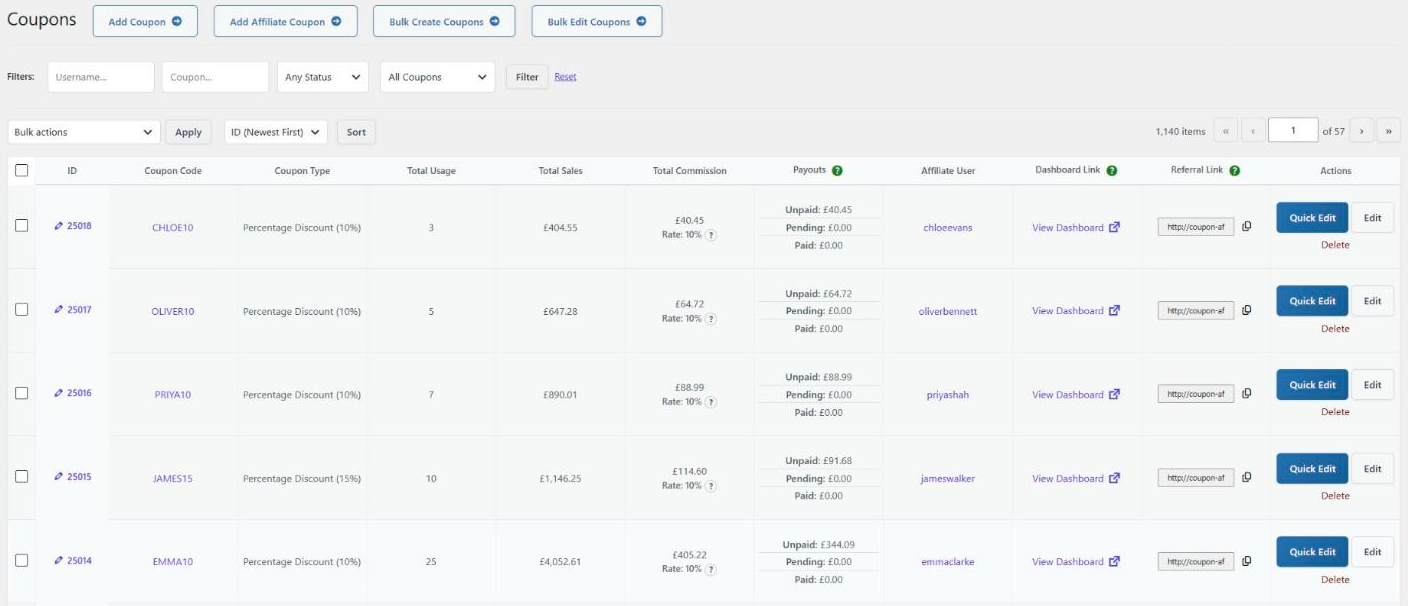
The normal WooCommerce coupons list also shows an “Affiliate Dashboard” column with the same link.
(7) Direct Users to the Affiliate Dashboard
Once your affiliates have been added, you can link/direct them to the affiliate dashboard page (maybe add this to your menu/site somewhere). They’ll log in and see the dashboard for the coupon(s) they are assigned to directly on this page.
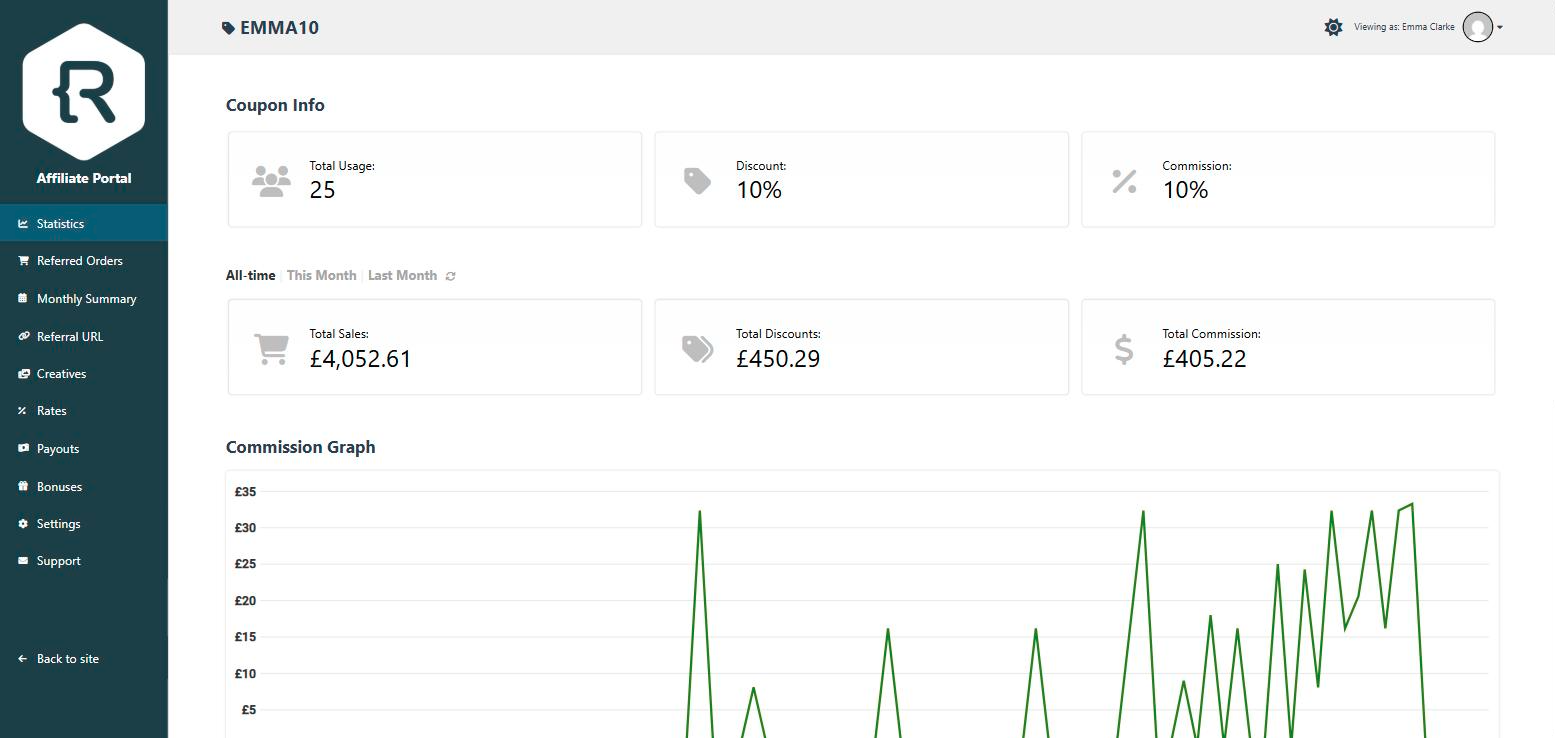
On the dashboard, they will then be able to view their affiliate statistics, referred orders, referral link generator, and more.
If you are using the PRO version, they can also see extra tabs such as the monthly summary, creatives, and payouts.
Here’s an example of the affiliate dashboard, shown with the Affiliate Portal enabled:
(8) Share your Affiliate Program
Once you’ve got everything set up, now it’s time to start promoting your affiliate program, and get users to sign up via your affiliate registration page.
Your affiliates can then share their coupon code with others, or share their referral URL (generated on their dashboard) to automatically add the coupon code to the customer’s cart.
Whenever someone uses their coupon code, the affiliate earns commission!
You don’t have to promote it publicly. A private, invite-only program works just as well: see Do these pages have to be public? above.
(9) Using the PRO version?
If you are using the PRO version, here are some more simple guides on setting up some of the main features:
- Commission Payouts
- Direct Link Tracking
- Creatives
- Affiliate Email/PDF Reports
- Multi-Level Affiliates
(10) Need help? Contact us.
If you need help with anything at all, please contact us.
Using the free version? Please check out previous support posts on WordPress forums or submit a new ticket!
(11) Upgrade to PRO
If you want more advanced features, including advanced affiliate registration forms, unpaid commission tracking, commission payout requests, one-click Stripe/PayPal payouts, store credit payouts, affiliate email reports, invoices, PDF statements, and much more, feel free to check out the PRO version of the plugin.
Try PRO now with a 7 day trial!
If you are already using the PRO version, then you can get started by enabling PRO features in the plugin settings, under the “PRO Modules” tab.