





Email Notifications
Coupon AffiliatesUpdated September 28, 2026
This article is mirrored from couponaffiliates.com.
There are a variety of email notifications sent out by the plugin for things like new referrals, affiliate registrations, payouts, and more. You can enable and customise them in the plugin settings.
Go to the Email Notifications tab to enable and customise the emails.
Sender Settings
At the top of the Email Notifications tab you can set the From Email Address and From Name used for every email the plugin sends. If you set a from address but leave the name blank, your site name is used instead. If you are using an SMTP plugin, it may override both.
There is no separate reply-to setting, so replies to any of these emails go to the from address.
Email address for receiving admin notifications sets where admin emails, such as new affiliate applications and payout requests, are sent. It defaults to your WordPress admin email address.
New Referral / Commission Earned
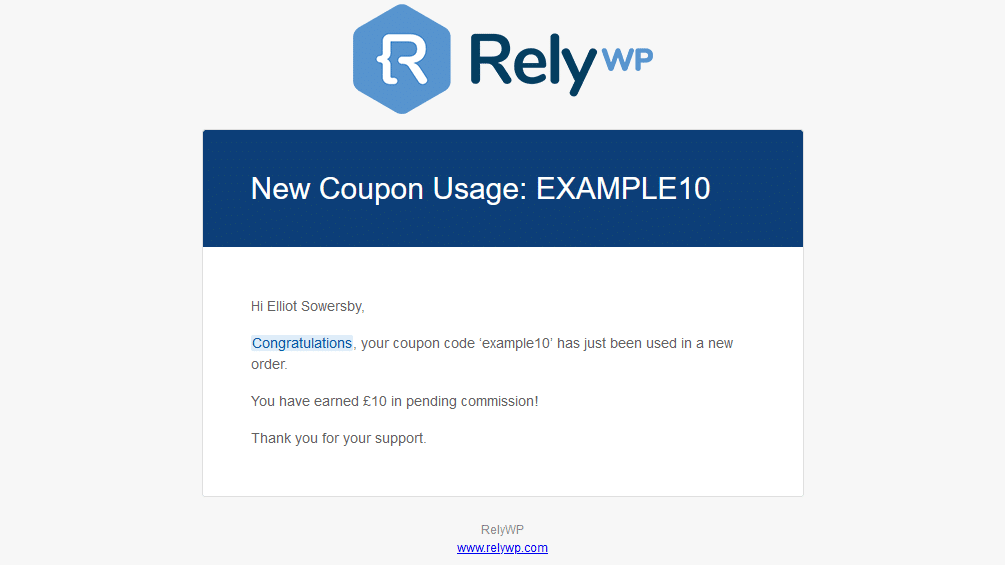
Setup email notifications to automatically send to affiliates whenever their coupon is used, and let them know how much pending commission they’ve earned.
Example email:
Cancellation Emails
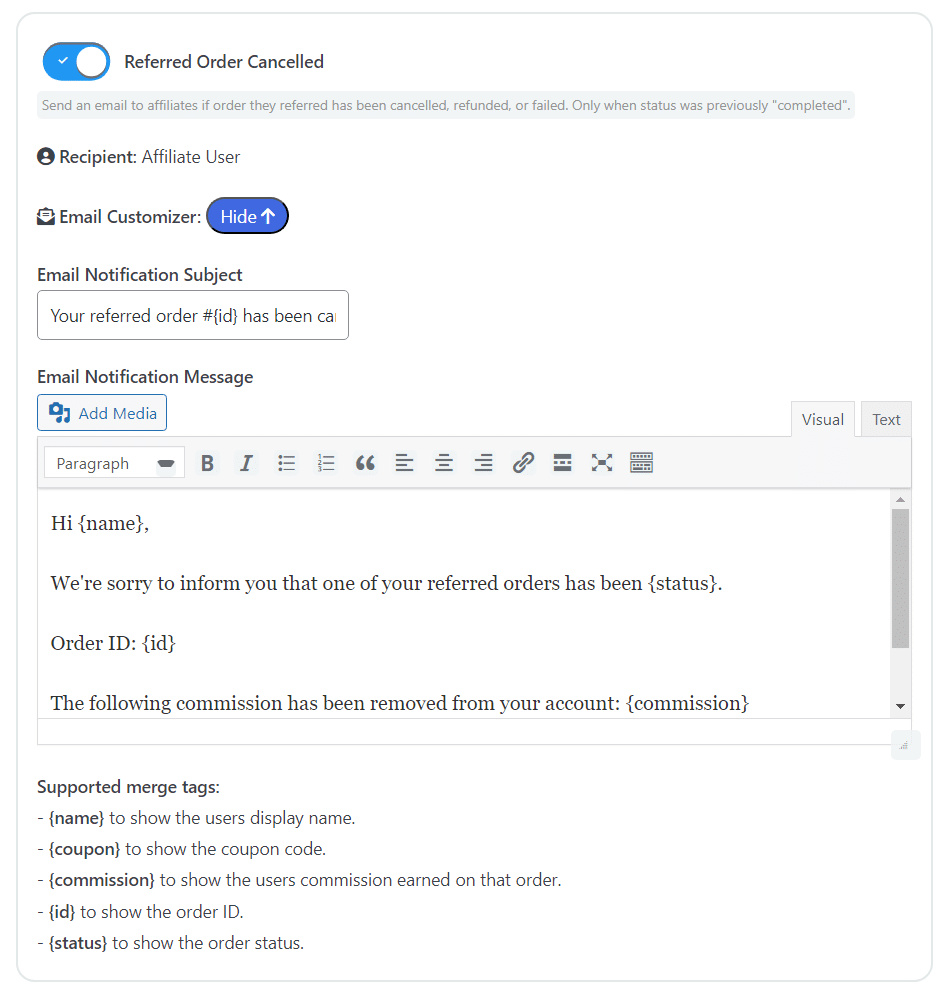
Optionally, you can also enable an email notification sent to the affiliate when an order is cancelled, refunded, or failed.
New Coupon Assigned
When an admin gives an existing affiliate an additional coupon, the plugin can send a New Coupon Assigned email. Enable and edit it under Email Notifications.
On Add New Affiliate, Add New Coupon, and View Affiliate → Add New Coupon, you can choose which email the affiliate receives: the Affiliate Application Accepted email, the New Coupon Assigned email, or none.
New Affiliate Application
When someone applies through the affiliate registration form, the plugin can send a New Affiliate Application email to the admin notification address above. Enable and customise it under Email Notifications.
The message supports these merge tags:
{username}– the applicant’s username{name}– the applicant’s first and last name{email}– the applicant’s email address{coupon}– the coupon code they requested{website}– the website they entered on the form{promote}– how they plan to promote you{referrer}– the affiliate who referred them, if any{custom-fields}– any custom registration fields, listed out{adminurl}– a link to the Affiliate Applications page
Only {username} and {coupon} are replaced in the subject line.
As there is no reply-to setting, adding a line such as Applicant: {name} ({email}) to the message is the simplest way to have the applicant’s address to hand when you want to reply to them directly.
Other Emails
There are also a variety of other emails you can enable and customise in the Email Notifications tab, such as affiliate registration emails and payouts emails.
On the New Payout Request and New Commission Payout emails, you can use the merge tags {firstname} and {lastname}.
The merge tags each email supports are also listed under its message, as Supported merge tags, in the Email Customizer.
SMS Notifications
You can also send similar notifications via SMS. Click here to learn more.