





Commission Breakdown on Orders
Coupon AffiliatesUpdated October 24, 2026
This article is mirrored from couponaffiliates.com.
When you edit a WooCommerce order, the Coupon Affiliate box shows the commission for that order. Hover the commission amount to open Commission Breakdown. The tooltip explains the figure saved on the order. It does not run a second live recalculation.
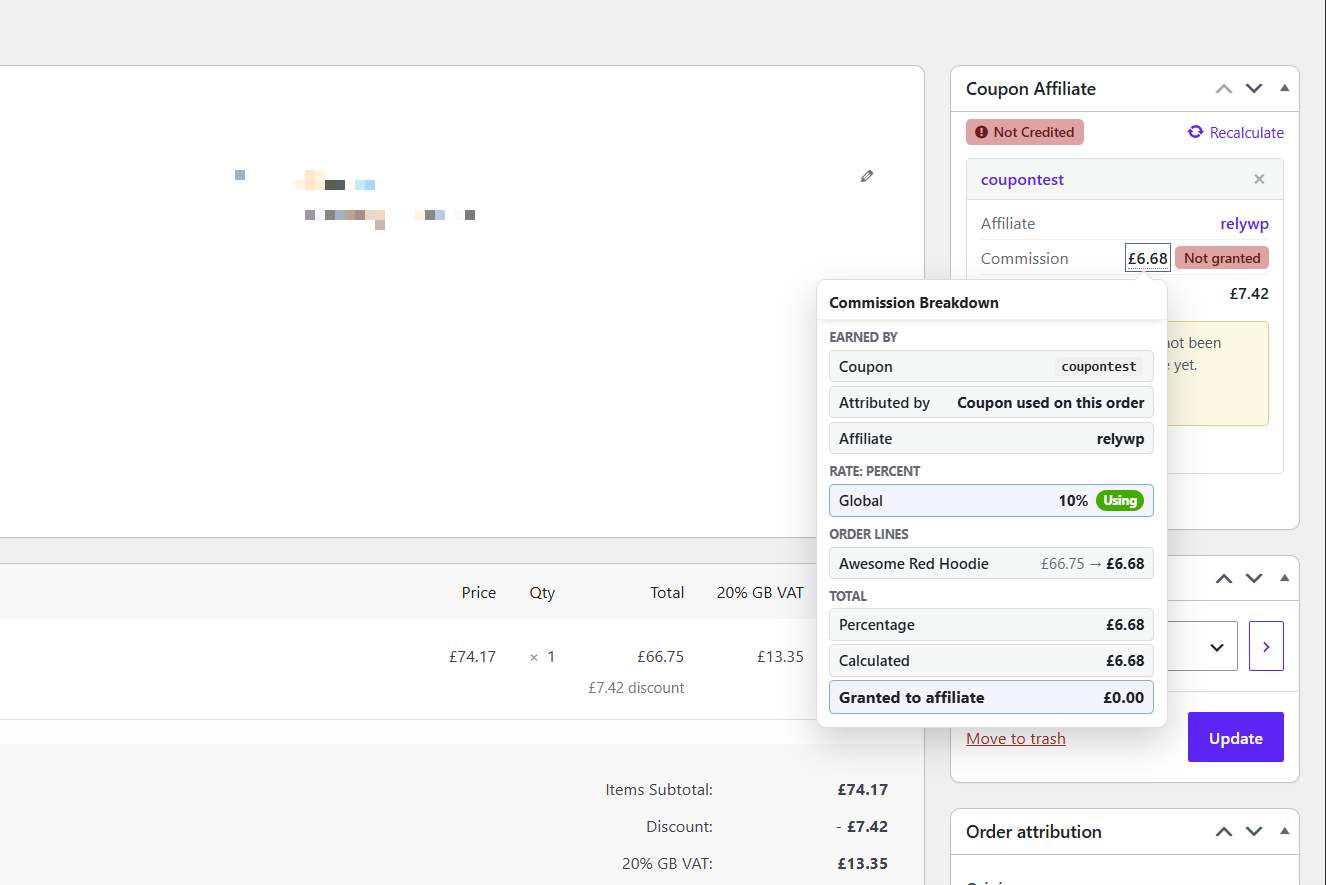
What the breakdown shows
Earned by
- Coupon — the coupon that earned the commission.
- Attributed by — Lifetime commission, Referral URL / custom referrer, or Coupon used on this order.
- Affiliate — the user assigned to that coupon.
If several coupons are on the order, only one earns the saved commission. The tooltip names that coupon, even if you hovered a different coupon row.
Rate
Each commission type (for example Rate: Percent) lists the levels that apply, marked Using or Overridden. This is the same idea as Commission Levels on the coupons list.
Order lines
- Each product, with the amount the percentage was based on, then the commission for that line.
- Adjustments such as Fees, Custom Discounts, Shipping, and Store Credit, when they affect commission.
Total
- Percentage, Fixed per order, and Fixed per product, when they apply.
- Capped at maximum, if a maximum commission setting limited the total.
- Adjustments, when something else changed the commission on top of the rows above, so that the rows still add up to the total. For example, the parents’ share taken out of a sub-affiliate’s commission with Multi-Level Affiliates (PRO). It is not shown for refunded, cancelled or failed orders.
- Calculated vs Granted to affiliate when those two amounts differ. That is typical after a refund, or when unpaid commission has not been granted yet.
If the box is missing
Enable Show Affiliate Info widget on single order under Settings → Debug.
Related
- Flexible Commission Settings
- What happens when an order is refunded or partially refunded? — the same box can offer a Deduct action when granted commission is higher than the current calculated amount.
- How to manually assign referral coupons to completed orders