





Install and run the setup wizard
Simple WishlistsUpdated
Install and activate the plugin, and the setup wizard opens on your next admin page load. The wizard creates your wishlist page, places the wishlist button and sets your colours in about two minutes. Every choice is saved as you go, and you can change all of it later under Wishlists › Settings.
Requirements
- WordPress 6.5 or later
- PHP 7.2 or later
- WooCommerce 6.0 or later
WooCommerce is listed under Requires Plugins, so WordPress will not activate the plugin until WooCommerce is active.
Install the plugin
- Go to Plugins › Add New and upload the plugin ZIP, or install it from the plugin directory.
- Click Activate.
- A Wishlists menu appears in the admin. Load any admin page and the wizard opens.
If you activate several plugins at once, the wizard does not open on its own. Open it from Wishlists › Settings with the Setup wizard link above the settings tabs.
The wizard steps
- Welcome: a short overview of how wishlists work.
- Wishlist page: create a new page with the wishlist on it (recommended), or choose a page you already have. You can also turn on the Wishlist tab in My Account here.
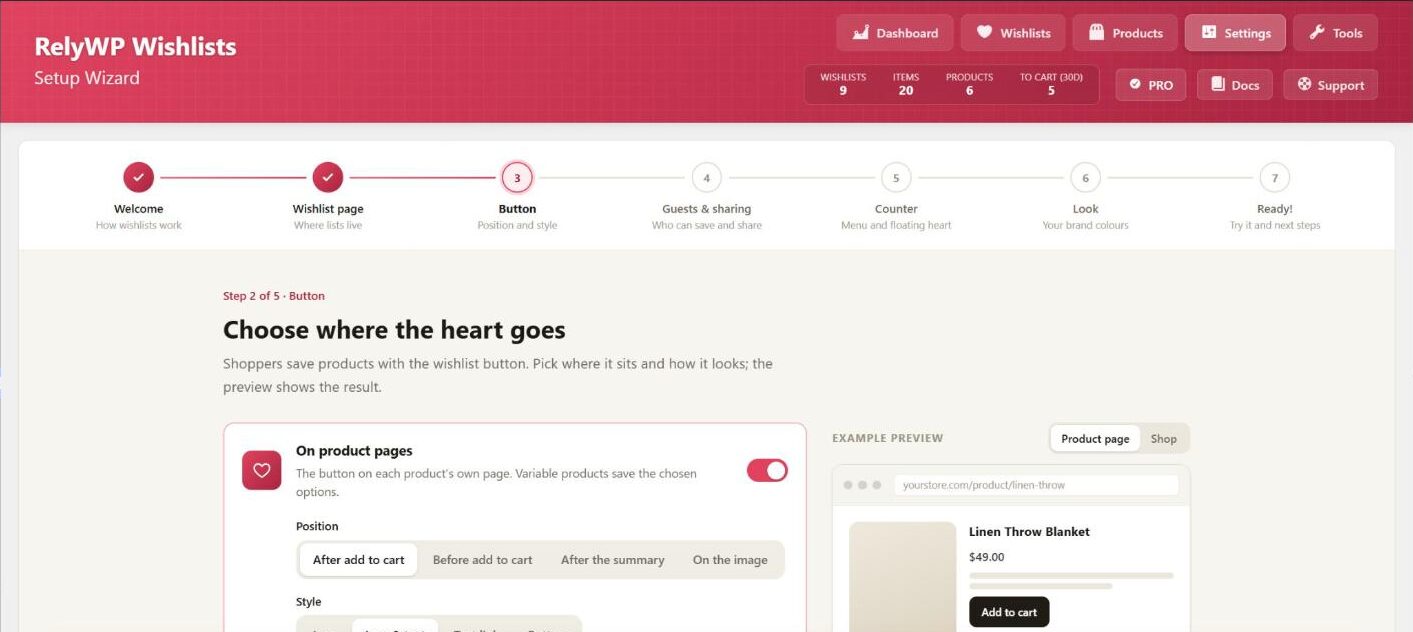
- Button: choose the position and style of the button on product pages and in the shop, the icon, and what happens after saving. A preview shows the result.
- Guests & sharing: choose whether shoppers must log in to save, whether guests can keep a wishlist, and whether customers can share their lists.
- Counter: add a wishlist counter to one of your theme’s menus, or show a floating heart in the corner of the screen.
- Look: pick your main and accent colours, the wishlist header style and the button shape.
- Import: only shown when the wizard finds wishlists from another wishlist plugin. It links to the import tool.
- Ready!: a summary of your choices with links to try the wishlist as a shopper.
Sensible defaults are already selected on every step, so you can click Continue on anything you are unsure about. To leave the wizard and set things up by hand, click Skip setup, I’ll configure it myself.
Run the wizard again
You can open the wizard at any time from the Setup wizard link on Wishlists › Settings, or from the Open the setup wizard button on the wishlist dashboard. Running it again does not remove any saved wishlists.