





Generate audio for a post
AI Text to SpeechUpdated September 15, 2026
You generate audio for a post from the AI TTS box in the post editor sidebar. Choose a voice (and a style, if you’re using the GPT-4o mini TTS model), then click Generate TTS. The box works in both the block editor and the classic editor, for any post type the plugin is enabled for.
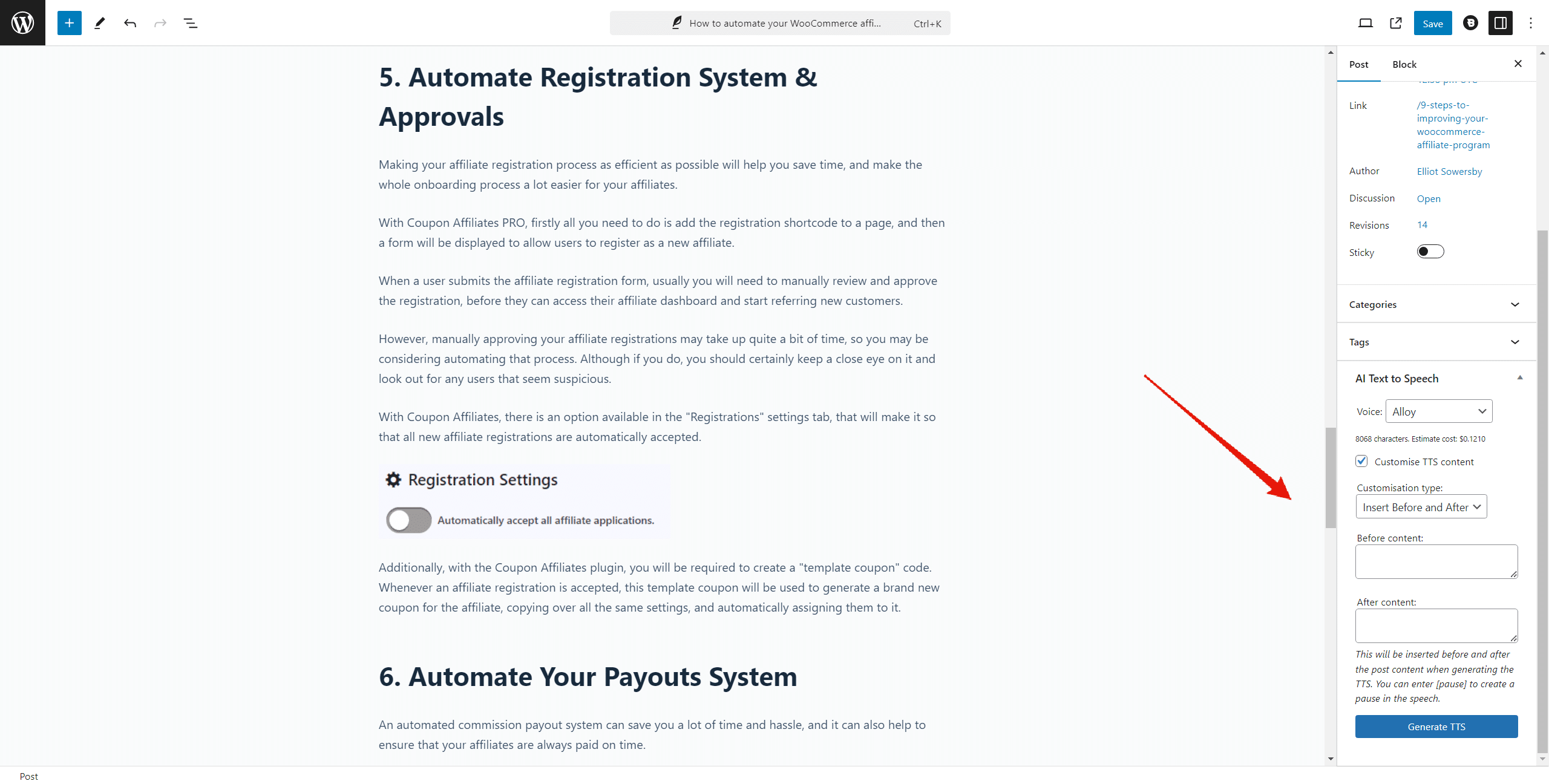
Generate the audio
- Save your post first so the latest content is stored. The plugin reads the saved post content from the database, not unsaved edits.
- In the AI TTS box, choose a Voice.
- Choose a Style. This field only appears when the voice model is GPT-4o mini TTS. Styles marked (PRO) need a PRO licence.
- Check the character count and Estimate cost line if it’s shown. It’s a rough guide based on the post title and text.
- Click Generate TTS and leave the page open. You’ll see “Generating audio file…” while it runs. Long posts are sent in several requests and can take a minute or more.
When it’s done, the box shows the file size, a preview player, the file URL, and Copy File URL and Delete File buttons. If you switched to another browser tab, the tab title changes to start with “*TTS Generated*”.
Regenerate after editing the post
Audio doesn’t update when you edit a post. To create a fresh version, click Generate New under the player. This shows the voice and style options again without deleting the current file, so the existing audio keeps playing on your site until the new one replaces it.
The previous file isn’t removed from storage when a new one is generated. If you want to keep your uploads folder tidy, click Delete File first and then generate again.
Use your own audio file instead
Click Upload new custom file. below the Generate TTS button to open the Media Library, filtered to audio. Upload or pick a file and click Use this audio. That file is then used for the post’s player, for example a recording you made yourself.
Delete the audio
Click Delete File and confirm. The player is removed from the post, and the file is deleted from wherever it’s stored:
- Generated files are deleted from the uploads folder or from Dropbox.
- A file chosen from the Media Library is permanently deleted from the Media Library, which affects any other post using it.