





Set up the wishlist button
Simple WishlistsUpdated
The wishlist button settings are under Wishlists › Settings › Button. You can set the position and style separately for product pages and for product cards in the shop, then choose the icon, the button text and what happens after a shopper saves a product.
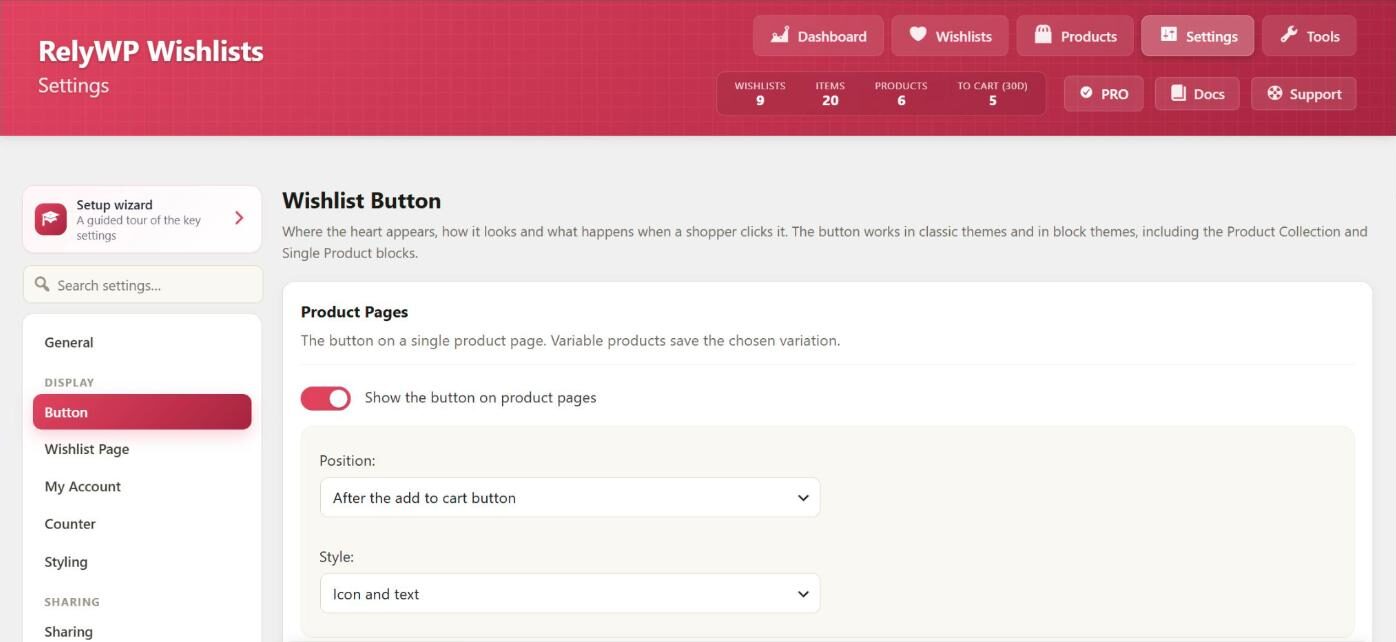
Product pages
Turn on Show the button on product pages, then choose a Position:
- After the add to cart button (default)
- Before the add to cart button
- After the product summary
- Over the product image
- Nowhere (I will place it with a shortcode or block): use this to place the button yourself with
[swlp_button]or the Wishlist Button block.
On variable products, the button saves the variation the shopper has selected.
Shop and category pages
Turn on Show the button on product cards to add the button to the shop, category pages, search results and product blocks such as Product Collection. The Position can be Heart over the product image (default), After the add to cart button or Before the add to cart button.
Choose a style
Each location has its own Style: Icon only, Icon and text, Text link or Button. Product pages use Icon and text by default, and product cards use Icon only.
Change the icon and text
- Icon: Heart, Star or Bookmark. Used by every style except the text link.
- Button text: shown before the product is saved. Default: “Add to wishlist”.
- Saved text: shown once the product is saved, and in the notification. Default: “Saved to wishlist”.
- “View wishlist” link text: the link in the notification. Default: “View wishlist”.
Choose what happens after clicking
After saving can be set to:
- Show a small notification with a link to the wishlist (default). When a product is removed, the notification also offers Undo.
- Go to the wishlist page
- Nothing (just fill the icon)
With Clicking a filled heart removes the product again turned on (default), a second click removes the product. When it is off, the button of a saved product links to the wishlist instead.
Show how many people saved a product
Turn on Show how many people wishlisted a product to add a line such as “12 people have saved this” under the button. Use Only show it once at least to hide the line until enough shoppers have saved the product (default: 2). The line is not shown with the heart over the product image.