





Browse and edit customer wishlists
Simple WishlistsUpdated
Every wishlist in your store is listed under Wishlists › Wishlists. Open one to see what was saved, the price when it was saved and what it costs now. In PRO you can also edit a customer’s wishlist for them.
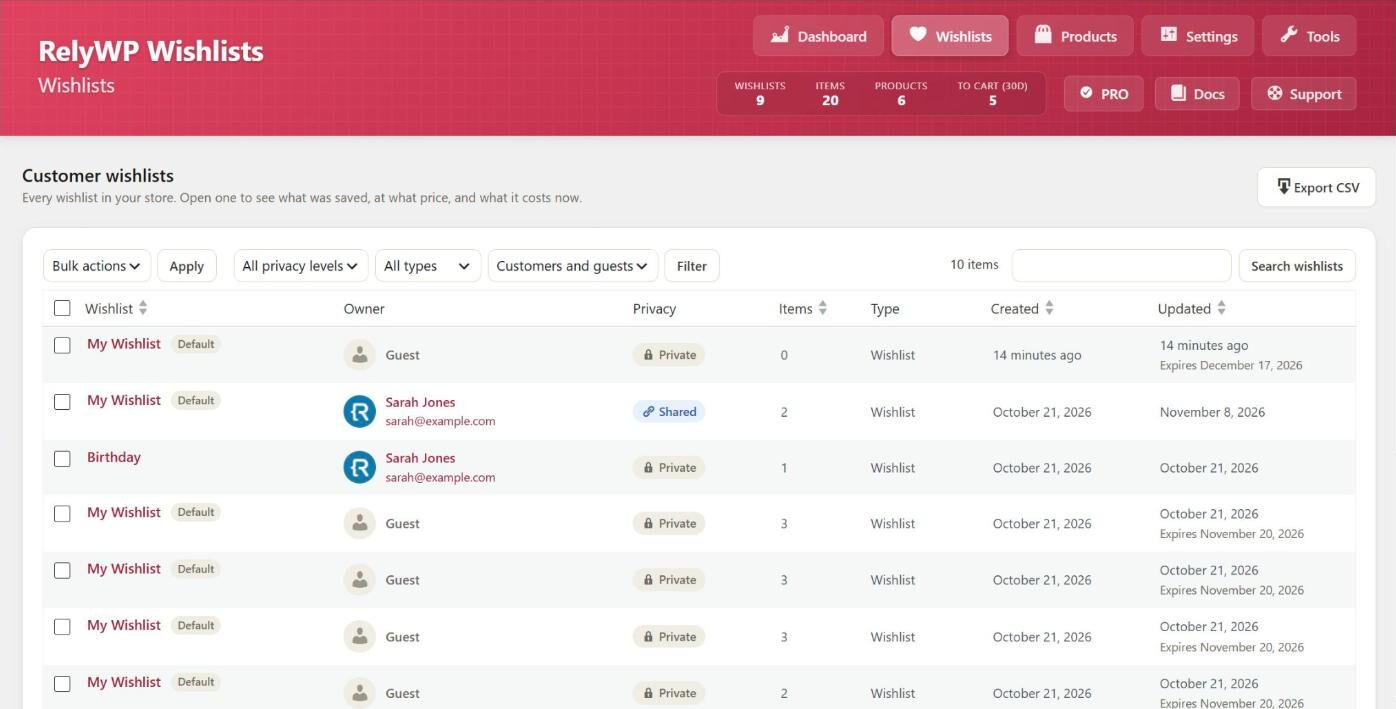
The wishlists table
The table shows each wishlist with its owner, items, privacy and the date it was last updated. Guest lists show Guest as the owner and the date they expire.
- Use Search wishlists to find a list by its title, or by the customer’s name, email address or username.
- Filter by privacy (Private, Shared or Public), by type (wishlist or gift registry) and by owner (Customers only or Guests only), then click Filter.
- Hover over a row for View, Open shared view and Delete.
- Select several lists and use the bulk action to delete them. Deleting removes the list and all of its items and cannot be undone.
Export CSV downloads the wishlists that match your current search and filters.
View a wishlist
Click a wishlist to open its page. The header shows the owner, item count, type, privacy, created and last updated dates, and the expiry date for guest lists or the event date for registries. The share link is shown with Copy and Open buttons. If the list is Private, the link only works for its owner until they share it.
The Saved items table lists each product with its options, quantity, Price added, Price now, stock and the date it was added. In PRO, estimate requests for the list are shown below it.
Edit a customer’s wishlist (PRO)
In PRO, the wishlist page has an Edit this wishlist section. From there you can:
- Change an item’s quantity or remove it.
- Search for a product under Add a product for the customer and click Add to wishlist.
- Change the list’s Privacy and click Save privacy.
This is useful for helping a customer by phone or building a list for them.