





Customise the wishlist emails (PRO)
Simple WishlistsUpdated
Every email the wishlist sends can be edited under Wishlists › Settings › Emails. Click an email to open it, use the switch to turn it on or off, change the subject and content, and send yourself a test. This is a PRO feature.
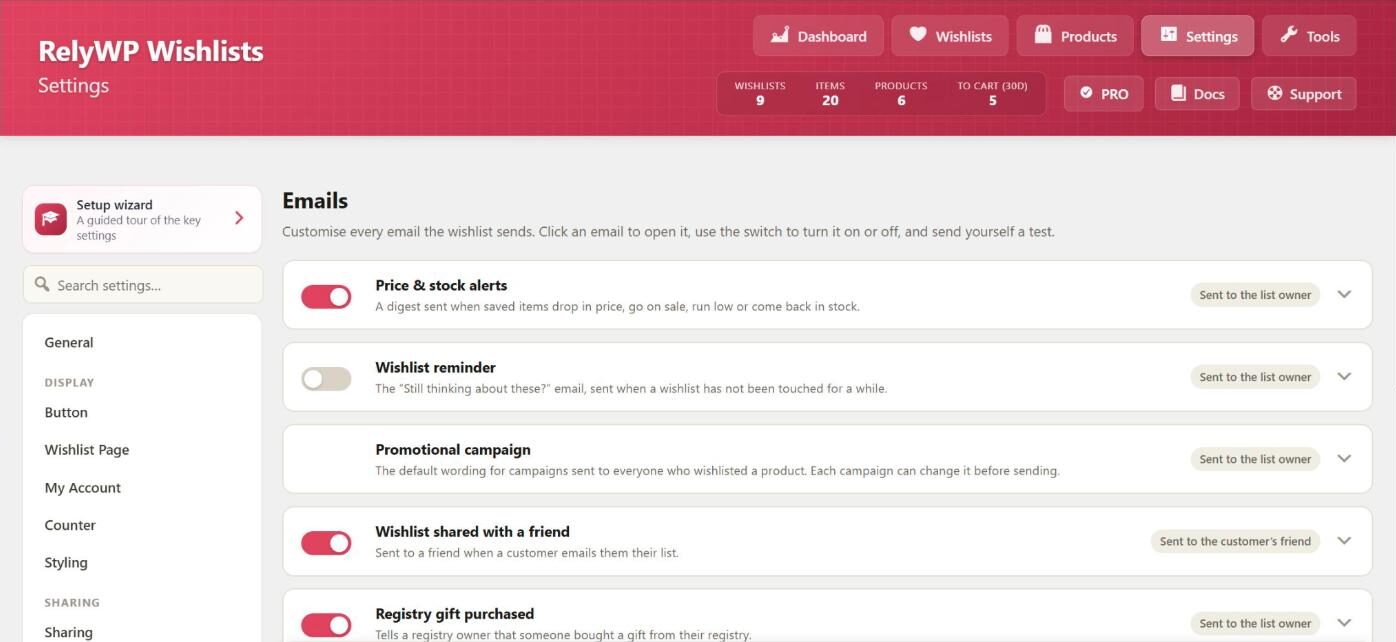
The emails
- Price & stock alerts: sent to the list owner when saved items drop in price, go on sale, run low or come back in stock.
- Wishlist reminder: sent to the list owner when their wishlist has not been touched for a while.
- Promotional campaign: the default wording for campaigns. Each campaign can change it before sending.
- Wishlist shared with a friend: sent to a friend when a customer emails them their list.
- Registry gift purchased: tells a registry owner that someone bought a gift from their registry.
- Estimate request: sent to the store when a customer asks for an estimate.
Edit an email
- Click the email to open it.
- Change the Subject: and the Email content. The content is wrapped in your WooCommerce email header and footer when it is sent.
- Click a merge tag under Merge tags (click to copy) and paste it where you want it.
- Click Send test email to send the email to your own address with sample data. The test uses what is in the editor, whether it is saved or not.
- Click Save All Settings.
The sender name, sender address and colours come from WooCommerce › Settings › Emails.
Merge tags
These tags work in every email:
{customer_name}: the recipient’s first name{site_name},{site_url}and{shop_url}{wishlist_title}and{wishlist_url}{items}: a table of the items with images, prices and links
Some emails have extra tags, which are listed beside the editor:
- Alerts:
{alert_count} - Reminder and campaign:
{coupon_block},{coupon_code},{coupon_amount},{coupon_expiry} - Campaign:
{product_name},{product_url},{product_price} - Shared with a friend:
{sender_name},{friend_name},{message},{share_url} - Registry gift:
{buyer_name} - Estimate request:
{customer_email},{customer_phone},{message},{total},{admin_url}
Unsubscribe links
Alerts, reminders and campaigns are marketing emails, so a one-click unsubscribe link is added to their footer automatically. You can also place it yourself with {unsubscribe_url}. Customers can change these choices later in the Price Alerts tab in My Account.