





Let customers create multiple wishlists (PRO)
Simple WishlistsUpdated
With multiple lists, customers can keep separate wishlists such as “Birthday ideas” or “Kitchen”. They choose a list when they click the heart, and can move or copy items between lists. Set it up under Wishlists › Settings › Multiple Lists. This is a PRO feature for logged-in customers. Guests keep a single list.
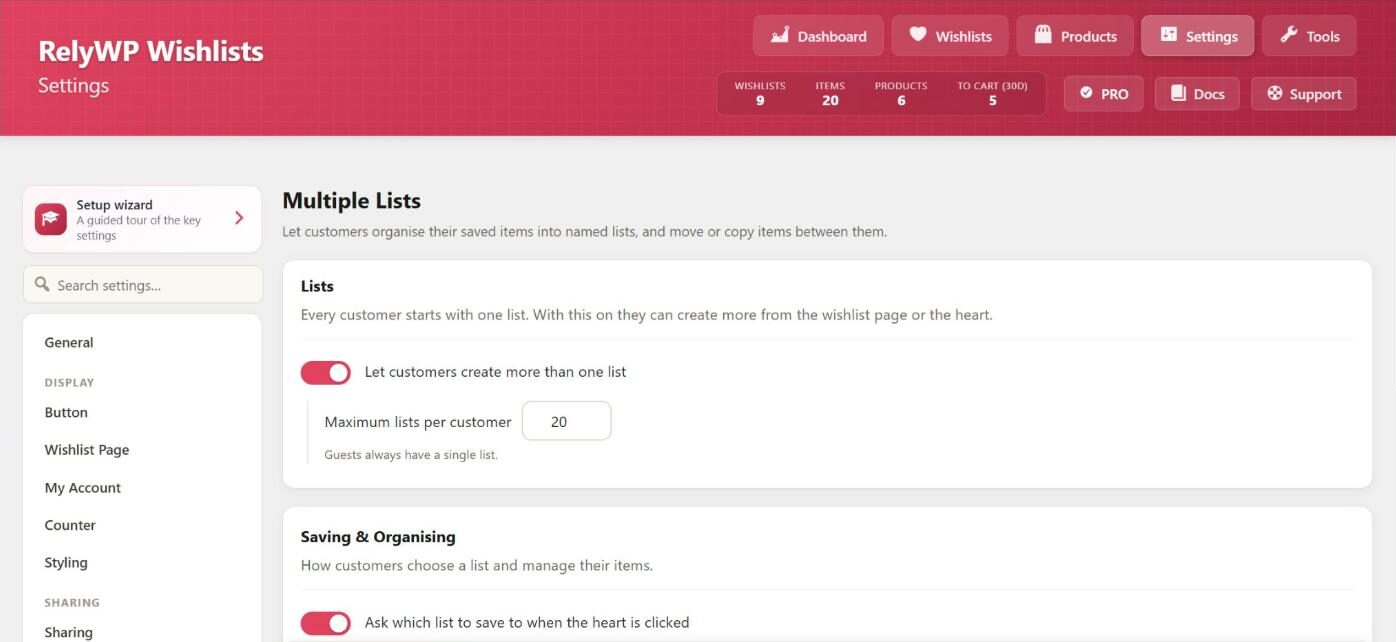
Settings
- Let customers create more than one list: on by default in PRO.
- Maximum lists per customer: default 20.
- Ask which list to save to when the heart is clicked: shows a small popover with the customer’s lists and a + New list field. When off, items go to the default list.
- Let customers copy items to another list as well as move them: when off, items can only be moved.
Saving to a list
With the popover on, clicking the heart opens Save to list. The customer picks a list, or types a name such as “e.g. Birthday ideas” and clicks Create to make a new one and save to it straight away.
Managing lists
On the wishlist page and in My Account, each list is shown as a tab above the items, with a New list button. From List options, the customer can:
- Rename the list.
- Make default: new items are saved to this list when no list is chosen.
- Move earlier or Move later to change the order of the lists.
- Delete list: removes the list and everything saved in it. This cannot be undone.
Moving and copying items
- Each item has a Move action to send it to another list.
- To move several items, the customer selects them and uses Move to… or Copy to… in the bulk action bar.
- With copying allowed, Keep a copy in this list leaves the item in both lists.
Each list has its own privacy and share link, so a customer can share one list and keep another private. Any list can also be turned into a gift registry.