





Configure the general settings
Simple WishlistsUpdated
The Wishlists › Settings › General tab switches wishlists on and off, sets the wishlist page, controls who can save items, limits list size and turns analytics on or off. Click Save All Settings after editing.
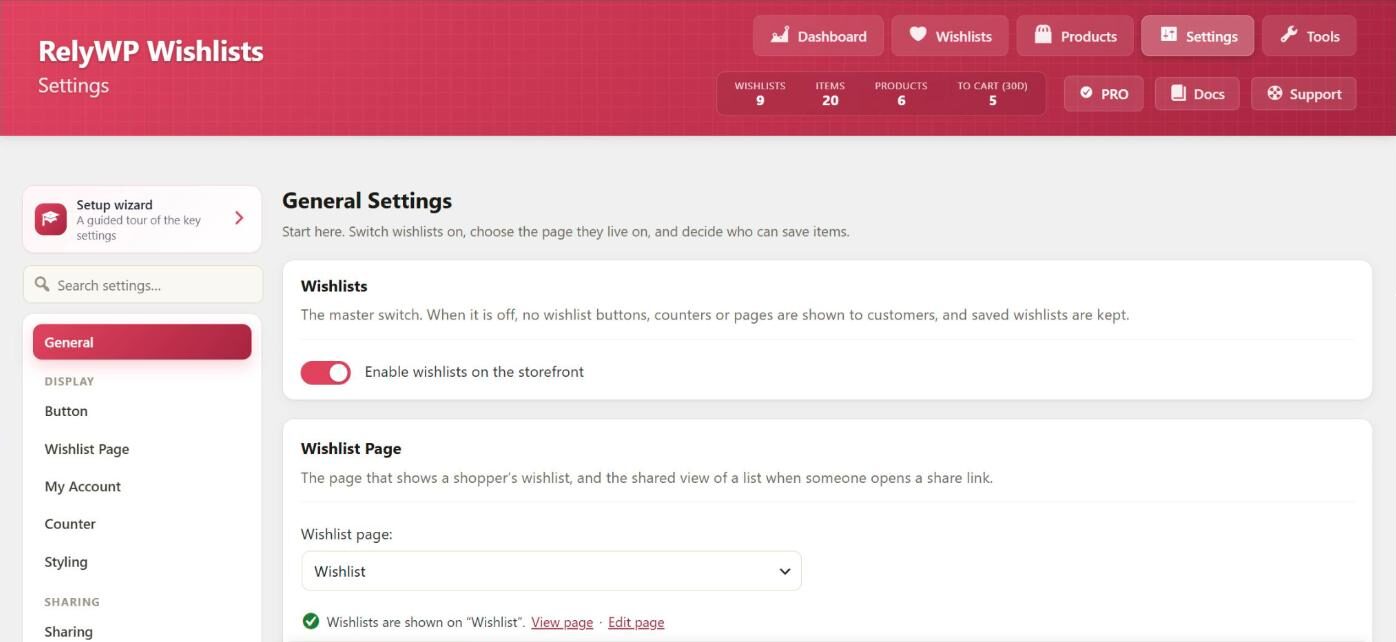
Turn wishlists on or off
Enable wishlists on the storefront is the master switch. When it is off, no buttons, counters or wishlist pages are shown to customers. Saved wishlists are kept, so turning it back on restores everything.
Set the wishlist page
The Wishlist page shows a shopper’s wishlist, and it also shows a shared list when someone opens a share link. Guests need this page to see their wishlist. If no page is set, click Create the wishlist page for me and the plugin creates and selects one. To use your own page, add the [swlp_wishlist] shortcode or the Wishlist block to it, then select it here.
Who can save items
- Require customers to log in before they can save items: logged-out shoppers who click the heart are sent to log in, and the product is saved once they have. Off by default.
- Let guests (logged-out shoppers) keep a wishlist: on by default. Hidden when login is required.
- Delete inactive guest wishlists after: the number of days a guest list is kept without activity. The default is 30 days.
Limit items and remove bought items
- Maximum items per wishlist: stops a single list growing without limit. The default is 200.
- Remove an item from the wishlist when it is added to the cart: when on, a saved product is removed from the shopper’s wishlist as soon as they add it to the cart, either from the wishlist or anywhere else in the store. Off by default, so items stay on the list until the customer removes them.
Analytics
Record wishlist activity for reports logs adds, removes, add-to-carts and purchases from wishlists. The dashboard and product reports use this data. Keep activity for sets how many days of activity are stored before it is deleted automatically. The default is 365 days and the minimum is 30.