






If a WooCommerce coupon code leaks onto a deal site, you usually can’t get it taken down, and browser extensions like Honey will keep trying it at checkout. So the aim of this guide is different: set the code up so that it only works for the people you gave it to.
How you do that depends on who the code was for:
- For a code sent to specific people, such as an apology to a customer or a VIP offer, use WooCommerce’s own Allowed emails setting.
- For a welcome code shown on your website, limit it to new customers only.
- For an influencer or partner code, make it work only through its link, or only for visitors coming from the partner’s site.
- For anything else, give the code an end date and a limit on repeat use.
A quick disclosure: we make Better Coupon Restrictions, which is the plugin used in steps 2 to 4. Step 1 only uses WooCommerce, and we cover the plugin’s weak spots in the limits section near the end.
How WooCommerce coupon codes leak
Most of the time nobody sets out to leak a code. It usually happens in one of these ways:
- Browser extensions such as Honey and Capital One Shopping collect codes for your store and test them automatically at checkout.
- Coupon websites like RetailMeNot publish codes that their users send in. If one newsletter subscriber posts your code there, it’s public.
- Codes get shared on deal forums, Reddit and in group chats, often within hours of an email going out.
- A code made for one influencer’s followers gets used by shoppers who were going to buy from you anyway.
Webstepper’s article on single-use codes sums up the problem well: a shared code is just a piece of text, and anyone who has it can use it.
If the problem is affiliates using their own codes to earn commission on sales they didn’t really send you, that’s a separate issue. We cover it on our Coupon Affiliates site in how to prevent affiliate coupon abuse in WooCommerce.
How to tell if a code has leaked
A few quick checks:
- Search Google for your store name plus “coupon code” or “promo code”. Coupon sites tend to rank well for these searches, so if your code is out there you’ll probably find it on the first page.
- In Marketing > Coupons, compare the usage count with what you’d expect. If you sent a code to 400 people and it has 1,200 uses, it has spread.
- Go to Analytics > Coupons and look at the dates. A jump in uses a few days after the campaign finished usually means someone posted it.
- Look through the orders that used the code. If most of them are from first-time customers you can’t connect to your email list or to the partner, that’s another sign.
Step 1: Tighten the code with WooCommerce’s own settings
You can do a lot with the settings that come with WooCommerce. Open any coupon and look at the Usage restriction and Usage limits tabs.
- Use a random code. Something like SAVE10 is easy to remember and easy to guess. The Generate coupon code button on the coupon screen gives you a random string instead.
- Add an expiry date. If the code stops working when the campaign ends, a coupon site listing it is only a problem for a short time. According to the WooCommerce coupon documentation, a coupon can’t be used on its expiry date.
- Set a usage limit per coupon. It caps the total number of uses across every customer, so there’s a ceiling on what a leak can cost.
- Set a usage limit per user. One customer can’t keep reusing the code. WooCommerce identifies the customer by their account or billing email, though, so someone who checks out with a different email address is treated as a new person. Store owners on the WooCommerce support forum have reported guests getting around this limit.
- Fill in Allowed emails for one-to-one codes. WooCommerce checks the customer’s billing email against this list. If the code is meant for three people, add their three addresses and nobody else can use it. A wildcard like *@company.com works too, which is handy for staff or partner discounts.
- Tick Individual use only. Then the code can’t be combined with other coupons.
For email campaigns, the best option is a different single-use code for every person on the list. WooCommerce can’t create codes in bulk, so for that you’d need a coupon plugin or an email tool that generates them.
Where these settings fall short is with codes that have to be shared. You can’t tie a welcome code on your homepage, or a code an influencer mentions in a video, to a list of email addresses. Steps 2 to 4 are for those.
Step 2: Limit who a shared code works for
The free version of Better Coupon Restrictions adds a new tab called Better Coupon Restrictions to the WooCommerce coupon screen. Install it from Plugins > Add New Plugin, edit a coupon and open that tab. The settings below are the ones that matter most for leaked codes.
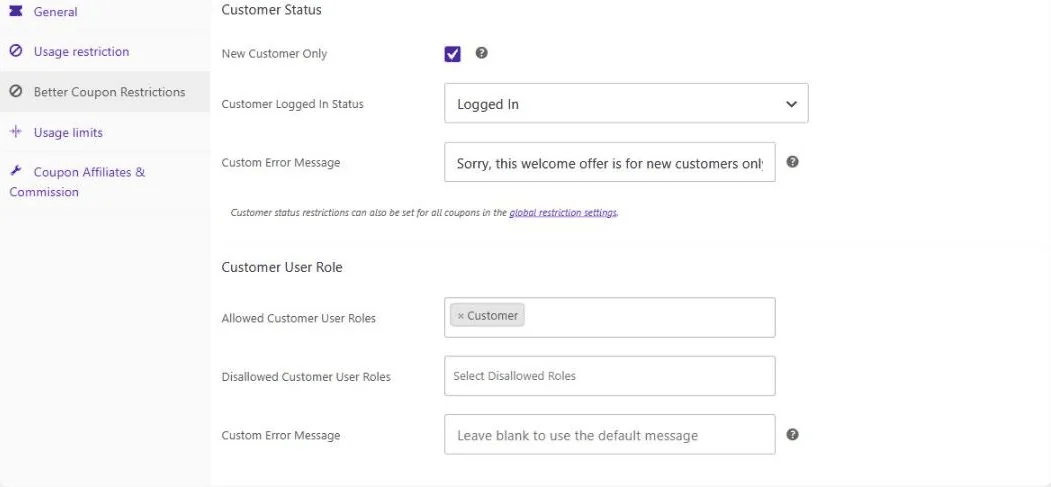
New Customer Only
With New Customer Only ticked (in the Customer Status section), the code is rejected for anyone who has ordered from you before. For logged-in shoppers the plugin checks their account. For guests it checks the email address they enter at checkout, and re-checks the coupon once they’ve typed it.
Use this on welcome codes. If a first-order code gets posted online, your existing customers still can’t use it.
Customer Logged In Status
If you set this to Logged In, shoppers need an account for the code to work. People who found the code on a deal site can still register and use it, but you’ll have their email address afterwards.
Customer User Role
For trade or wholesale discounts, put your wholesale role in Allowed Customer User Roles. If the trade code turns up on a forum, retail customers won’t be able to use it.
Date and time windows
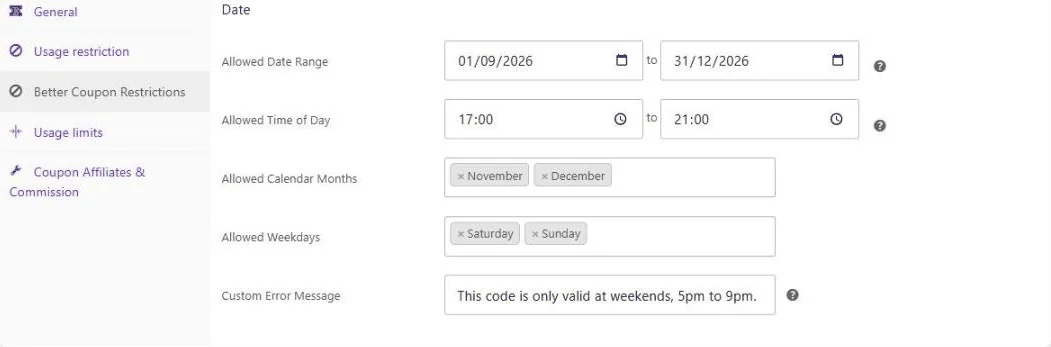
In the Date section you can set a date range, pick calendar months or weekdays, and set a time of day. These all use your store’s timezone, and a time window can go past midnight (for example 10pm to 2am). A flash sale code that only works from 6pm to 9pm on a single Friday won’t be much use to a coupon site.
Custom error messages
Each section of the tab has its own Custom Error Message field, so you can replace the default message with your own. On a leaked welcome code, you might write “This code is for new subscribers. Join our newsletter to get your own.” Some of the people who try it will sign up.
If you’re logged in as a shop manager, you’ll also see a line under the error telling you which rule rejected the code. Customers don’t see this, but it helps when you’re testing.
Step 3: Make codes work only through a link
From here on, the settings are part of Better Coupon Restrictions PRO.
Only Valid Via Link
Each coupon gets its own link, in this format:
https://yourstore.com/?coupon=CODE
You can add ?coupon=CODE to the end of any page on your store. Opening the link adds the coupon to the shopper’s cart. If the cart doesn’t qualify yet (say it’s under the minimum spend), the plugin tries again whenever they add another product.
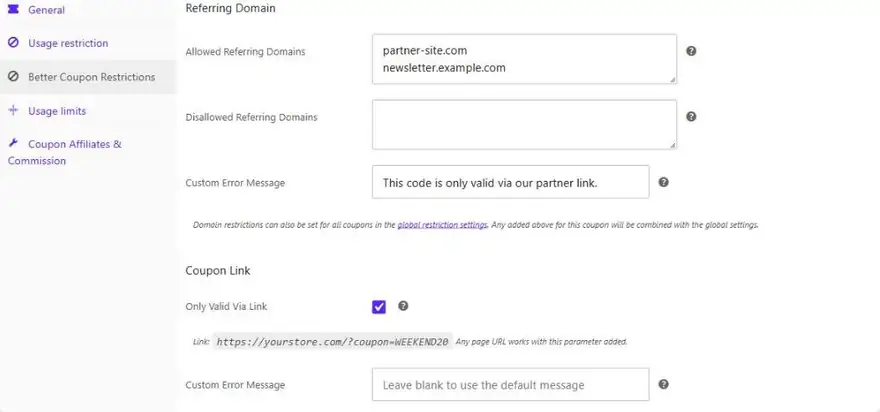
Then tick Only Valid Via Link in the Coupon Link section. After that, typing the code into the coupon field won’t work, and neither will a browser extension entering it. The shopper has to come through the link.
We’d use this for influencer and partner codes. Give the creator the link rather than the code on its own. If someone copies just the code onto a deal site, it won’t work.
The weak point is the link itself. It has the code in it, so if someone shares the full link, the discount still applies. Referring domain rules can help here.
Referring Domain
If you add a partner’s website to Allowed Referring Domains, the code only works for visitors who came from that site. The plugin saves the first outside website a visitor arrived from for 30 days, so they don’t have to check out straight away. This cookie is only set if at least one coupon uses a referring domain rule.
It also works the other way round. Put coupon sites in Disallowed Referring Domains, and anyone whose first visit to your store came from one of them won’t be able to use the code. As the plugin only saves the first site, a shopper who found you through Google and later clicked through from a coupon site won’t be blocked.
This is best for partners who have their own website. A lot of apps and email programs don’t tell your store where the visitor came from, so for creators who only post on social media, the link-only setting is the better fit.
Step 4: Cap how often one person can use a code
These PRO settings stop a code being reused again and again once it’s out there.
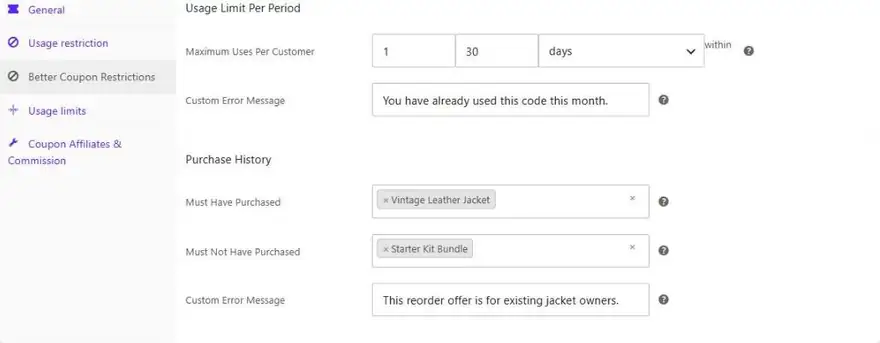
- Usage Limit Per Period: WooCommerce only lets you limit uses per customer for the whole life of a coupon. With this, you could allow one use per customer each calendar month, or two uses in any 30 days. Customers are matched by account, or by email if they’re a guest. Cancelled, failed and refunded orders aren’t counted.
- Maximum Usage Per Address: limits uses per billing or shipping address. The plugin needs both the first line of the address and the postcode before it counts anything, so it won’t block everyone in the same postcode.
- Maximum Usage Per IP Address: limits uses from one internet connection. Have a look at the limits section before you turn this on.
- Disallowed Email Domains: if people keep signing up with throwaway email addresses to reuse a new customer code, add those email domains here.
PRO also has Global Restrictions, which apply a rule such as new customers only or no stacking to every coupon at once. You can exempt a coupon by ticking Ignore Global Restrictions on it.
What to do when a code has already leaked
- Work out whether it’s a problem. If it was already a public sale code, a listing on a coupon site probably doesn’t matter. It matters more for welcome codes, partner codes and codes meant for one person.
- Add a restriction instead of deleting the code. For example, switch on New Customer Only or Only Valid Via Link, and add a custom error message that tells people what they can do instead. If you’d rather stop the code completely, change its expiry date to today.
- Send a new code to the people who should have it. Set up the restrictions from this guide first.
- Ask the coupon site to take the listing down. Some sites will remove a code if the store owner asks. Not all of them do, so don’t count on it.
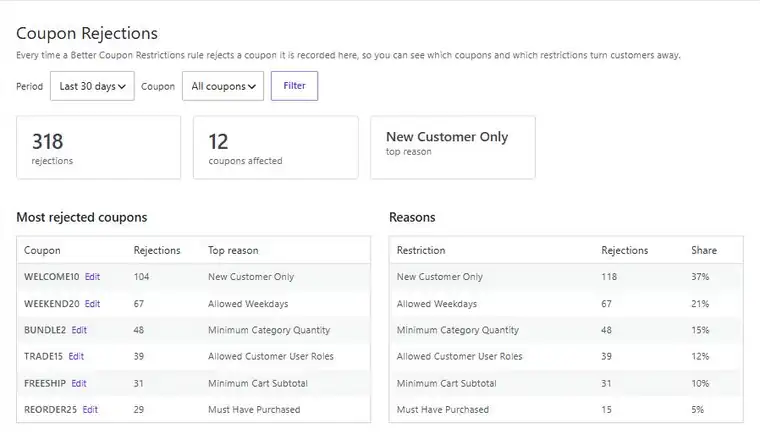
- Keep an eye on rejections. PRO includes a Coupon Rejections report. It’s off by default. Once it’s on, you can see which coupons get rejected the most and which rule rejected them, so you know if people are still trying the leaked code.
The limits of these fixes
These settings won’t solve everything, and if you make them too strict you’ll lose some sales.
The code will still appear in extensions and on coupon sites
Adding restrictions doesn’t remove a code from Honey or from a coupon site. People will still try it and get an error. A helpful custom message makes that less annoying, but some shoppers will give up and leave.
Link-only codes are less convenient
If a customer deletes the email with the link in it, they can’t just type the code. The link also only works in the browser it was opened in, so someone who clicks it on their phone and then buys on their laptop needs to open the link again on the laptop.
A new email address gets around new customer checks
Better Coupon Restrictions looks for an exact match on the email address. It won’t treat [email protected] and [email protected] as the same person. If you see a lot of this, the Coupon Restrictions extension on the WooCommerce Marketplace says it can detect email aliases like these.
IP limits can block real customers
Offices and universities often have lots of people sharing one IP address, and some mobile networks do the same. With a limit of one use per IP, a first-time customer could be turned away because someone else on their network already used the code. Set the number higher, or don’t use this rule.
People will still share codes with friends
If a code works for anyone who meets the rules, customers can pass it on to friends who meet them too.
If shared codes keep causing you problems, think about discounts that don’t use a code. An automatic discount (you’d need a discount rules plugin, as WooCommerce doesn’t have one built in) or store credit added to a customer’s account can’t end up on a coupon site.
Frequently asked questions
Can I stop Honey from showing my WooCommerce coupon codes?
Not through your coupon settings. There are tools that try to block coupon extensions at checkout, but they’re mostly for Shopify. In WooCommerce, what you can control is whether the code works when an extension tries it.
Do WooCommerce coupon limits work for guest customers?
To a point. Allowed emails and the usage limit per user are checked against the billing email. A guest who enters a different email address counts as a different customer.
What is the difference between a coupon link and a normal coupon code?
A coupon link applies the code automatically when the shopper opens it. If Only Valid Via Link is ticked, entering the same code in the coupon field is rejected.
Is Better Coupon Restrictions free?
There’s a free version on WordPress.org. It includes New Customer Only, logged in status, user roles, date and time windows, payment and shipping method rules and custom error messages. Coupon links, referring domains, usage limits per period, address and IP limits and rejection analytics need PRO. On 22 September 2026, PRO was $29 per year or $89 for a lifetime licence (prices exclude VAT).
Does it replace WooCommerce’s own coupon restrictions?
No. Your existing WooCommerce restrictions carry on working, and any rules you add in the plugin are checked on top of them. The code has to pass all of them to apply.
Conclusion
For codes meant for particular people, WooCommerce’s Allowed emails setting does the job. Welcome codes and partner codes are harder because they have to be shared, and that’s where limiting who can use a code, and where they came from, makes the difference.
We make Better Coupon Restrictions, so bear that in mind. Our suggestion: start with the WooCommerce settings in step 1. If you run welcome codes, try the free plugin. If it’s mainly partner codes that are leaking, have a look at PRO.

Our plugins
Grow your WooCommerce store
Affiliates, loyalty points, store credit, tax exemption and more – trusted on 248,000+ sites.

Comments