






WooCommerce doesn’t include gift cards, so you need a plugin to sell them. The setup in this guide uses a gift card product: a shopper picks an amount, pays for it like any other product, and the value turns into store credit once the order is paid. The buyer can keep the credit or send it to someone else by email with a personal message. The person who receives it enters a code at checkout to spend it. Setting it up takes about 20 minutes.
The steps below use the free version of Simple Store Credit. We make that plugin, so we’re not neutral. Everything in the setup works on the free version. There’s also a section near the end on what the plugin can’t do and which other gift card plugins cover those cases.
In this guide
- Before you start
- How to sell gift cards in WooCommerce
- What the recipient gets, and how they spend it
- Refunds, cancelled orders and expiry
- Moving from another gift card plugin
- What this setup can’t do, and other plugins
- FAQ
Before you start
You need a working WooCommerce store with at least one payment method set up, and an email setup you trust, because gift cards sent to someone else are delivered by email. Send yourself a test WooCommerce email first if you’re not sure. The plugin needs WordPress 6.5 or newer and PHP 7.2 or newer.
It also helps to decide one thing up front: how the value should reach the person who keeps it. Simple Store Credit can deliver it in two ways:
- Account balance. The amount is added to the customer’s store credit balance, which they can see under My Account and apply at checkout. This needs a customer account.
- Credit voucher. The customer gets a code. Vouchers are stored as normal WooCommerce coupons, and they can be spent over several orders until the value runs out. This works for people without an account.
A gift sent to someone else is always delivered as a voucher, so keep vouchers switched on if you want buyers to send gift cards to other people. Our post on store credit vs gift cards vs coupons explains the difference between the three in more detail.
How to sell gift cards in WooCommerce
Step 1: Install Simple Store Credit
In your WordPress admin, go to Plugins > Add New, search for “RelyWP Simple Store Credit” and install it, or download it from WordPress.org. After you activate it, a Store Credit menu appears in the admin.
Go to Store Credit > Settings > General and check which credit types are switched on. Account Balance and Credit Vouchers are both on by default. Leave Credit Vouchers on if you want to let buyers send gift cards to other people.
Step 2: Turn on store credit products
Open the Store Credit Products tab and switch on Sell store credit and gift cards as catalog products. This adds a new product type called “Store credit / gift card” to WooCommerce. Save the settings.
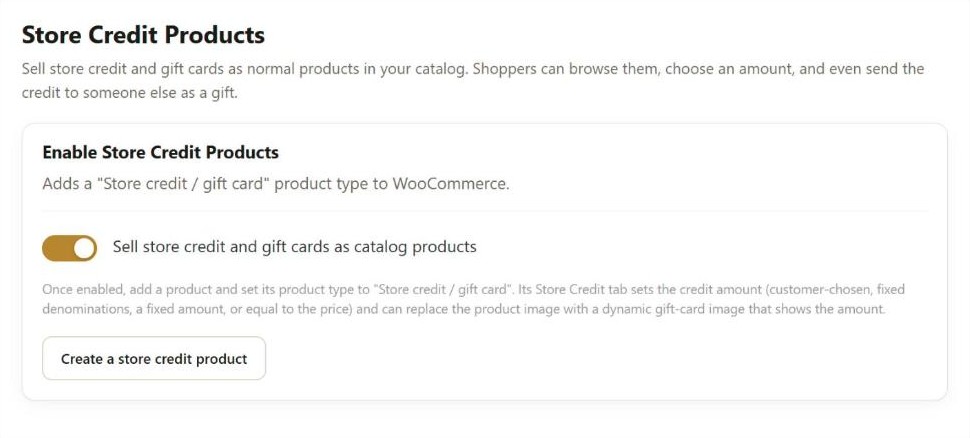
On the same tab, the Delivery section sets the default for products that don’t choose their own method: account balance or credit voucher. If you pick vouchers, you can also set a voucher expiry in days. We cover expiry further down, because there are legal rules to check first.
Step 3: Create the gift card product
Go to Products > Add New, give the product a name such as “Gift Card”, and set Product data to Store credit / gift card. The editor then shows only the tabs a gift card needs. The product is always virtual, so there is no shipping to set up.
Open the Store Credit tab and choose a Credit amount mode. There are four:
- Fixed denominations (customer picks one). You enter amounts such as 25, 50, 100, and the customer chooses one of them as a button on the product page. They pay the amount they pick. You don’t need a variable product for this.
- Let the customer choose the amount. The customer types any amount and pays exactly that. You can set a minimum and a maximum.
- Equal to the price paid. The customer gets credit equal to the price on the General tab. Use this for a single fixed gift card, for example one 50.00 card.
- A fixed credit amount. The customer pays the price on the General tab and gets a different amount of credit. For example, you can sell 100 of credit for 90 as a promotion.
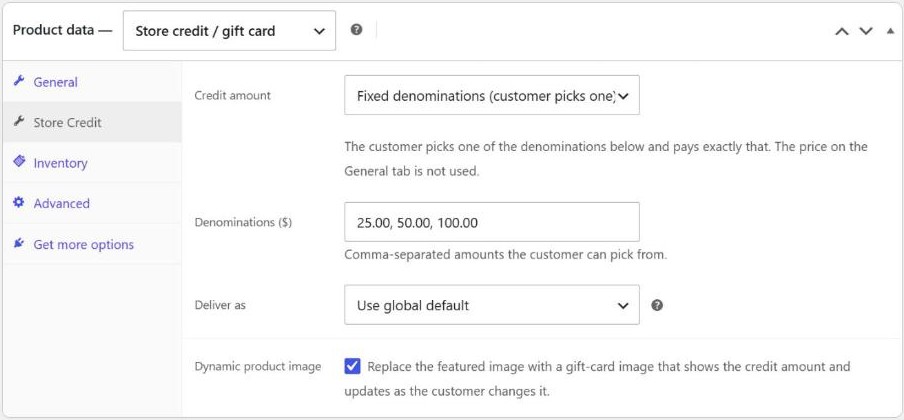
Fixed denominations suit most stores. A short list of amounts is quicker for shoppers than an empty box, and the product page shows the price as a range, for example $25.00 – $100.00.
If you don’t want to build the product by hand, the Store Credit Products settings tab has a Create a store credit product button. You enter a name, an amount mode and a delivery method, and the plugin creates a draft product for you to check and publish.
Step 4: Choose how the credit is delivered
The Deliver as field on the product decides what happens when the buyer keeps the gift card for themselves. Leave it on “Use global default” to follow the setting from Step 2, or choose account balance or credit voucher for this product only.
If a guest buys a gift card for themselves and the delivery method is account balance, there is no account to add the balance to. In that case the plugin creates a voucher and emails the code to the buyer’s billing email instead, so the value is not lost.
Step 5: Let buyers send the gift card to someone else
Back in Store Credit > Settings > Store Credit Products, the Gifting to a Recipient section controls this. Switch on Allow sending store credit products as a gift to someone else, and switch on Allow a personal gift message if you want buyers to add a note. You can also change the wording of the checkbox and the heading shoppers see on the product page.
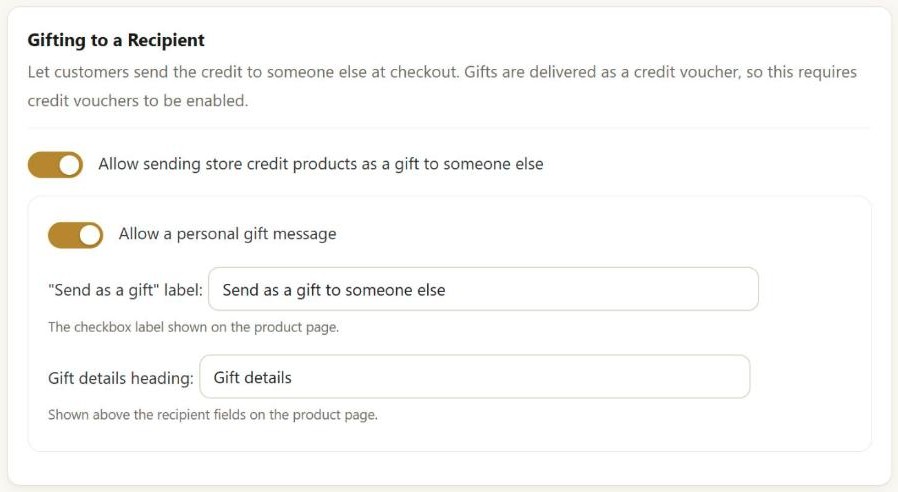
This section only appears when credit vouchers are switched on, because a gift is always delivered as a voucher. The recipient may not have an account on your store, and a voucher code works without one.
Step 6: Design the gift card image
You can upload your own product image like any other product. The other option is to tick Dynamic product image on the product’s Store Credit tab. This replaces the featured image with a generated gift card that shows the amount and changes when the shopper picks a different amount.
Below that option is a small designer with a live preview. You can choose a template, the card title, your logo and its position, a plain colour, gradient or background image, and the text colours and size.
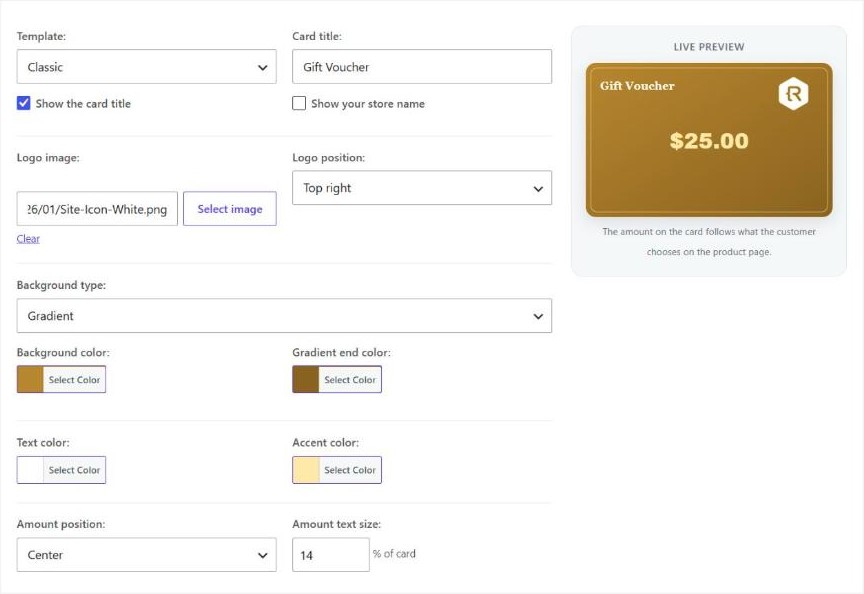
A new product starts from the voucher card design in the plugin settings, so all your gift cards and vouchers can look the same without setting each one up twice. The gift card image docs explain each option.
Step 7: Publish the product and place a test order
Publish the product and open it on your store. With denominations and gifting switched on, the page shows the amount buttons, a “Send as a gift to someone else” checkbox and, once it’s ticked, fields for the recipient’s email, the sender’s name and a message.
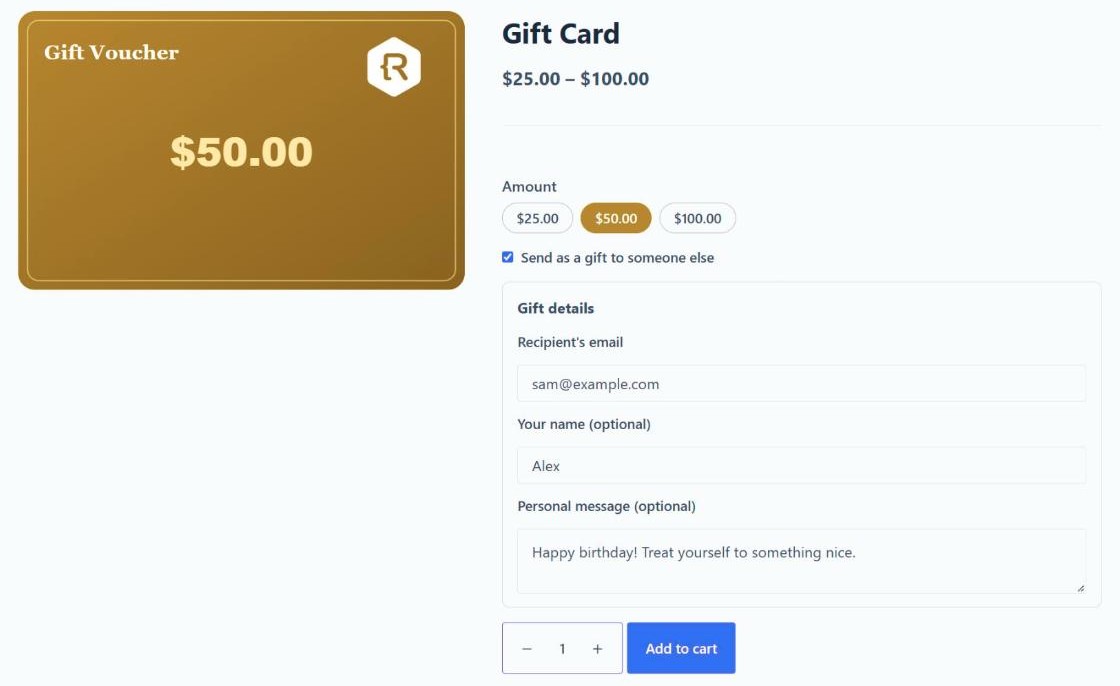
Buy one gift card for yourself and send one to a second email address you can check. Then confirm three things:
- The credit appears after the order is paid. The plugin adds it when the order reaches Processing or Completed. For bank transfer or cheque orders, which start On hold, that happens when you mark the payment as received.
- The gift email arrives at the second address with the code, the amount and the message.
- The code works at checkout on a fresh order.
Every voucher also shows up under Store Credit > Vouchers, with its code, remaining balance and status.
What the recipient gets, and how they spend it
When the order is paid, the recipient gets a “Gift received” email. By default it says who sent the gift and how much it’s worth, and includes the personal message, the gift card image and the voucher code. You can change the subject and text under the Email Notifications tab. If the recipient’s email address already belongs to an account on your store, the voucher is also linked to that account.
There are two ways to spend it:
- A logged-in customer can use the store credit tool on the cart and checkout pages. It lists their vouchers and also has a box to enter a code.
- A guest can type the code into the normal WooCommerce coupon field, because each voucher is a WooCommerce coupon.
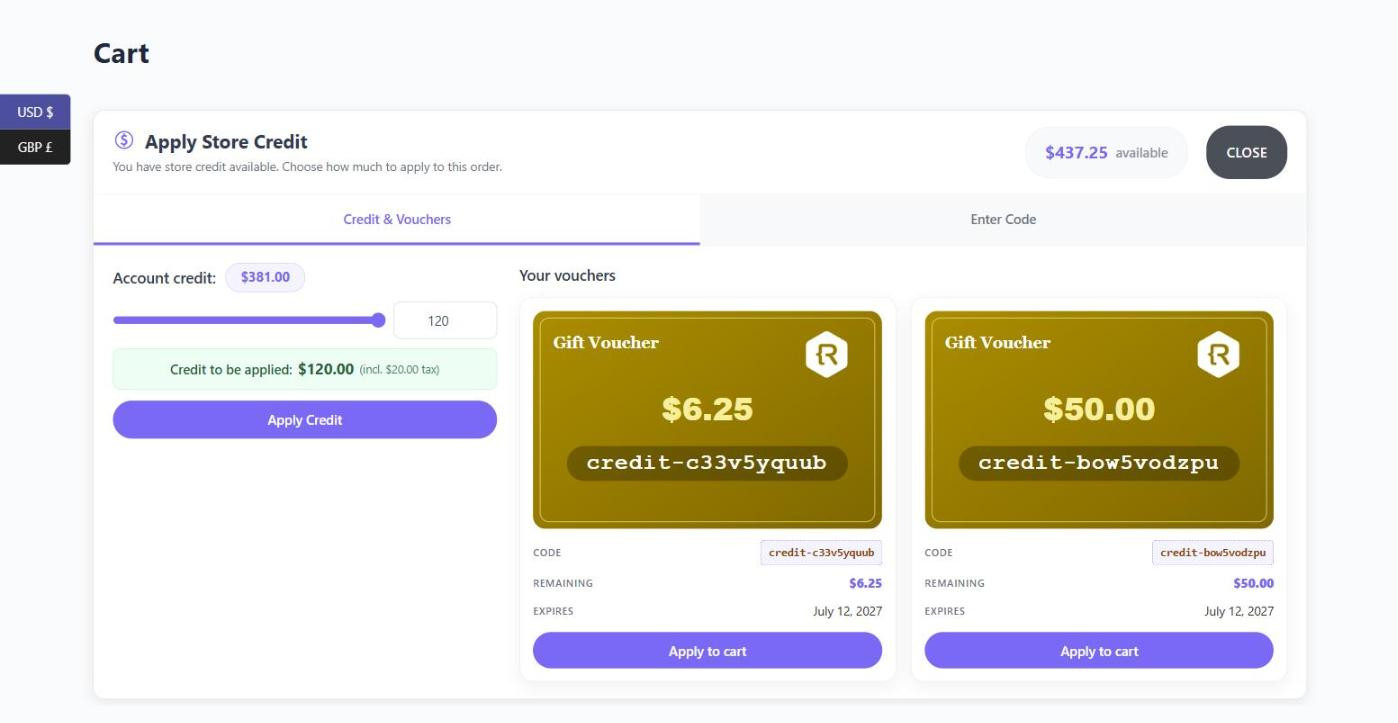
Vouchers can be spent a part at a time. If someone has a 50.00 gift card and spends 30.00, the other 20.00 stays on the code for a later order. To let people check what’s left without logging in, add the [sscp_balance_check] shortcode to a page. It shows the remaining balance, status and expiry date for any code.
Refunds, cancelled orders and expiry
If a gift card order is cancelled, refunded or fails, the plugin takes the credit back. A voucher is cancelled, and a balance is reduced by the amount that was added. Partial refunds take back part of the credit.
Credit that was already spent can’t be taken back from a voucher. If you refund a gift card order after the recipient used half of it, the plugin cancels the code and adds an order note with the amount that was already spent. Check the voucher’s balance under Store Credit > Vouchers before you refund a gift card order.
By default, gift card vouchers don’t expire. You can set an expiry in days for vouchers from gift card products in the Delivery settings. Before you do, check the rules where you sell. Many countries, and many US states, limit or ban expiry dates on gift cards, and some require a minimum number of years. If you’re not sure, leave expiry off.
Moving from another gift card plugin
Simple Store Credit has a migration tool under Store Credit > Migration. For gift cards, it can import cards from WooCommerce Gift Cards, YITH WooCommerce Gift Cards and PW WooCommerce Gift Cards. Each card can be kept as a voucher with its original code, remaining value and expiry date, or its value can be added to the customer’s account balance. A preview scan shows what it found before anything changes, and running it again skips cards that were already moved.
Keep the old plugin active until you’ve checked the results, so codes that customers already hold keep working. The migration docs list what moves from each plugin.
What this setup can’t do, and other plugins
Simple Store Credit is a store credit plugin with gift card products added on, not a dedicated gift card plugin. There are some things it doesn’t do:
- No scheduled delivery. The gift email goes out when the order is paid. A buyer can’t choose to send it on a birthday next week.
- No PDF or printable cards. Gift cards arrive by email only, and the product is always virtual, so you can’t sell a plastic card that you post.
- It’s new. Version 1.0.1 came out on 20 September 2026 and has no reviews on WordPress.org yet, so there’s less track record than older plugins have.
If you need those, two other plugins are popular choices (details checked on 12 October 2026):
- WooCommerce Gift Cards is the extension sold on WooCommerce.com, at $79 a year. Buyers can choose a future delivery date and send to more than one recipient. To let customers enter their own amount, you need the separate Name Your Price extension. It’s rated 4.2 out of 5 from 51 reviews.
- PW WooCommerce Gift Cards has a free version with 20,000+ active installs and a 4.7 out of 5 rating from 195 reviews. The free version sells fixed amounts and emails the card to a recipient. Customer-chosen amounts, scheduled delivery, PDF cards and expiry dates are in the paid Pro version.
Simple Store Credit makes more sense if you also want refunds to store credit, customer balances or cashback in the same plugin. Our roundup of the best WooCommerce store credit plugins compares more options, including gift card features.
Everything in this guide is in the free version. Simple Store Credit PRO, from $79.99 a year, adds cashback on purchases, credit expiry with reminder emails, bulk credit tools and the option for customers to gift credit from their own balance. None of that is needed to sell gift cards.
FAQ
Can I sell gift cards in WooCommerce without a plugin?
Only by hand. You could sell a virtual product, then create a fixed cart coupon for each order and email the code yourself. WooCommerce coupons don’t keep a remaining balance, though. A fixed cart coupon takes off its full value every time it’s used, so you would have to limit it to one use, and a customer who spends less than the full value would lose the rest. A plugin handles the code, the email and the balance for you.
Can customers choose their own gift card amount?
Yes. Set the product’s credit amount to “Let the customer choose the amount” and add a minimum and maximum if you want limits. This is in the free version of Simple Store Credit.
Does the recipient need an account on my store?
No. Gifts are sent as a voucher code by email, and a guest can enter that code in the WooCommerce coupon field at checkout. An account is only needed to see vouchers in My Account and to use the store credit tool at checkout.
Can I give gift cards away instead of selling them?
Yes. Under Store Credit > Vouchers you can create a voucher for any amount, for example as an apology for a late order. Assign it to a customer account and the customer gets an email with the code, or leave it unassigned and send the code yourself. It works the same way as a voucher that was bought.
How do I sell a gift card at a discount?
Set the credit amount to “A fixed credit amount”. Put the price you want to charge on the General tab, such as 90.00, and the credit the customer receives on the Store Credit tab, such as 100.00.
Can I refund an order to a gift card or store credit?
Yes, that’s a separate feature in the same plugin. A “Refund as Store Credit” button on the order screen returns the money to the customer’s store credit balance instead of their card. It’s free and works with HPOS.
Summary
To sell gift cards in WooCommerce, install a plugin, create a gift card product with the amounts you want to offer, and turn on gifting so buyers can send it to someone else. Place two test orders before you promote it, one for yourself and one to another email address, and check that the email arrives and the code works. Simple Store Credit is free on WordPress.org, and the gift card product docs cover every setting in more detail.

Our plugins
Grow your WooCommerce store
Affiliates, loyalty points, store credit, tax exemption and more – trusted on 248,000+ sites.



Comments