




Introducing our newest plugin: Simple Wishlists for WooCommerce. 🎉
A wishlist gives shoppers a place to keep products they are not ready to buy yet, such as a gift idea for later or a list of things for a new home. Without one, the only way back to that product is to search for it again.
Simple Wishlists adds a heart button to your shop. One click saves the product, with or without an account. The shopper can find it again on their wishlist page, share the list with friends and family, and add everything to the cart when they are ready to buy.
You also get a view of which products people are saving. The admin dashboard lists your most wishlisted products. In PRO, you can email shoppers when a product they saved drops in price or comes back in stock, and send your own campaign to everyone who saved a particular product.
Version 1.0.0 is available now. The free version includes the button, guest wishlists, the wishlist page, sharing and the admin reports, and the PRO version adds alerts, reminder emails, multiple lists, gift registries and more.
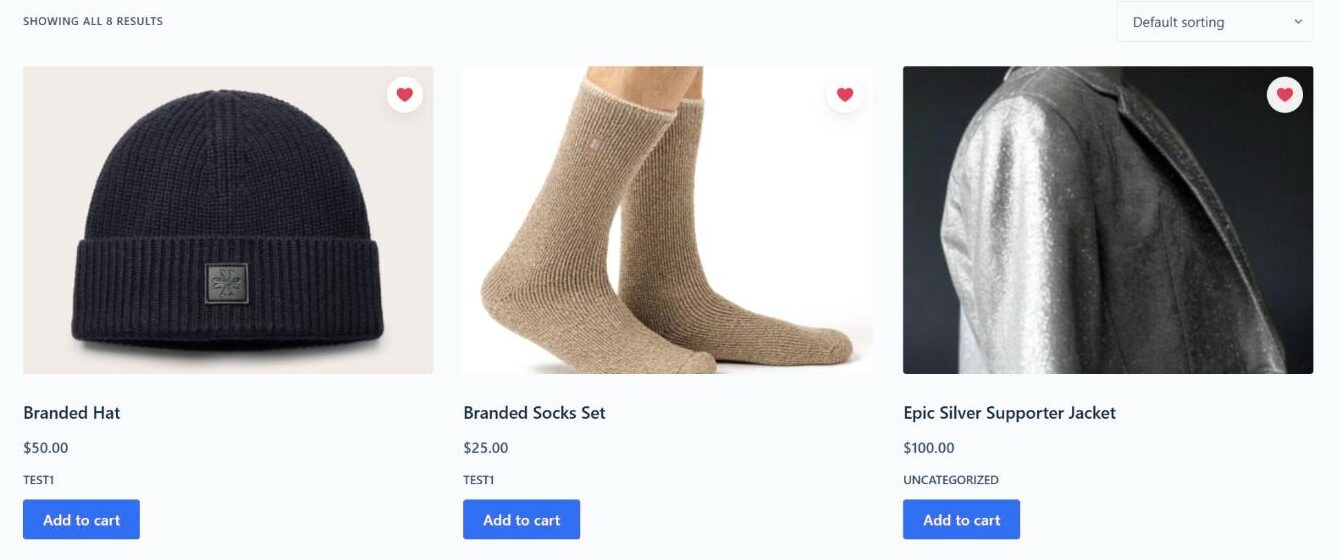
1. A wishlist button on every product
The button appears on product pages and on the product cards in your shop, category and tag pages. It is also added to the WooCommerce Product Collection and single product blocks automatically, so block themes get it with no extra setup.
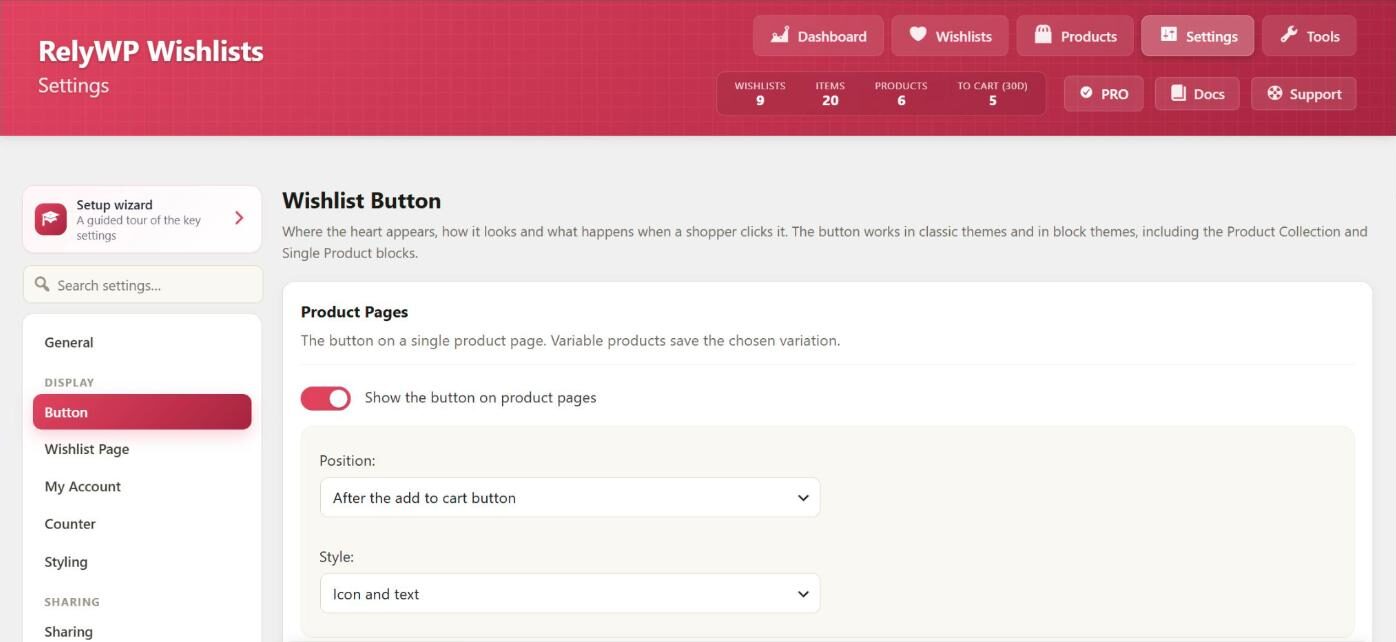
On product pages you can place it before or after the add to cart button, or after the product summary. In the shop you can show a round heart over the product image instead. Choose a heart, star or bookmark icon, show it as an icon, icon with text, text link or full button, and change the wording to suit your store. On variable products, the button saves the variation the shopper has picked, such as “Blue, Large”.
2. Guest wishlists that move into the account
Shoppers do not need an account to save something. A guest’s list is linked to a cookie in their browser and is kept for 30 days without activity by default, and you can change that number. When the guest logs in or registers, their saved items move into their account, and anything already on the account’s list is not added twice.
For trade or members-only stores, you can require shoppers to log in before they save anything. A logged-out shopper who clicks the heart is sent to the login page, and the product is saved as soon as they log in.
3. A wishlist page and a Wishlist tab in My Account
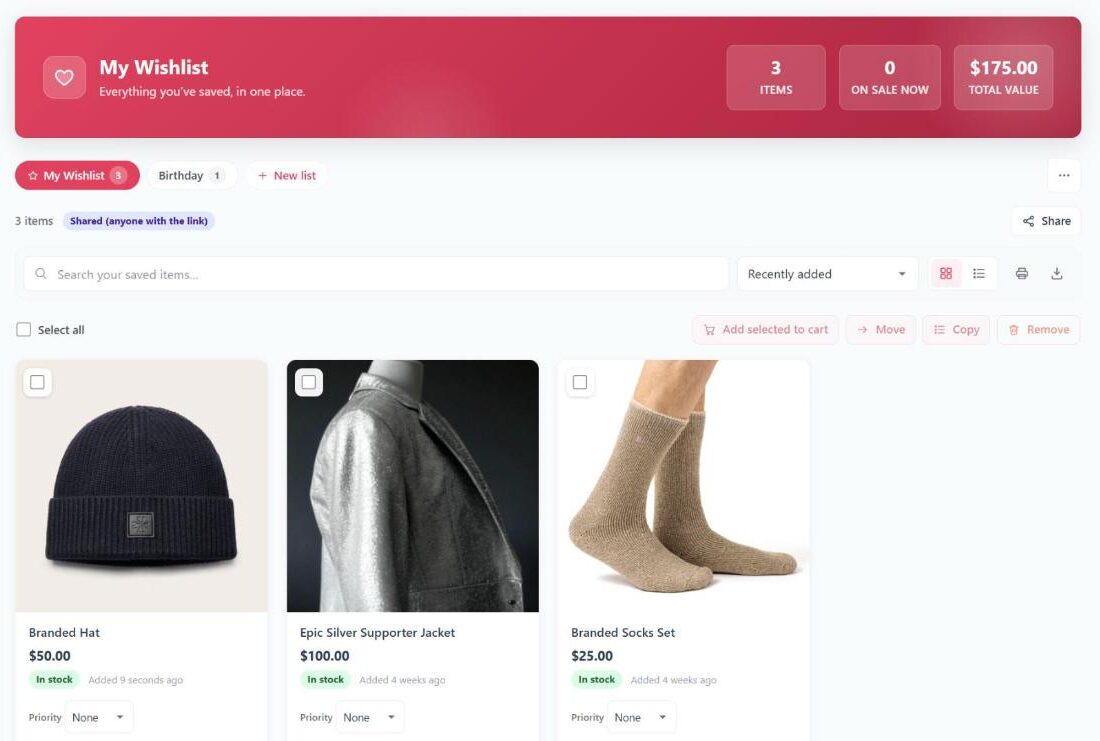
Saved items appear on a wishlist page, which the setup wizard creates for you, and under a Wishlist tab in My Account. Shoppers can switch between grid and table views, search and sort their list, and remove items with an undo option.
Each item shows its stock status and a badge with how much the price has gone up or down since it was saved. One item, a selection, or the whole list can go into the cart with a single click.
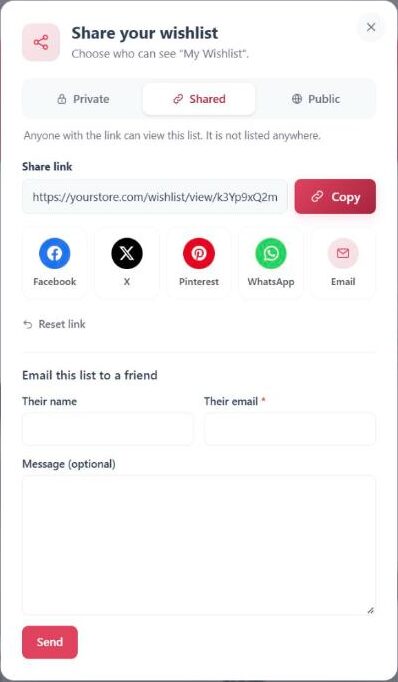
4. Sharing with friends and family
Each list can be private, shared with anyone who has the link, or public. Shoppers can copy the link or post it to Facebook, X, Pinterest, WhatsApp or email. They can also reset the link at any time, and the old one stops working.
The share buttons are plain links, so nothing loads from the social networks until someone clicks one. People who open a shared list see a read-only copy and can add items to their own cart. Shared lists are hidden from search engines by default. PRO adds a form for emailing a list to a friend straight from your store.
5. Header counter, floating heart and “people have saved this”
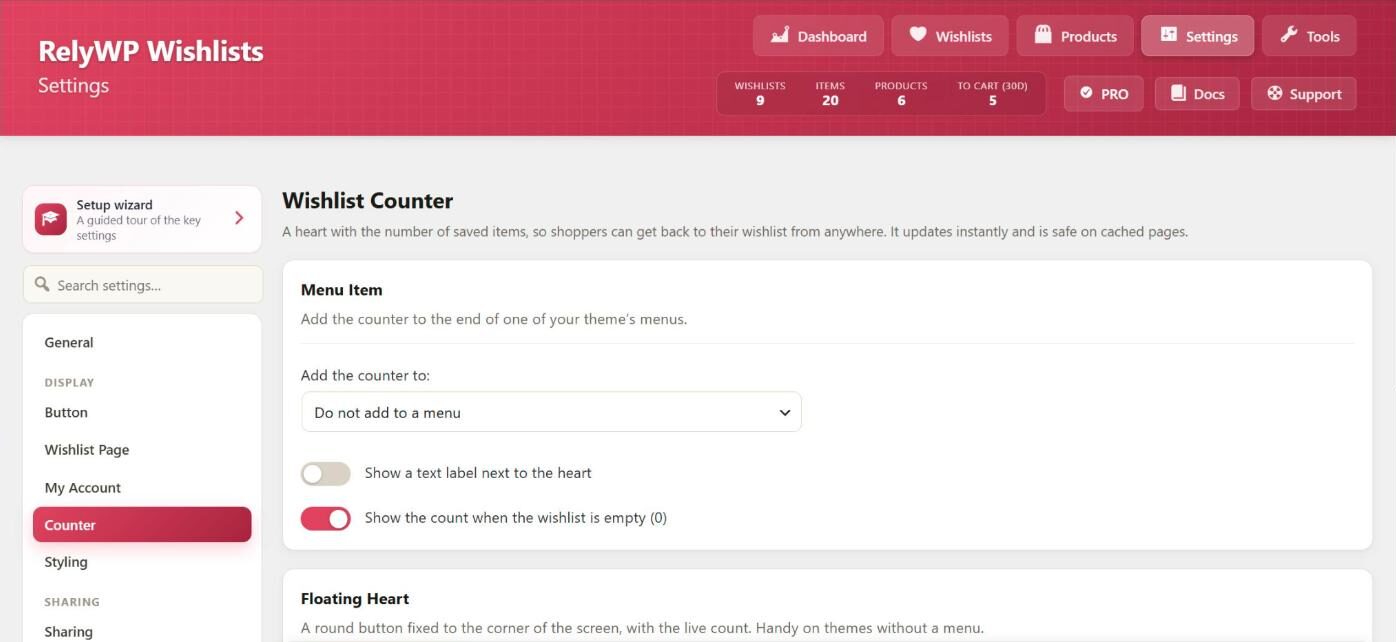
The counter is a heart with the number of saved items, linking to the wishlist. You can add it to one of your theme’s menus from the settings, or place it anywhere with a shortcode or block. There is also an optional floating heart in the corner of the screen. In PRO, the counter or floating heart can open a slide-out drawer with the most recent saved items instead of going to the wishlist page.
On product pages, you can also show how many people have saved a product, for example “12 people have saved this”.
6. See which products your customers want most
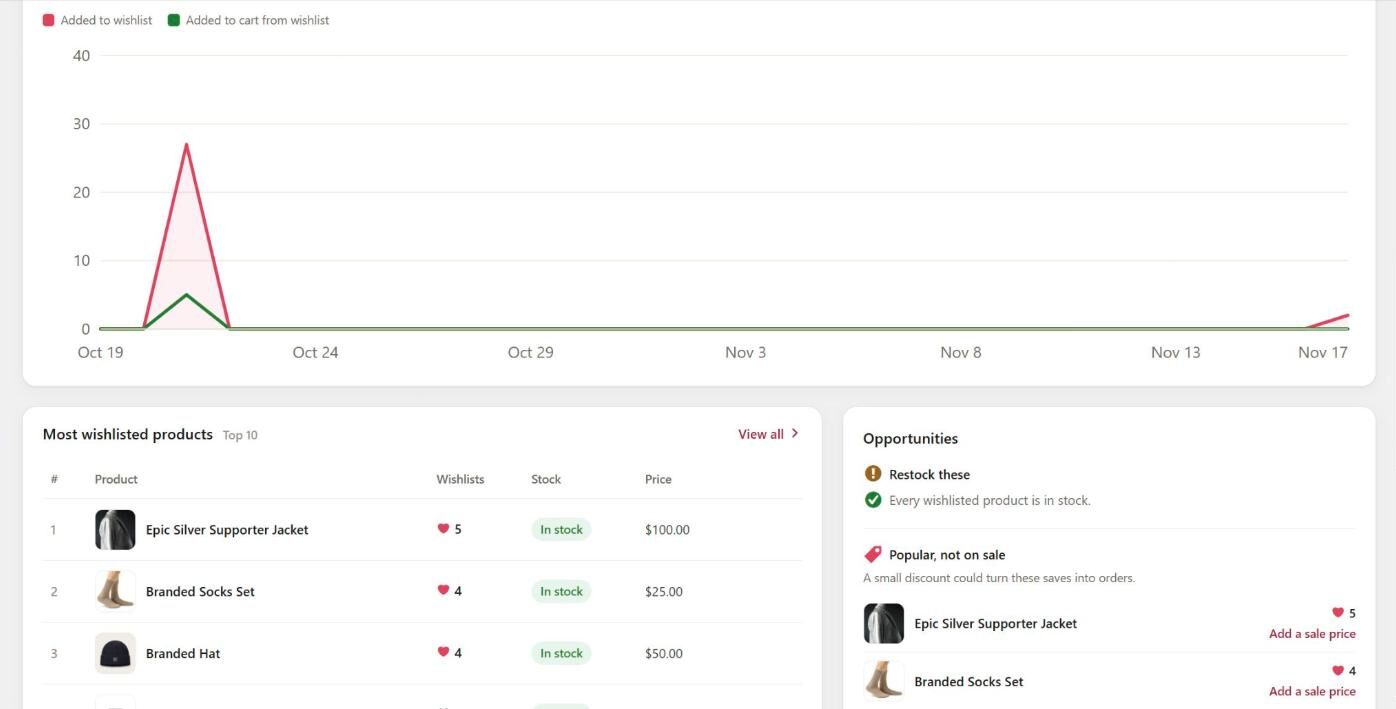
The dashboard under Wishlists › Dashboard shows your total lists and saved items, a 30-day chart of wishlist activity, and your most wishlisted products. It also lists products you could restock or put on sale, based on what people have saved.
The Products page shows every wishlisted product with its count, stock and price. On the Wishlists page you can open any customer’s list to see what they saved and what it cost at the time. Both pages export to CSV. PRO adds wishlist revenue, orders that included wishlist items and a conversion rate for each product to the dashboard.
7. Price drop and back in stock alerts (PRO)
In PRO, shoppers can get an email when something on their wishlist drops in price, goes on sale, comes back in stock or is running low. You choose which alerts to send, and you can set a minimum price drop (5% by default) so small changes do not trigger an email.
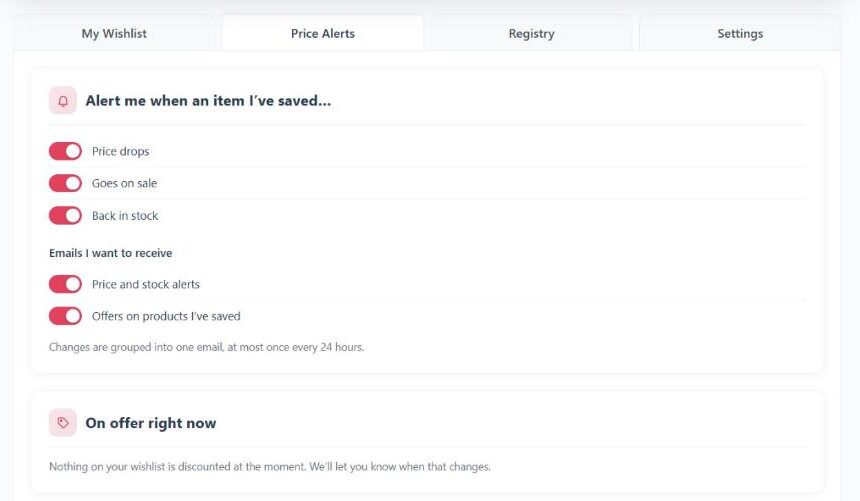
When several items change close together, they go out in one digest, with no more than one alert email every 24 hours by default. Customers choose which alerts they want from a Price Alerts tab in My Account, and every email has a one-click unsubscribe link. Alerts are for logged-in customers, since guests have no email address on file.
8. Reminder emails and wishlist campaigns (PRO)
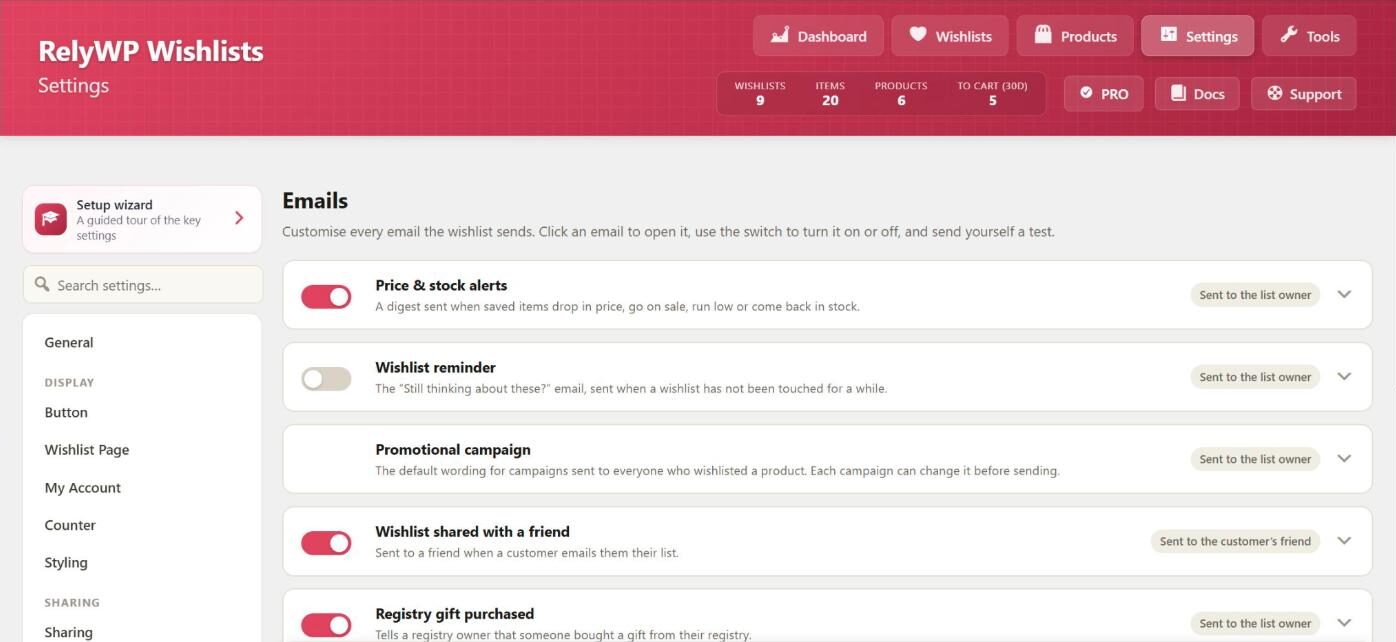
Reminder emails go to customers whose wishlist has not changed for a while (14 days by default) and show up to six of their saved items. You can include a personal coupon. Each one is a normal WooCommerce coupon that only that customer can use, once, with an expiry you set.
Campaigns start from a product. Pick one on the Wishlists › Products page, write your message, and every logged-in customer who saved that product gets an email, with their own single-use coupon for it if you want. You can preview the email and send yourself a test first, and large campaigns go out in batches in the background so your store does not slow down.
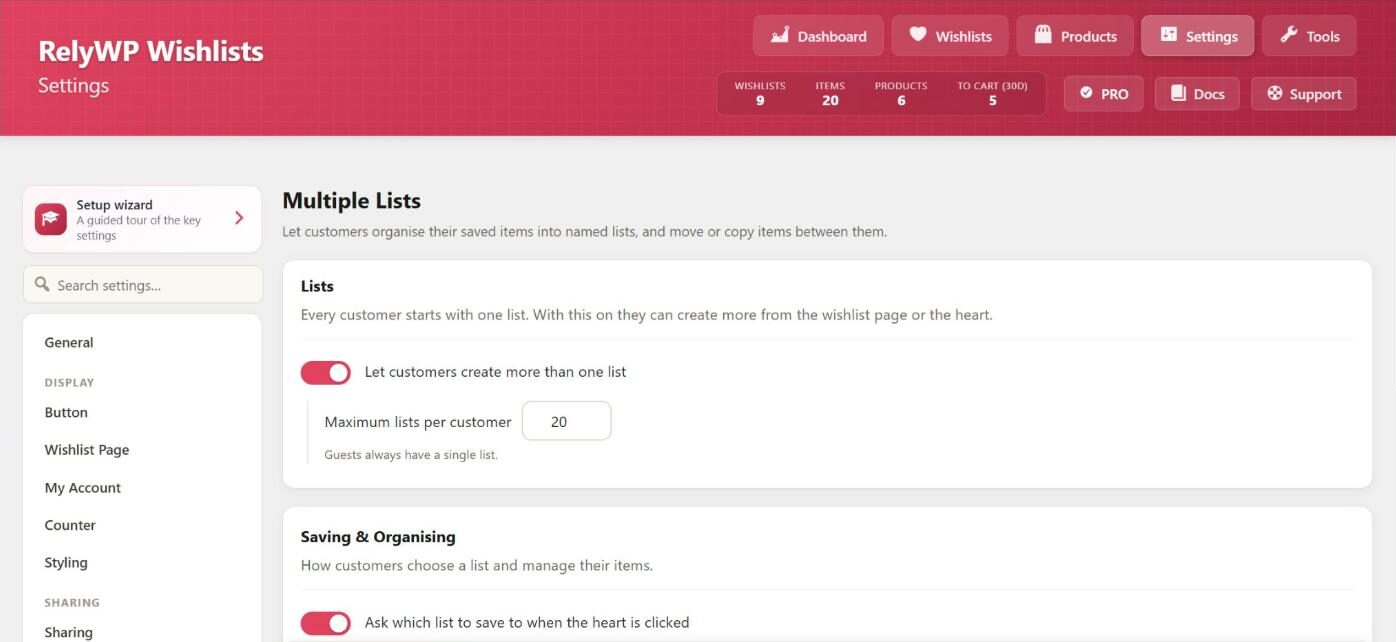
9. Multiple lists, item notes and save for later (PRO)
With multiple lists turned on, logged-in customers can keep separate lists such as “Birthday ideas” or “Kitchen”, pick a list when they click the heart, and move or copy items between lists. Each item can have a note, a priority and a desired quantity, and any list can be printed, saved as a PDF or downloaded as a CSV file.
Save for later adds a link to each cart item that moves it onto the wishlist, plus a panel under the cart for moving it back. It works in the classic cart and the Cart block. Customers can also send you their list as an estimate request, and you receive an email with the items, quantities and notes.
10. Gift registries (PRO)
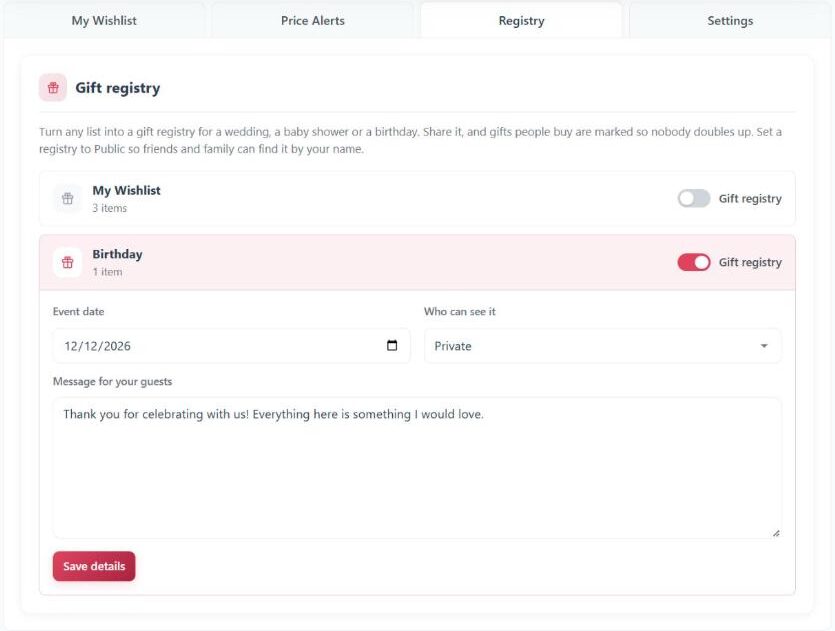
Any wishlist can become a gift registry for a wedding, baby shower or birthday. The owner sets an event date and a message for their guests, and can add a delivery address for gifts if you allow it.
When someone buys a gift from the registry and the order reaches processing or completed, the item is marked as bought (for example “Purchased 1 of 2”) and the owner gets an email. If the order is cancelled or fully refunded, the item goes back on the list. You can also add a registry search, so guests can find a public registry by its title or by the owner’s name or email address.
11. Works with our other plugins (PRO)
With Simple Points and Rewards active, each wishlist item can show how many points it earns, and you can award points the first time a customer shares a list. With Simple Store Credit active, the wishlist can show the customer’s store credit balance next to the wishlist total.
If you build your own email or SMS flows, PRO also adds wishlist triggers to FunnelKit Automations and AutomateWoo for when an item is added, when its price drops and when it comes back in stock.
12. Setup wizard and importing from another wishlist plugin
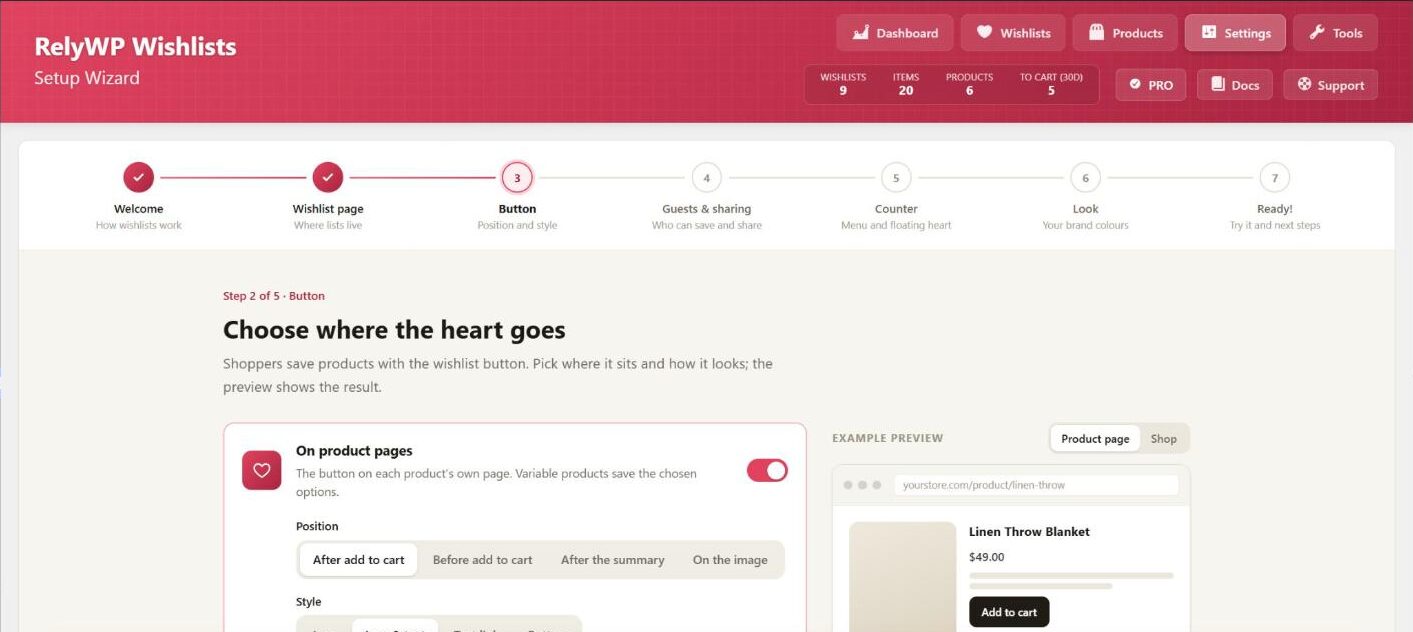
A setup wizard opens when you activate the plugin. It creates the wishlist page, places the button, sets up guests and sharing, adds the counter and sets your colours, with a live preview as you go. Every step comes with sensible defaults, and you can change any of it later under Wishlists › Settings.
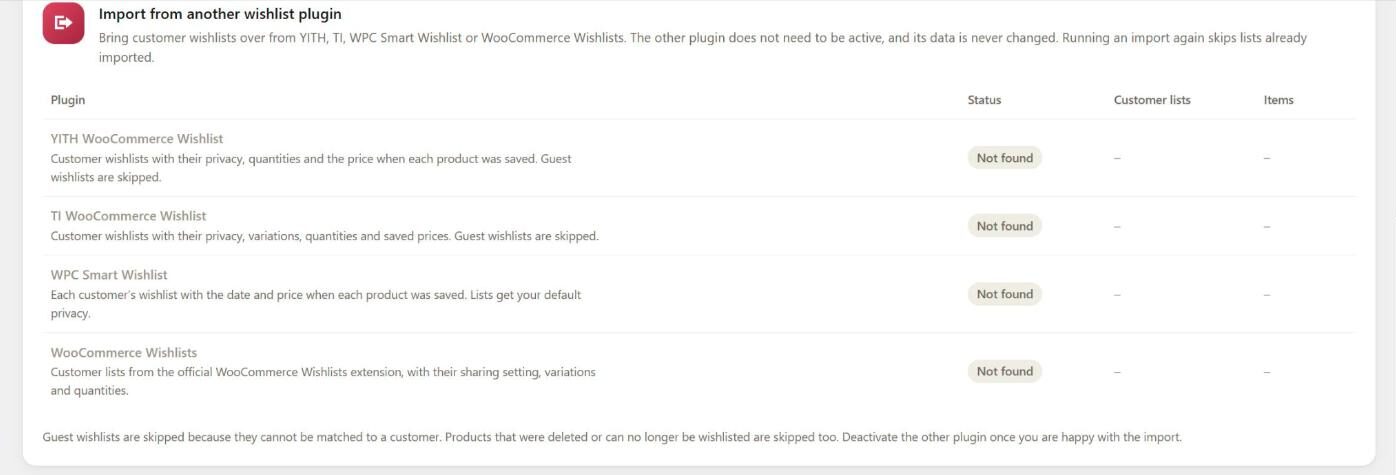
If you already use YITH WooCommerce Wishlist, TI WooCommerce Wishlist, WPC Smart Wishlist or the WooCommerce Wishlists extension, the import tool under Wishlists › Tools copies your customers’ lists across, including quantities and saved prices where the old plugin stored them. The old plugin does not need to be active, and its data is left unchanged. Run a preview first to see what will be imported. Guest lists are skipped, because they cannot be matched to a customer account.
Compatibility
Simple Wishlists works with block themes, High-Performance Order Storage and the block-based Cart and Checkout. The storefront script does not use jQuery, and the plugin works with full-page caching without any special setup. Buttons and counters are the same for every visitor, and each shopper’s saved items load with one small request, only for shoppers who have saved something. It supports WPML and Polylang, and every customer-facing template can be overridden in your theme. It needs WordPress 6.5 or newer, PHP 7.2 or newer, and WooCommerce 6.0 or newer.
50% off for launch
The free version includes the wishlist button, guest wishlists, the wishlist page and My Account tab, sharing, the header counter, the admin reports and the import tool. PRO adds price and stock alerts, reminder emails, campaigns, multiple lists, gift registries, save for later and sales reports for your wishlists.
Use the code LAUNCH50 for 50% off your first payment on any PRO plan, until 2 December. There is a 7 day free trial to start with, and a 14 day money-back guarantee after that.
The documentation covers setup, each settings tab and the developer hooks, with troubleshooting articles for problems such as a missing button or a counter that does not update. If something is not behaving, start there. Otherwise open a ticket and we will take a look.

Grow your WooCommerce store
Our plugins are trusted on 248,000+ WordPress sites.
7-day free trial on any pluginBF2026 30% off your first payment

Turn coupon codes and referral links into an affiliate program.

Reward customers with points they can spend on future orders.
Also: Store Credit · Wishlists · Customer Reports
Comments