






WooCommerce doesn’t have a cashback feature. To offer one, you need a plugin that pays a percentage of each order back to the customer as store credit, which they can spend on their next order. With Simple Store Credit that takes a few minutes: turn on cashback, set a rate, choose what it’s calculated from, and decide when it lands in the customer’s account.
Below we go through that setup step by step. Most mistakes happen in the refund and tax settings, so those get extra attention, and there’s a section on picking a rate that won’t eat into your margin. We make Simple Store Credit, and cashback is one of its PRO features. If you’d rather use something else, there’s a short section on other plugins near the end.
In this guide
- What cashback means in a WooCommerce store
- How to set up cashback in WooCommerce
- Give more or less cashback on certain orders
- Set cashback to expire
- Running cashback alongside a points program
- How much cashback to offer
- Other ways to offer cashback in WooCommerce
- FAQ
What cashback means in a WooCommerce store
In a store, cashback almost never means actual cash. It means a customer places an order, and some time after it’s paid a slice of what they spent goes back into their account as store credit. They see the balance under My Account and can put it toward their next order at checkout.
The difference from a discount is timing. A discount takes money off the order in front of you. Cashback gives the customer a reason to place another one, and you only pay for it when they do.
Say a customer spends $80. A 10% discount takes $8 off that order straight away. 10% cashback charges them the full $80 and gives them $8 of credit instead, which only turns into a cost if they come back and spend it. If they do come back, you’ve made a second sale.
It’s also simpler for customers than points. There’s no conversion rate to work out, because the credit is already in their own currency: “you earned $4.20” needs no explaining.
How to set up cashback in WooCommerce
These steps use Simple Store Credit. The free version gives every customer a store credit balance and lets you refund orders into it. Cashback needs PRO, which has a 7-day free trial.
Step 1: Install Simple Store Credit and turn on cashback
Install the free plugin from WordPress.org, then add the PRO license.
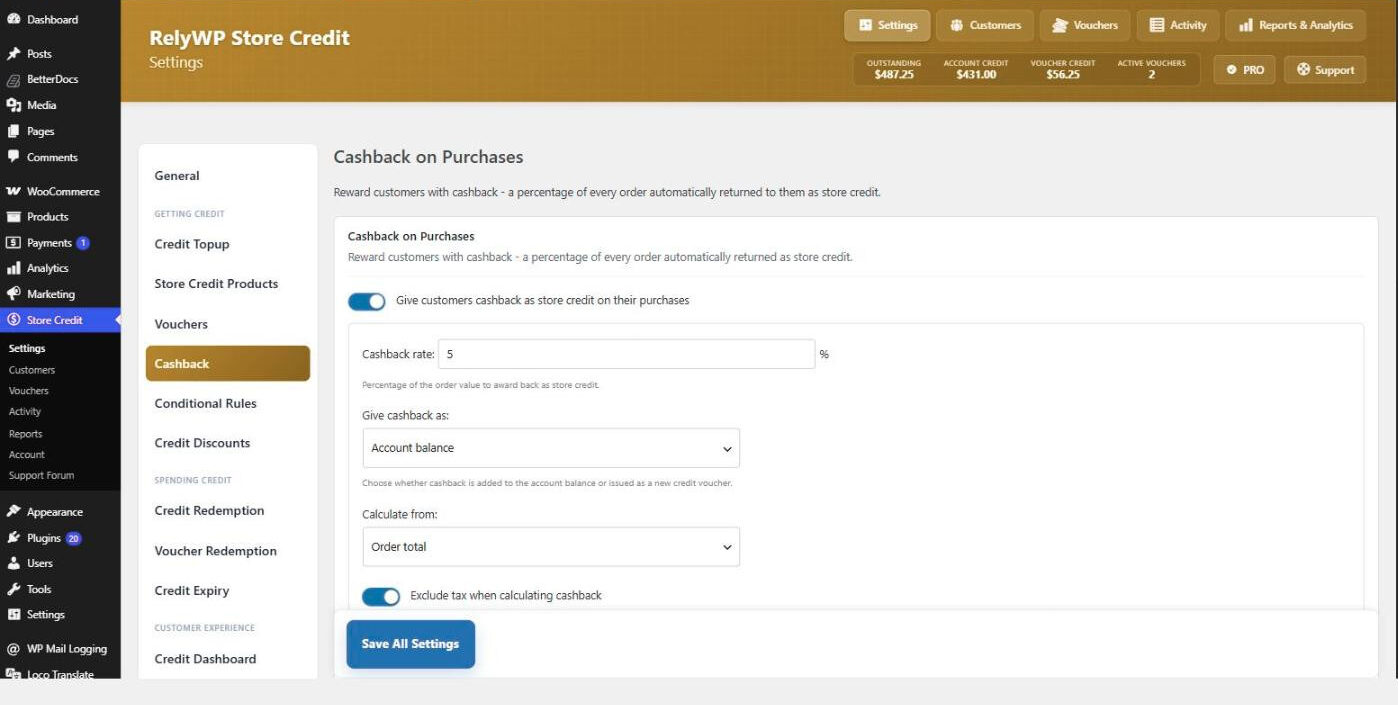
Go to Store Credit › Settings › Cashback and switch on Give customers cashback as store credit on their purchases.
Step 2: Set the rate and how cashback is paid
Three settings decide the basic deal:
- Cashback rate: the percentage of each order that comes back as credit.
- Give cashback as: added to the customer’s account balance, or issued as a new credit voucher. The account balance is easier for customers because it’s there at checkout without a code. A voucher is useful if you want each order’s cashback to have its own code and expiry.
- Calculate from: the order total or the order subtotal.
Step 3: Decide what cashback is calculated on
Four exclusions are switched on by default, and for most stores they should stay that way:
- Exclude tax when calculating cashback. You don’t keep the tax, so there’s no reason to reward it.
- Exclude shipping when calculating cashback. Shipping is usually a cost you pass on, not margin.
- Exclude store credit spent from cashback. Without this, a customer earns cashback on money you already gave them.
- Exclude store credit purchases (top-ups & gift cards) from cashback. Otherwise someone could buy $100 of credit, earn cashback on it, and repeat.
For example, say a customer’s order total is $100, made up of $84 of products, $6 shipping and $10 tax. With a 5% rate and the default exclusions, cashback is worked out on the $84, so they earn $4.20. Turn the tax and shipping exclusions off and the same order earns $5.00.
Step 4: Add a cap and a minimum order
Maximum cashback per order stops one large order from generating a balance you’d rather not carry. Minimum order total to earn keeps cashback off small orders, which also gives customers a nudge to add one more item. Leave either at 0 for no limit.
Step 5: Choose when cashback is awarded
Award cashback when can be set to Order processing or Order completed. Processing gets credit to the customer faster. Completed is safer if you sell things that are often returned, because the customer can’t spend cashback on an order that hasn’t arrived yet.
Whichever you choose, keep Remove earned cashback if the order is refunded or cancelled switched on. A refund removes the matching share of the cashback. If the customer has already spent it, the difference is recorded against their account and taken from the next credit they earn, so a refund can’t be used to walk away with free credit.
Only award cashback on new orders is on by default. It means orders placed before you switched cashback on won’t suddenly start paying out.
Step 6: Show customers what they’ll earn
Cashback only changes behavior if people know about it. Turn on Show customers the cashback they will earn on their order and a message appears in the cart totals, the checkout summary, the credit redemption tool and the order confirmation page. You can edit the wording and use {amount} and {rate} in it, for example “Earn {amount} back in store credit on this order.”
Step 7: Place a test order
Log in as a customer (cashback needs an account, so guest orders don’t earn it), place an order and move it to the status you picked in step 5. Check the credit appears under My Account, then refund part of the order and make sure the right amount is taken back. If something doesn’t add up, the cashback troubleshooting guide lists every setting that can stop an order earning.
Give more or less cashback on certain orders
One rate for everything is a good start, but you’ll probably want exceptions, like nothing on clearance stock or a higher rate for your best customers. That’s what Store Credit › Settings › Conditional Rules is for.
Each rule has a context (earning credit, in this case), a condition and an action. Conditions can match specific products or categories, customer roles or individual customers, the order total or number of items, or the payment method. For earning, the actions are to set a different rate, multiply the rate, add a fixed bonus, or give no credit at all.
Some examples:
- Customer role is “wholesale”: multiply the rate by 2.
- Product category is “Clearance”: do not award credit.
- Order total is over $150: add a fixed $5 bonus on top of the normal cashback.
The conditional rules documentation covers the spending side too, such as capping how much of a cart credit can pay for.
Set cashback to expire
Expiry is optional, but credit with a deadline tends to get spent sooner. The settings are under Store Credit › Settings › Credit Expiry.
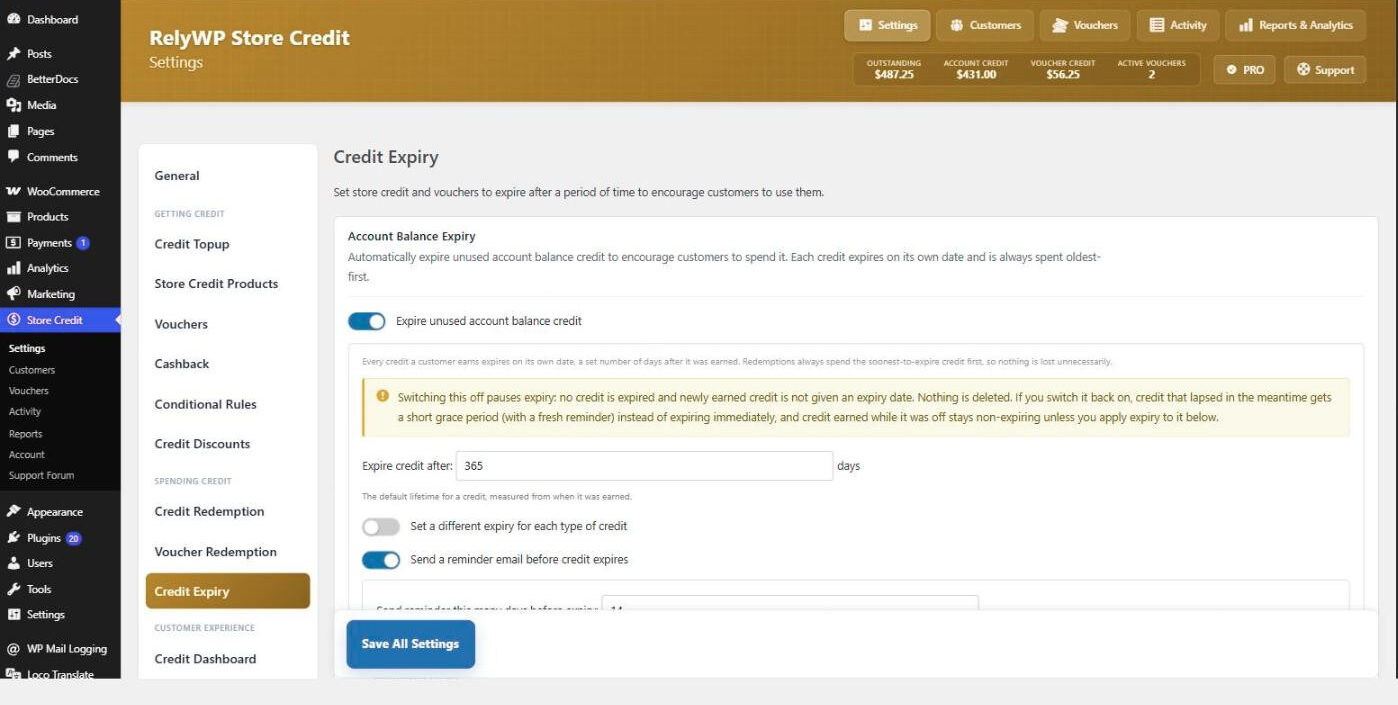
Every piece of credit gets its own expiry date, 365 days after it was earned by default, and customers always spend the credit that expires soonest first. The useful part for cashback is Set a different expiry for each type of credit. It lets you give cashback a shorter life, say 90 days, while credit a customer paid for, like a top-up, never expires. Enter 0 for any type you want to keep forever.
Turn on Send a reminder email before credit expires as well. The default is 14 days’ notice, which gives customers time to come back and spend it.
Running cashback alongside a points program
If you already run Simple Points and Rewards, the two plugins connect automatically, and there’s one decision to make: should a single order earn points, cashback, or both?
The setting is When an order could earn both points and cashback, in the Simple Store Credit tab of Points and Rewards. It defaults to earning both. The alternatives are no cashback on orders where points were redeemed, or no points at all while cashback is on. Points discounts and reward vouchers can also be kept out of the cashback calculation, so a discount you paid for with points doesn’t earn cashback as well.
Loyalty levels can include a cashback multiplier too, so customers at a higher level earn more cashback on the same order. The Points and Rewards 2.3.0 release notes go through all of this.
How much cashback to offer
Plan as though every customer will spend their cashback, even though some won’t. At 5%, a $60 order commits you to $3 of future discount. If your margin on that order is $18, you’re giving away a sixth of your profit to earn the next visit.
For a benchmark, loyalty platform Nector suggests that a reward rate of 1% to 3% is sustainable for most direct-to-consumer brands, and that going much above 5% starts to look more like discounting than loyalty. That’s written about points programs, but the math is the same for cashback.
Start at the low end across the board, then use conditional rules to go higher where it pays, such as high-margin products or bigger orders. It’s much easier to raise a rate later than to cut one customers are used to.
Other ways to offer cashback in WooCommerce
Simple Store Credit isn’t the only option. A few others that can pay cashback:
- TeraWallet: a free wallet plugin with cashback rules by cart total, product or category in the free version. Credit expiry needs Pro.
- Account Funds: a paid plugin from Kestrel on WooCommerce.com with percentage or fixed cashback and eligibility rules.
- Smart Coupons: handles cashback as a store credit coupon attached to a product, which the customer receives after buying it.
We compared these and more in our roundup of the best WooCommerce store credit and wallet plugins.
FAQ
Does WooCommerce have cashback built in?
No. WooCommerce has coupons, but nothing that gives a customer part of their order back after they’ve paid. You need a plugin that adds a store credit balance and pays cashback into it.
Is cashback paid as real money?
In most WooCommerce setups, no. It’s store credit, which customers can only spend in your store. For the store owner, that’s the point: the money stays in your store, and the customer has to come back to use it.
Do guest customers earn cashback?
Not with Simple Store Credit, because cashback is added to a customer account. That’s worth mentioning at checkout, since “create an account to earn 5% back” is a good reason for a guest to sign up.
What happens to cashback when an order is refunded?
With the refund setting on, the cashback for that order is taken back in proportion to the refund. If the customer has already spent it, the shortfall is taken from the next credit they receive.
Can I offer cashback on specific products only?
Yes, with conditional rules. You can set a higher rate for particular products or categories, or block cashback on the ones you don’t want to reward.
Should I give cashback or points?
Cashback is simpler to explain and quicker to feel rewarding, because the value is already in money. Points give you more room for extras like levels, referral bonuses and rewards for reviews. You can run both, and the settings above stop a single order from being rewarded twice. If you choose points, our guide to creating a loyalty program in WooCommerce covers the setup.
Summary
A cashback program comes down to a handful of settings: a modest rate, the default exclusions left on, refunds set to take cashback back, and a message at checkout so customers know what they’re earning. Once that’s running, conditional rules and a short expiry on cashback are where you can tune it. If you want to try it, Simple Store Credit PRO has a 7-day free trial, and the full list of cashback options is in the cashback documentation.

Our plugins
Grow your WooCommerce store
Affiliates, loyalty points, store credit, tax exemption and more – trusted on 248,000+ sites.
Comments