






A listen button on your posts lets readers play an article while they commute, cook or work, and it helps anyone who finds long pages of text hard going. Recording audio yourself takes hours. Generating it with AI takes a minute or two per post.
Our AI Text to Speech plugin does this with OpenAI’s text-to-speech voices. You click a button in the post editor, it creates an MP3 of the post, and an audio player appears at the top of the article. The free version on WordPress.org covers everything in this guide except the features marked PRO.
What you need before you start
- An OpenAI API key. The plugin sends your text to OpenAI using your own key, so you need an OpenAI account with billing set up.
- A small budget for usage. OpenAI bills you for what you generate. The plugin estimates the cost at about $0.012 per 1,000 characters with the default model, so a typical 1,500-word post comes to roughly 10 cents. It shows the estimate before you generate anything, and your OpenAI dashboard shows the actual charge.
How to generate audio for a WordPress post
- Install the plugin. Go to Plugins › Add New Plugin, search for “AI Text to Speech”, then install and activate it. You can also download it from WordPress.org.
- Add your OpenAI API key. Create a key in your OpenAI account and paste it into the plugin’s settings page. If you’d rather keep it out of the database, you can store it in wp-config.php instead.
- Open a post and save it. The plugin reads the saved version of the post, so save any recent changes first.
- Pick a voice. Find the AI TTS box in the editor sidebar and choose a voice, plus a style if you’re using the default model. It shows the character count and estimated cost for the post.
- Click Generate TTS. Keep the page open while it runs. Short posts take a few seconds. Long posts are sent in several parts and can take a minute or more.
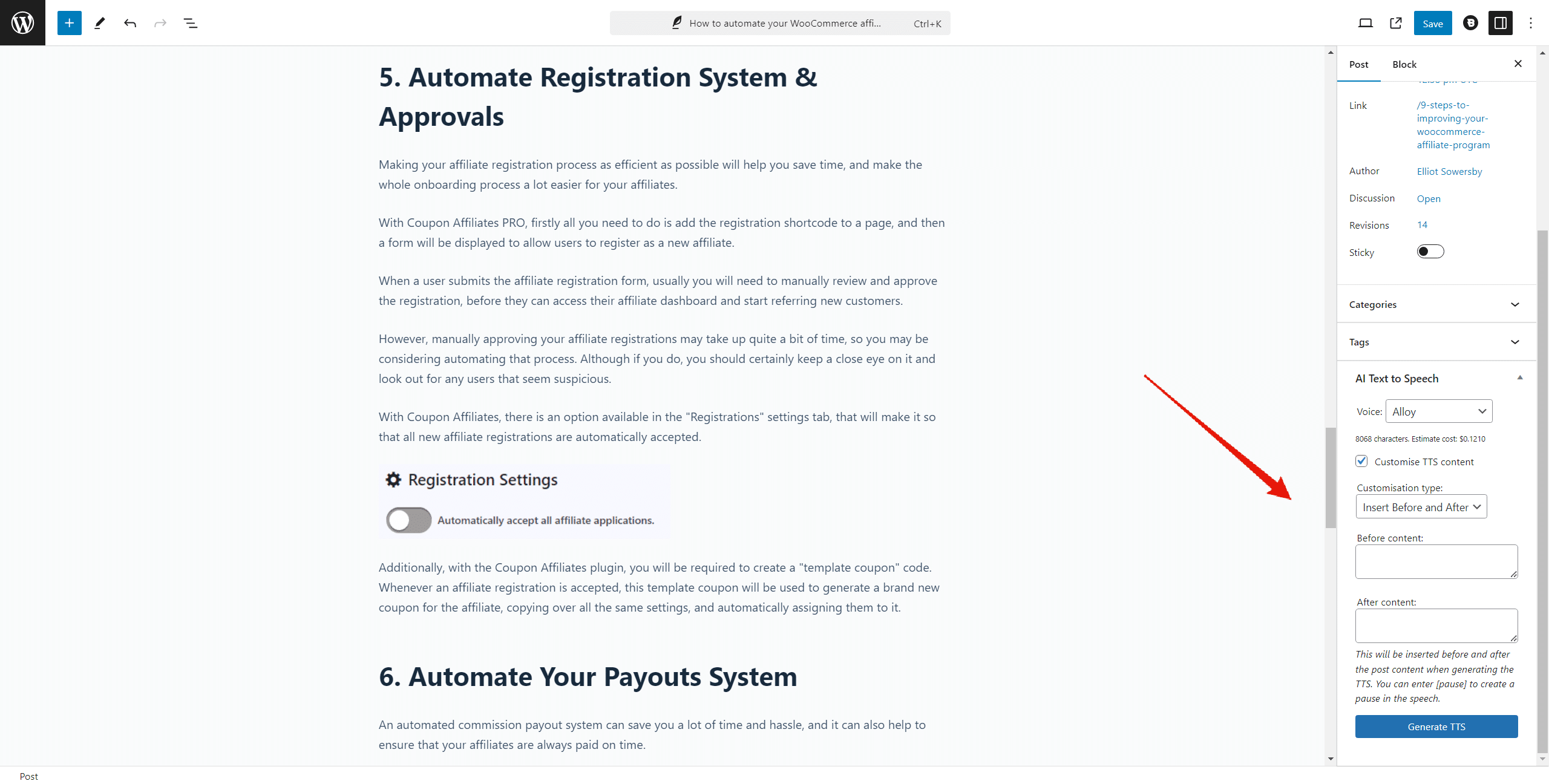
Once it finishes, the box shows a preview player, the file size and the file’s address, and the audio player goes live at the top of the post. If you edit the post later, click Generate New under the preview to create a fresh file. The old audio stays in place until the new one is ready.

Choosing a voice and model
There are 13 voices: Marin, Cedar, Alloy, Ash, Ballad, Coral, Echo, Fable, Nova, Onyx, Sage, Shimmer and Verse. The easiest way to choose is to generate the same short paragraph with two or three of them, using the Generator page, and listen back.
You can pick between two OpenAI models:
- GPT-4o mini TTS (the default) works with all 13 voices and supports voice styles. The plugin estimates its cost at about $0.012 per 1,000 characters.
- TTS-1 is OpenAI’s older model. The plugin estimates it at about $0.015 per 1,000 characters. It has no style support, and doesn’t work with the newest voices (Ballad, Verse, Marin and Cedar).
Styles change how the voice delivers the text, such as a calm narration or a news-report tone. The free version has 5 styles. PRO has 26, and lets you write your own instructions, for example asking for a particular accent, pace or mood.
There is no language setting. Write the post in any of the 50+ languages OpenAI supports and it is read in that language. The voices are tuned mainly for English, so it is worth listening to a sample if you publish in another language.
Other options in the free version
- Title, author and date: choose whether the audio starts by reading out the post title, author name and publish date.
- Player position: the player appears at the top of the post automatically, or you can place it anywhere with the
[ai_tts_player]shortcode. - Post types and user roles: limit which post types get audio and which user roles can generate it.
- Your own audio: upload a recording for any post instead of generating one.
- Generator page: turn any text into an MP3 without creating a post, which is handy for testing voices.
- TTS Files page and request log: play, download, search and delete every audio file, and see your recent requests to OpenAI.
What PRO adds
- Automatic audio on publish: audio is created as soon as you publish a post, so you don’t have to remember.
- Pronunciation fixes: tell it how to say brand names, acronyms and tricky words.
- Intros and outros: add spoken text before or after every audio file, such as a sponsor message or sign-off, or customise the text for a single post.
- More control over what is read: skip text with
[tts ignore], replace it with[tts say], and switch voices part-way through a post with[voice]. - More voice styles: 26 presets plus your own custom instructions, and a default voice for new posts.
- Player styling: set the player’s accent and background colours, its height and the default playback speed.
- Listening statistics: views, plays and listening time across your site and for each post.
- Dropbox storage: save audio files to Dropbox instead of your own server.
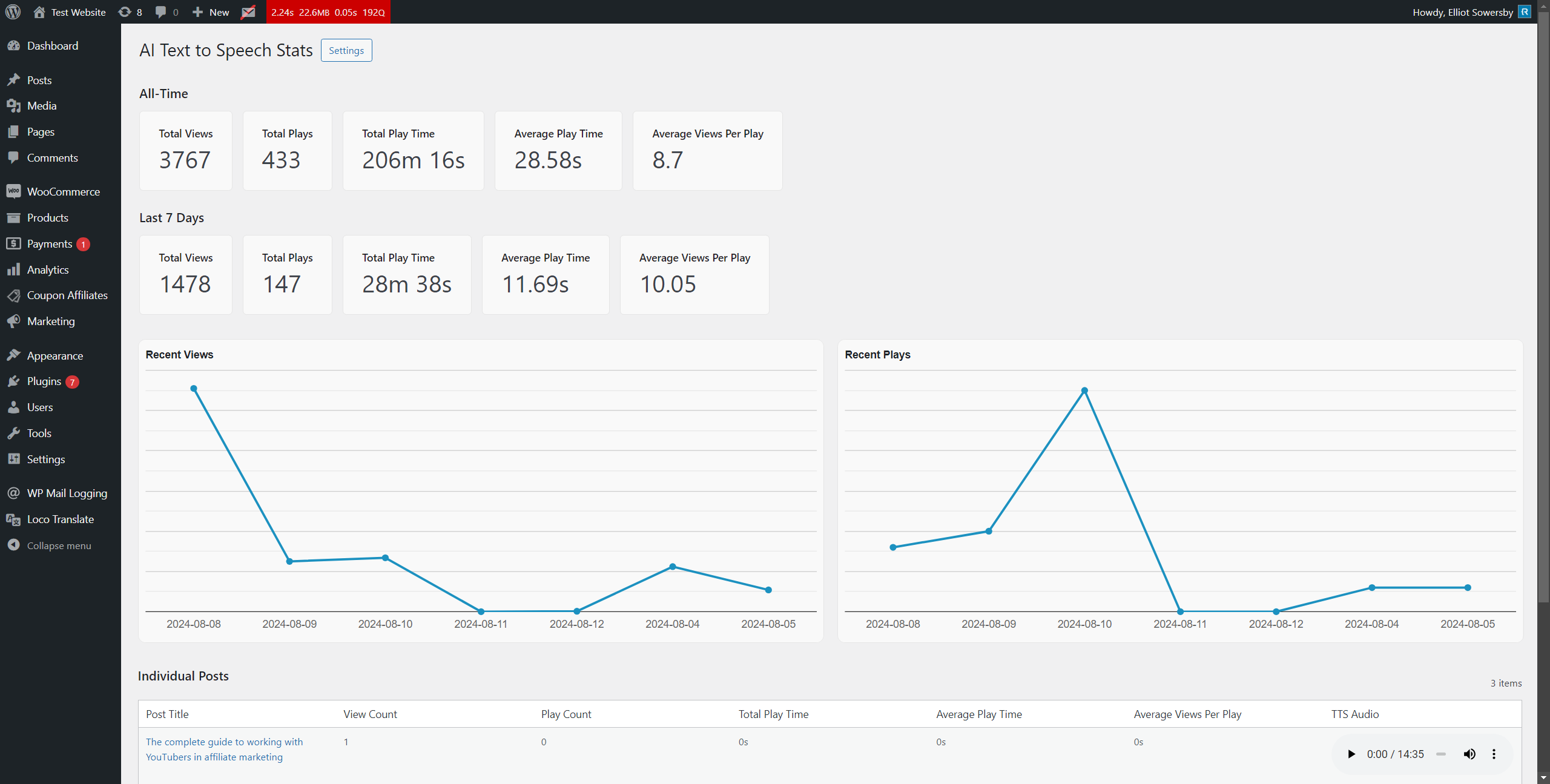
PRO costs $59 a year or $149 for a lifetime licence for one site, with unlimited use and a 14-day money-back guarantee. Your OpenAI usage is billed separately by OpenAI in both versions. The full list is on the AI Text to Speech plugin page, and there is a free and PRO comparison in the docs.
Common questions
Does the audio update when I edit a post?
No. The audio is a file created at the time you generate it. After you edit a post, click Generate New in the AI TTS box to replace it.
Where are the audio files stored?
As MP3 files in an ai-text-to-speech folder inside your site’s uploads folder, unless you switch on Dropbox storage in PRO.
The audio reads out things it shouldn’t. How do I fix it?
The docs have a guide to audio that skips content or reads things wrongly, covering links, captions and mispronounced words. The full AI Text to Speech documentation covers every setting.
Are there other text to speech plugins for WordPress?
Yes. If you want a hosted service, free browser voices with no API key, or voices from a provider other than OpenAI, our comparison of the best text to speech plugins for WordPress covers six options, including their prices and free plans.
Getting started
Install the free version, add your OpenAI key and generate audio for one of your most-read posts. It costs a few cents, and you’ll hear straight away whether the voices suit your site. If you want audio added automatically, pronunciation fixes or listening stats, AI Text to Speech PRO adds them to the same editor box.

Our plugins
Grow your WooCommerce store
Affiliates, loyalty points, store credit, tax exemption and more – trusted on 248,000+ sites.

Comments