






A tax toggle is a switch on your shop that lets visitors choose whether prices are shown including or excluding VAT. Business buyers usually compare prices without VAT, because they can reclaim it, while consumers expect to see the full price. WooCommerce can only show one or the other to everyone, so a toggle needs a plugin.
This guide covers a free way to show both prices without a plugin, then how to add a proper toggle with Tax Exemption for WooCommerce PRO. We make that plugin, and the toggle is a paid feature, so there’s also a section on free toggle plugins that may be all you need.
In this guide
- Do you need a tax toggle?
- Can you show prices without VAT?
- Show both prices without a plugin
- How to add a tax toggle in WooCommerce
- Other tax toggle plugins
- FAQ
Do you need a tax toggle?
A toggle helps when the same shop sells to both trade customers and the public. A builder’s merchant that also serves the public is a typical example, as is a supplier that sells to schools and charities as well as to individuals. Each group can see prices the way they think about them, and nobody has to work out VAT in their head.
If you only sell to consumers, you don’t need one: show prices including VAT. If you only sell to businesses, you can set WooCommerce to show prices excluding tax everywhere and skip the toggle. In the US, shops normally show prices before sales tax anyway, because the rate depends on where the order is delivered, so a toggle is mostly useful for UK, EU and Australian stores.
Can you show prices without VAT?
For consumers in the UK, the answer is no, not as the main price. The Price Marking Order 2004 says a trader offering a product to consumers has to show its selling price, and defines the selling price as the final price “including VAT and all other taxes”. The EU Price Indication Directive uses the same definition.
A toggle fits within this as long as the price a consumer sees first includes VAT, and switching to prices without VAT is their own choice. So keep the default set to prices including tax unless you only sell to businesses. We’re not lawyers, so if you’re unsure how the rules apply to your store, check with an adviser.
Show both prices without a plugin
If you don’t need a switch, WooCommerce can already show both prices side by side. Go to WooCommerce › Settings › Tax (tax calculations need to be switched on under WooCommerce › Settings › General for this tab to appear). The Price display suffix field adds text after every product price, and it accepts two placeholders: {price_including_tax} and {price_excluding_tax}.
For example, with Display prices in the shop set to “Including tax”, a suffix of inc. VAT ({price_excluding_tax} ex. VAT) shows a £120.00 product as “£120.00 inc. VAT (£100.00 ex. VAT)”.
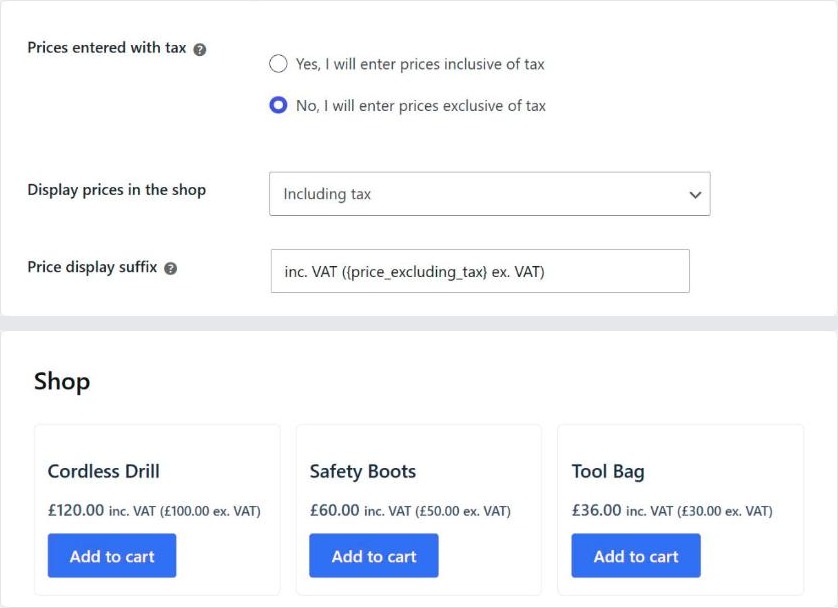
This costs nothing and needs no extra code, but every price on the page appears twice, which makes busy shop pages harder to read. Leave Prices entered with tax, Display prices in the shop and Display prices during cart and checkout on matching settings. WooCommerce shows a warning when they don’t match, because mixing them can cause rounding differences.
How to add a tax toggle in WooCommerce
These steps use the Price Display tab in Tax Exemption for WooCommerce PRO, added in version 3.1.0. The free version on WordPress.org doesn’t include it.
Step 1: Check your WooCommerce tax settings
A toggle can only show a price without tax if WooCommerce knows the tax. Check that Enable tax rates and calculations is ticked under WooCommerce › Settings › General, that your rates are set up under WooCommerce › Settings › Tax, and that your products have their tax status set to “Taxable”.
Step 2: Install Tax Exemption for WooCommerce PRO
Install the free plugin from WordPress.org, then upgrade to PRO from inside the plugin or from the plugin page. Go to Tax Exemption › Settings and open the Price Display tab.
Step 3: Switch on ex-tax prices for exempt customers
The toggle is part of the price display settings, so the first option on the tab has to be on before the toggle will work. Turn on Show Ex-Tax Prices To Exempt Customers. Customers whose tax exemption is approved and in date then see prices without tax across the shop, so the price they browse matches the price they pay. You can also set:
- Apply To: “Shop and product pages”, or the same plus cart and checkout totals, which shows tax as a separate line instead of inside each price. The amount payable doesn’t change.
- Ex-Tax Price Label: text shown after prices without tax, such as “(ex. VAT)”.
- Explanatory Notice: a short message for exempt customers above the shop listing and on product pages. The default reads “Prices are shown excluding tax, based on your tax exemption.”
Step 4: Turn on the price toggle
Under Price Toggle, turn on Show Price Toggle and choose how it looks:
- Location: shop, archive and product pages (the default), shop and archive pages only, product pages only, or “Shortcode only” if you want to place it yourself.
- Style: a toggle switch or a pair of buttons.
- Default: what a visitor sees before choosing. Leave this on “Prices including tax” if you sell to consumers in the UK or EU.
- Toggle Labels: the words on the switch. The defaults are “Inc. tax” and “Ex. tax”, so change them to “Inc. VAT” and “Ex. VAT” if you prefer.
- Inc-Tax Price Label: text shown after prices while the toggle is on including tax, such as “(inc. VAT)”.
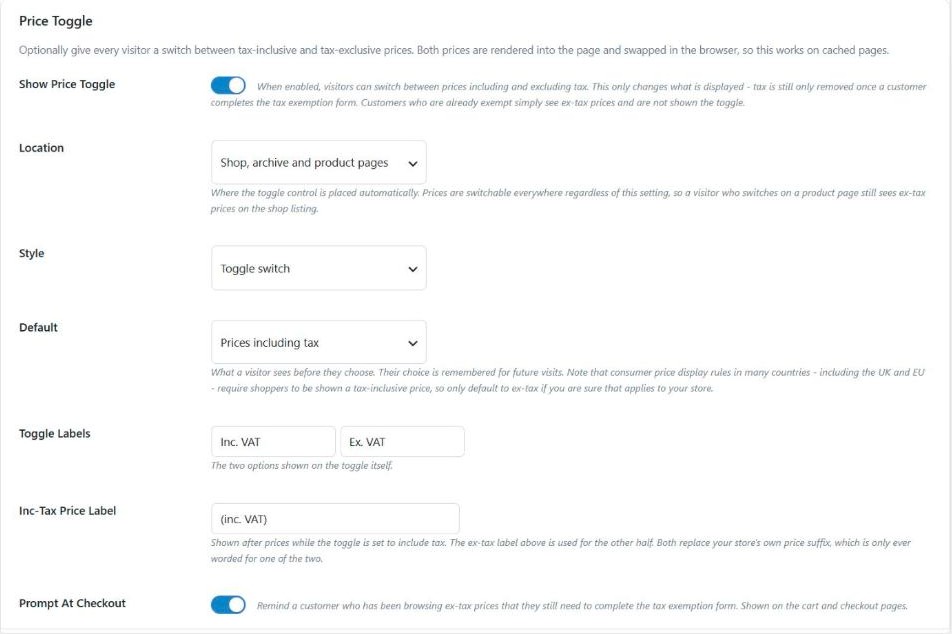
Visitors’ choices are remembered, so a trade customer who switches to prices without VAT keeps seeing them on later visits. The plugin puts both prices into the page and swaps them in the browser, so the toggle works with full-page caching. Customers who are already exempt don’t see the toggle, because they always get prices without tax.
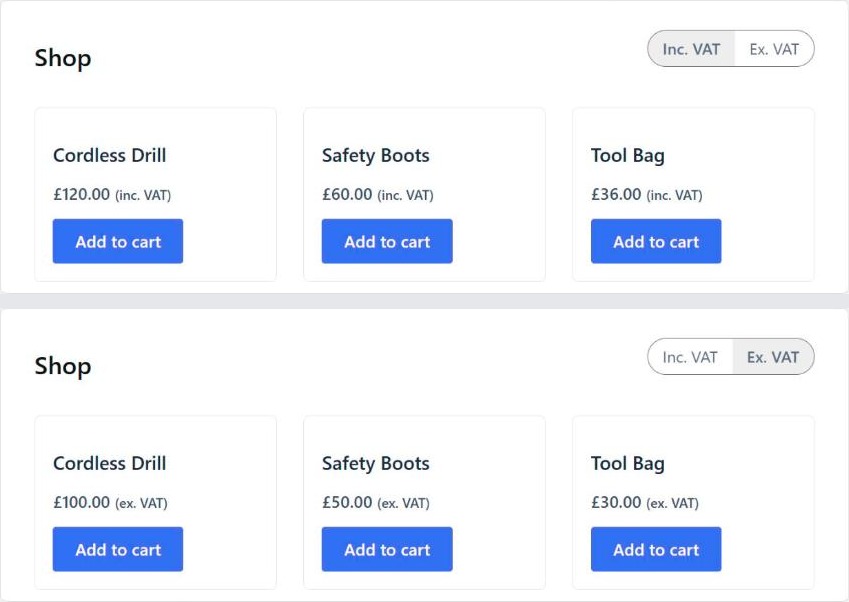
To place the toggle somewhere else, such as your header or a landing page, use the [tefw_price_toggle] shortcode. If your theme builds the shop page with blocks and the toggle doesn’t appear above the products, add the shortcode there with a Shortcode block.
Step 5: Remind customers at checkout
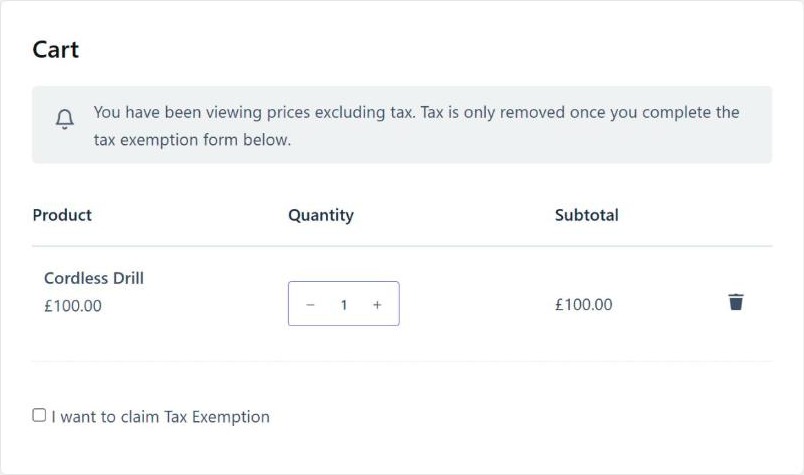
A toggle only changes how prices are displayed. A trade customer who browsed prices without VAT still pays VAT until they claim tax exemption. Turn on Prompt At Checkout to show them a reminder on the cart and checkout. The default message reads: “You have been viewing prices excluding tax. Tax is only removed once you complete the tax exemption form below.”
If your business customers can buy without VAT, for example with a VAT number or a charity exemption, our guide to WooCommerce tax exempt plugins covers how that part works.
Step 6: Test it as a visitor
Open your shop in a private browser window, so you’re not logged in. Check that prices first appear including VAT, switch the toggle and check the prices change on the shop and product pages, then reload the page to check your choice was kept. Finally, add a product to the cart and look for the checkout reminder.
Other tax toggle plugins
If all you want is the switch, and you don’t need tax exemption for business customers, a free plugin may be enough. These were checked on 18 October 2026:
- Tax Switch for WooCommerce is free, with 1,000+ active installs and a 5-star rating from 27 reviews on WordPress.org. It has a Gutenberg block, a
[wdevs_tax_switch]shortcode, a switch or buttons, and remembers each visitor’s choice. It needs PHP 8.0 or newer. - Toggle Tax For Woocommerce is also free and adds a floating toggle button to the side of the site, which also shows or hides tax on the cart page. It has 100+ active installs and hasn’t been updated since May 2025.
- WooCommerce Tax Toggle on CodeCanyon costs $29 for a regular licence. It has a floating button, a shortcode, a widget and a block, and a 3.48 rating from 27 reviews.
- Full B2B plugins such as B2BKing include a tax toggle alongside wholesale pricing and trade accounts.
Here’s how they compare with WooCommerce’s own price suffix and Tax Exemption PRO:
| Option | Price | Visitors can switch | Shows both prices at once | Tax exemption at checkout |
|---|---|---|---|---|
| WooCommerce price display suffix | Free (built in) | No | Yes | No |
| Tax Switch for WooCommerce | Free | Yes | Yes | No |
| Toggle Tax For Woocommerce | Free | Yes | Not listed | No |
| WooCommerce Tax Toggle (CodeCanyon) | $29 | Yes | Not listed | No |
| Tax Exemption for WooCommerce PRO | $79/year | Yes | No | Yes |
Tax Exemption PRO costs $79 a year or $239 for a lifetime licence for one site. That’s more than a free toggle, so it makes sense when you also want business customers to claim exemption at checkout, with their VAT or registration number checked. If you only need the switch, start with Tax Switch for WooCommerce.
FAQ
Does a tax toggle change what customers pay?
No. It only changes how prices are shown. Customers pay VAT unless your store removes it at checkout, for example after a customer claims tax exemption. With Tax Exemption PRO, the checkout reminder in step 5 makes this clear to customers who browsed prices without VAT.
Can I show prices without VAT by default?
Only if you sell just to businesses. UK and EU rules require consumers to be shown prices including VAT. A trade-only store can set Display prices in the shop to “Excluding tax” in WooCommerce and doesn’t need a toggle at all.
Will a tax toggle work with page caching?
It depends on the plugin. If the server decides which price to show, a cached page shows every visitor the same version. Tax Exemption PRO puts both prices in the page and switches between them in the browser, so it works with full-page caching. For other plugins, check their documentation and test with your cache plugin switched on.
Can business customers see prices without VAT automatically?
Yes, with Tax Exemption PRO. Once a customer’s exemption is approved, they see prices without tax across the shop without using the toggle. Our price display documentation lists every setting.
Summary
If your shop sells to both businesses and consumers, a tax toggle lets each group see prices the way they expect. WooCommerce’s price display suffix can show both prices for free, and a free plugin such as Tax Switch for WooCommerce adds a basic switch. If you also want trade customers to claim tax exemption, Tax Exemption PRO combines the toggle with exemption at checkout.
Whichever you use, keep the default view including VAT if consumers buy from you, and test the shop logged out before you go live.

Our plugins
Grow your WooCommerce store
Affiliates, loyalty points, store credit, tax exemption and more – trusted on 248,000+ sites.

Comments