






WooCommerce Analytics is good at store totals. Its Customers report will tell you how many orders someone has placed and how much they have spent in total, but not much else. You can’t see which products one customer keeps coming back for, how they pay, which coupons they’ve used, or whether they are overdue for their next order.
That is the gap our Advanced Customer Reports plugin fills. It adds a full report for any single customer, and the same report across your whole store. The core reports are free on WordPress.org, and the PRO version adds health scores, segments and suggested next steps for each customer.
This guide covers how to create a report, what each part of it shows, and what PRO adds on top.
How to create a customer report in WooCommerce
- Install the plugin. In your WordPress admin, go to Plugins › Add New Plugin, search for “Advanced Customer Reports”, then install and activate it. You can also download it from WordPress.org. WooCommerce needs to be active.
- Open the reports screen. Go to WooCommerce › Customer Reports.
- Find the customer. Type a name, email address, username or customer ID into the search box and pick them from the suggestions.
- Click Generate Report. The report opens on the same screen, usually in well under a second.
- Narrow it down if you need to. Use the filters to limit the report to a period or an order status. The free version offers All Time, This Month and Last Month, for either all orders or completed orders only. PRO adds This Year, Last Year and custom date ranges, and lets you filter by any order status.
There are two other ways in. Every row in the customers list below the search box has a View Report button, and there is a Customer Report column on the Users › All Users screen too.
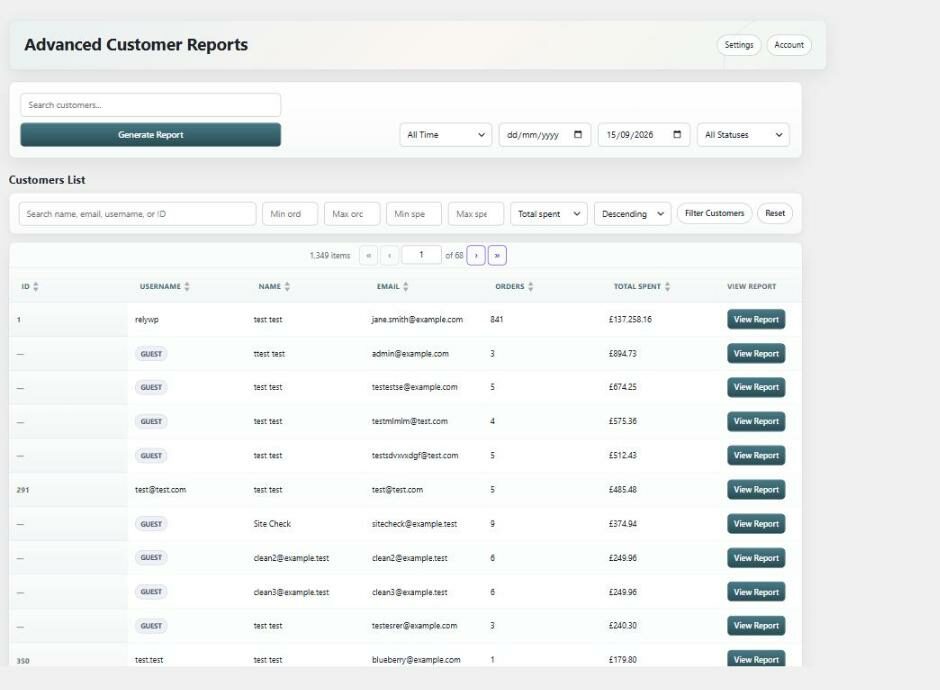
Guest customers are included. Anyone who checked out without an account is matched by their billing email, so they show up in search and in the customers list once they have placed an order. Each report also has its own web address, so you can bookmark it or send it to someone on your team.
What a customer report shows
The top of every report has nine headline figures for the orders that match your filters:
- Total orders, total spent and total items
- Time since their last order
- Largest and smallest order
- Average order value, average time between orders, and average items per order
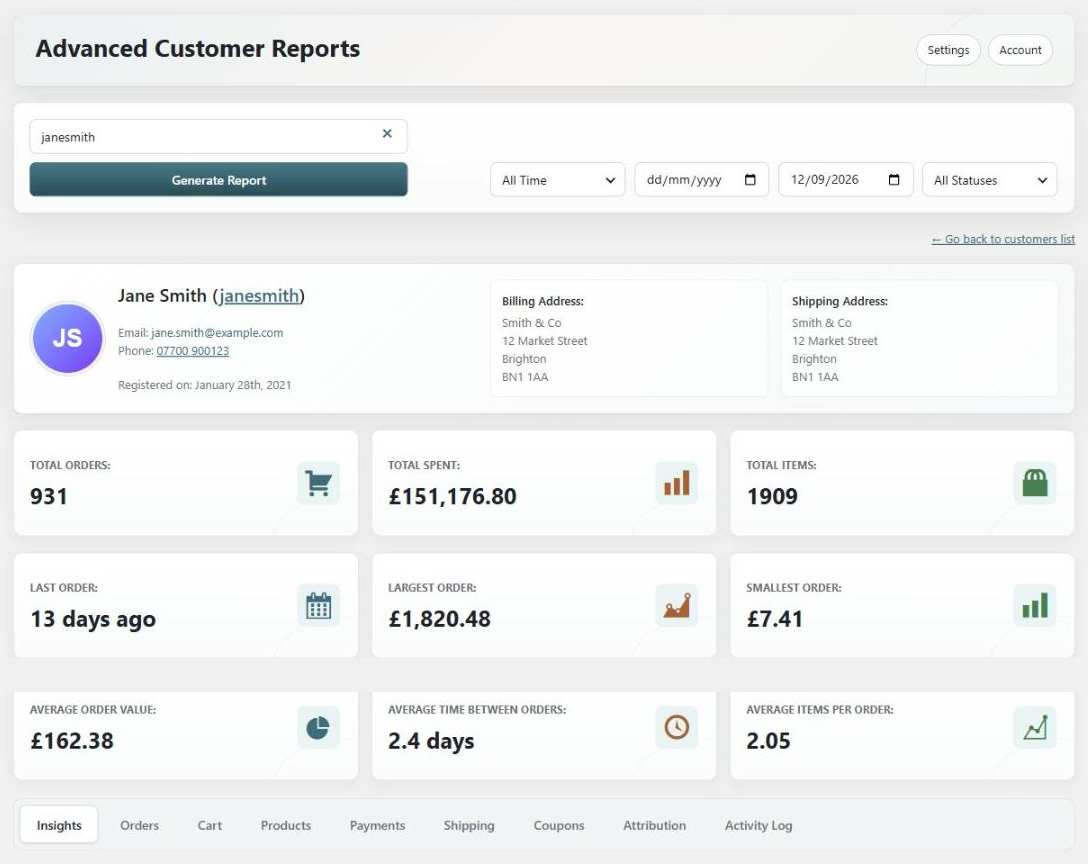
Below the figures, the report is split into tabs:
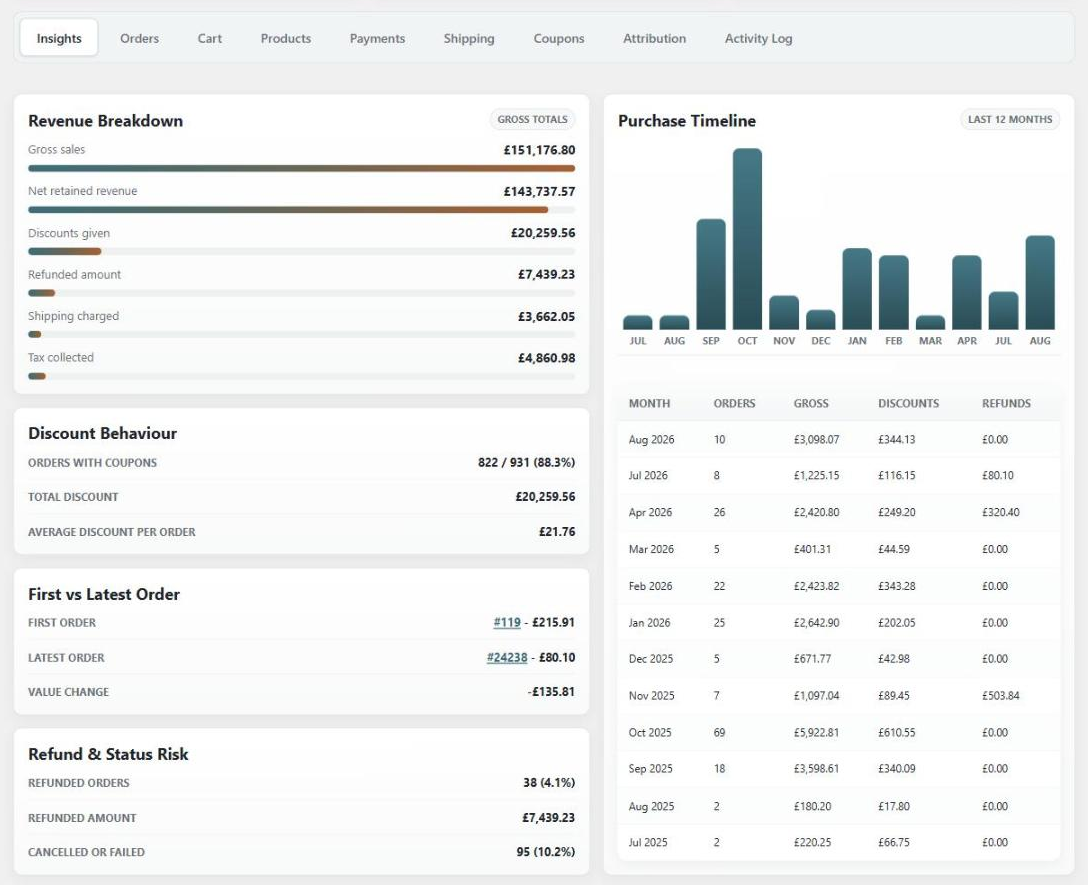
- Insights: a revenue breakdown (gross sales, discounts, refunds, shipping and tax), a chart of their spend month by month over the last year, their first order next to their latest one, and how many of their orders were refunded or cancelled.
- Orders: every order they have placed with its status, totals, discounts and shipping, plus recent order activity such as status changes and failed payments.
- Products: everything they have bought, how many times and how much they spent on it, and the categories they buy from most.
- Payments and Shipping: the payment methods they use, every shipping address on file, and the shipping methods they pick.
- Coupons: every coupon they have redeemed, how often, and how much discount they have had in total.
- Attribution: how they first found you and what brings them back, from referrers, landing pages and device type.
Reports for your whole store
Leave the customer field empty and click Generate Report, and you get the same report across every customer at once. It is a quick way to see your store’s overall revenue breakdown, payment and shipping mix, and coupon use in one place.
The customers list underneath can be sorted and filtered by number of orders and amount spent, which is the fastest way to find your biggest customers or everyone who has only ordered once. In PRO, the product affinity section also shows which products tend to be bought together, for one customer or across the store.
What PRO adds: health scores, segments and next steps
The free reports tell you what a customer has done. PRO uses those numbers to tell you where they stand and what to do next.
Health score and segments
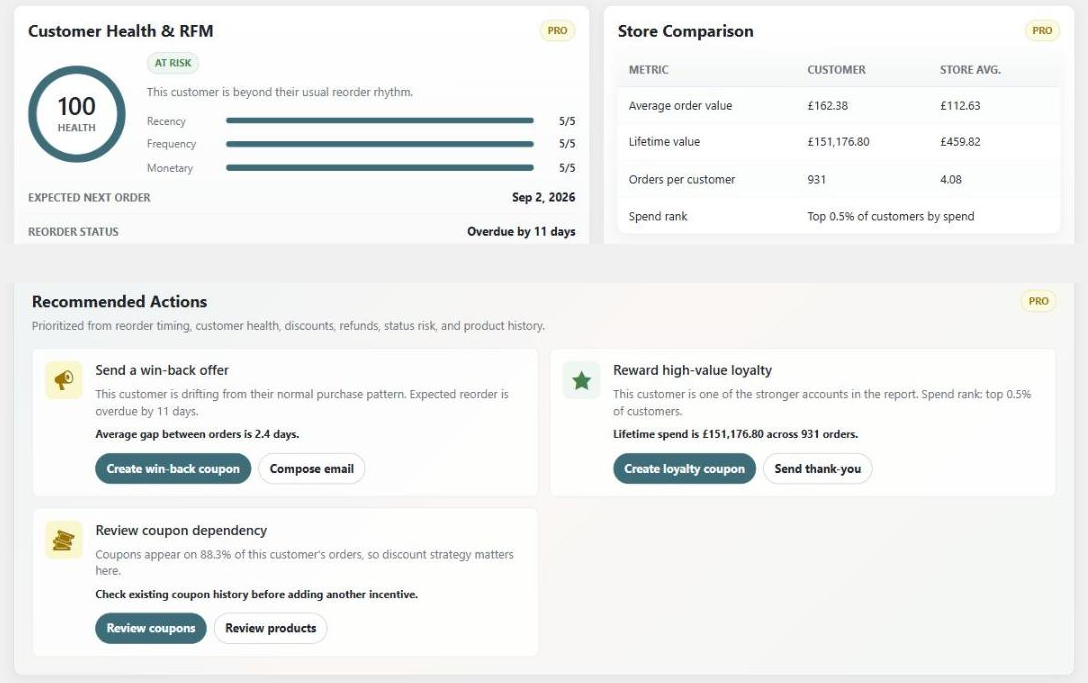
Each customer gets a health score made up of how recently they ordered (40%), how often they order (30%) and how much they spend compared with your average customer (30%). That score, along with a few simple rules, puts them into a named segment:
- VIP and Loyal for your highest-scoring customers (VIP also needs at least three orders)
- Active for customers with a steady history
- New Customer for a first order in the last 45 days
- At Risk when the gap since their last order is well past their usual gap
- Dormant when they haven’t ordered for over a year
- Discount Driven when they use a coupon on 60% or more of their orders
- Needs Review when 30% or more of their orders were refunded
For anyone with two or more orders, the report also predicts when their next order is due: their last order date plus their average gap between orders. Once that date has passed, the report marks them as overdue.
Store benchmarks
Each customer is compared with your store averages for order value, lifetime value and orders per customer, along with where they rank by total spend.
Recommended actions, coupons and emails
The report turns all of this into a short, prioritised list of next steps, such as a win-back offer for a lapsed customer, a nudge towards a second order, or a loyalty reward for a regular. You can create the matching coupon for that customer in one click, and the plugin checks for an existing one first so you don’t end up with duplicates. You can also write and send them a follow-up email from the report, starting from a template for each action.
Everything else in PRO
- Current cart: the products the customer has in their cart right now, and whether the cart is active, idle or abandoned.
- Activity log: recent logins, orders, failed payments, coupons applied, and address or password changes on their account.
- Campaign attribution: the UTM campaigns, sources and mediums behind their orders.
- Next best products: products worth suggesting to them, based on what they already buy.
- CSV export: download a customer’s full order list or order notes as a spreadsheet.
PRO costs $39 a year or $99 for a lifetime licence for one site (prices in USD, excluding VAT), with a 14-day money-back guarantee. There is a full feature and pricing breakdown on the plugin page.
Common questions
Will it slow down a large store?
Where possible, reports are built from the WooCommerce Analytics tables rather than by loading every order, so they stay quick on large stores. Very large histories are capped at the most recent 10,000 orders per report, and the report tells you when that happens.
Why don’t the totals match WooCommerce Analytics exactly?
The two count some things differently, such as which order statuses are included and how refunds are handled. The docs explain why report totals can differ from Analytics.
Where can I find more help?
Every tab and setting is covered in the Advanced Customer Reports documentation. For the free version, you can also ask in the WordPress.org support forum.
Getting started
The quickest way to see what the reports show is to install the free version and open a report for one of your regular customers. If you want the health scores, segments and next steps as well, Advanced Customer Reports PRO adds them to the same screen.

Our plugins
Grow your WooCommerce store
Affiliates, loyalty points, store credit, tax exemption and more – trusted on 248,000+ sites.


Comments